-
![]()
Joey Albert
Joey has been involved with tech ever since she joined the EaseUS editor team in March 2011 and now she is a senior website editor. She is good at solving various issues, such as video downloading and recording.…Read full bio -
![]()
Alin
Alin is a sophisticated editor for EaseUS in tech blog writing. She is proficient in writing articles related to screen recording, voice changing, and PDF file editing. She also wrote blogs about data recovery, disk partitioning, data backup, etc.…Read full bio -
Jean has been working as a professional website editor for quite a long time. Her articles focus on topics of computer backup, data security tips, data recovery, and disk partitioning. Also, she writes many guides and tutorials on PC hardware & software troubleshooting. She keeps two lovely parrots and likes making vlogs of pets. With experience in video recording and video editing, she starts writing blogs on multimedia topics now.…Read full bio
-
![]()
Gorilla
Gorilla joined EaseUS in 2022. As a smartphone lover, she stays on top of Android unlocking skills and iOS troubleshooting tips. In addition, she also devotes herself to data recovery and transfer issues.…Read full bio -
![]()
Rel
Rel has always maintained a strong curiosity about the computer field and is committed to the research of the most efficient and practical computer problem solutions.…Read full bio -
![]()
Dawn Tang
Dawn Tang is a seasoned professional with a year-long record of crafting informative Backup & Recovery articles. Currently, she's channeling her expertise into the world of video editing software, embodying adaptability and a passion for mastering new digital domains.…Read full bio -
![]()
Sasha
Sasha is a girl who enjoys researching various electronic products and is dedicated to helping readers solve a wide range of technology-related issues. On EaseUS, she excels at providing readers with concise solutions in audio and video editing.…Read full bio
Page Table of Contents

Dawn Tang
Updated on Jan 21, 2026
0 Views |
0 min read
Who Is Vex the Siren?
Vex the Siren is one of the four playable Vault Hunters in Borderlands 4, the chaotic action-RPG looter shooter known for its wild humor and over-the-top combat. Cynical, sharp-tongued, and effortlessly powerful, Vex channels supernatural phase energy to amplify her attacks or summon spectral creatures to fight by her side.
As the new Siren of the series, she embodies Borderlands' trademark mix of mystery and madness — from unleashing a massive spectral feline to sprouting fiery, demonic wings mid-battle. She is mainly voiced by:
- Judy Alice Lee-English
- Honoka Kuroki-Japanese

If you're a fan of her metal-as-hell style and want to bring that same energy to your own content, this post introduces a Vex voice changer that lets you mimic her distinctive tone for skits, fan edits, voice messages, streaming, or video calls — perfect for anyone looking to sound like Pandora's most magically unhinged hero.
Vex Voice Changer (Borderlands 4) on PC in Real Time
EaseUS VoiceWave is the best Vex voice changer for PC users, letting you talk in her signature tone in real time during gaming, calls, and live streams. With an ever-expanding AI voice library of over 300+ voice effects, including other Vault Hunters like Rafa the Exo-Soldier, Harlowe the Gravitar, and Amon the Forgeknight, you can instantly transform your voice into your favorite Borderlands 4 characters.
Want to use Vex's voice in other games? No problem — VoiceWave supports 2000+ online games and chat apps, ensuring smooth, uninterrupted voice changing on platforms like Discord, Roblox, VRChat, COD, WhatsApp, and more. You can sound like Vex anywhere, anytime.
Original
Modified
To make your voice match the mood and scene perfectly, VoiceWave includes three advanced tools:
- AI Model Switcher – Choose between high-performance or high-quality AI models to balance voice realism with PC resource usage.
- Noise Reducer – Remove background noise such as fans or traffic for a clear, immersive voice effect.
- Environmental Sound Effects – Add ambient sounds like a busy city, riverbank, or campfire to make your voice feel more realistic and in-character.
Key Features:
- 300+ AI Voices: Covering anime, singers, actors, celebrities, athletes, and game characters — with new voices added regularly.
- 2000+ Supported Games & Apps: Use Vex's voice seamlessly across voice chat–enabled platforms like Discord, Roblox, VRChat, COD, WhatsApp, and Skype.
- Adjustable AI Models: Switch between performance priority (low latency, SD quality) and voice quality priority (HD quality, higher AI usage) depending on your needs.
- Voice Customization: Fine-tune pitch, timbre, and volume, or enhance realism with environmental sound effects.
- 300+ Soundboard Clips: Instantly play funny, atmospheric, or themed sounds during streams or chats. Explore categories like Christmas, horror, movie, game, and more.
- Background Noise Reducer: Keep your output clean and natural by eliminating unwanted ambient sounds.
- Voice Lab: Mix and layer multiple voice effects — personality, robotic tones, chorus, distortion, echo, reverb, and more — to create your own unique Vex-inspired voice.
With EaseUS VoiceWave, you can sound like Vex the Siren anywhere you go — whether you're streaming, roleplaying, or just having fun with friends.
How to use the Vex voice changer on your PC?
In a nutshell: Install EaseUS VoiceWave, set your mic and headphones, find and download Vex's voice, then adjust settings and start speaking.
Step 1. Download and install EaseUS VoiceWave.
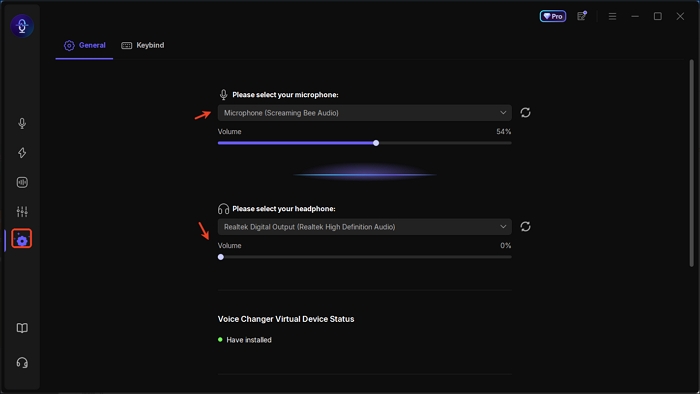
Step 2. Tap the settings and select your microphone and headphone currently in use. You can add a keybind here for "Hear Myself on/off," "Microphone on/off," "Voice changer on/off," and "Stop all sound."
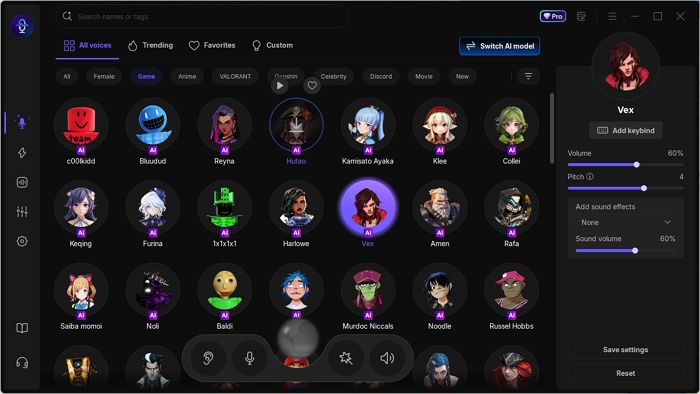
Step 3. Back in the real-time voice changer interface, type "Vex" in the search bar or find her voice under the Game tag. Once located, tap the AI model to download it.
- After the download completes, you can start speaking right away to hear your transformed voice.
- For a perfect match, adjust the volume, pitch, and timbre using the controls on the right panel until your Vex impression sounds just right.
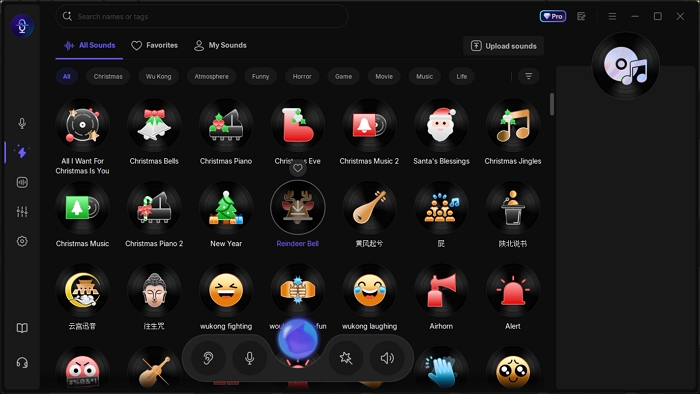
Step 4. To enhance the atmosphere, download and play a soundboard voice clip right on cue.
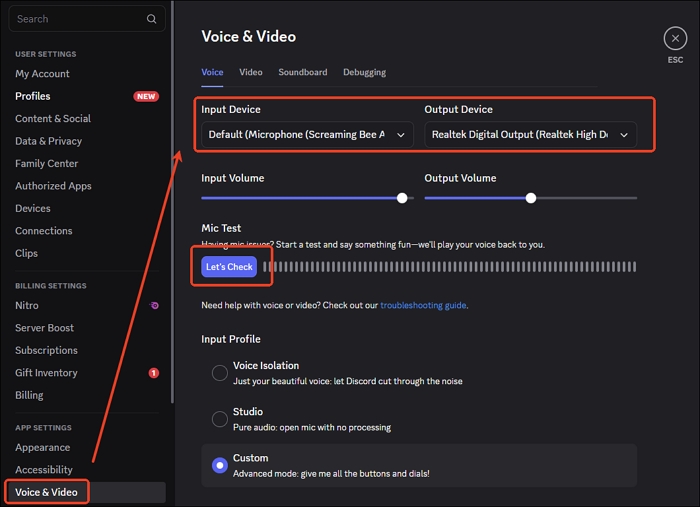
Step 5. To use VoiceWave on platforms like Borderlands 4 or Discord, simply open the platform's audio settings and select VoiceWave Microphone (EaseUS Virtual Device) as your input device.
See also:
How to Clone Someone's Voice with AIBest 5 Dead by Daylight Voice ChangersBattlefield 6 Voice ChangerBorderlands 4 Vault Hunters Voice Changer
Wrapping up
Vex the Siren captivates players in Borderlands 4 with her bold personality and striking voice. To sound like her, this article introduces the best Vex voice changer, letting you transform your voice into hers in real time during gaming, video calls, or streaming for endless fun and immersion.
FAQ
1. Are voice changers illegal?
No, voice changers are not illegal. They're legal for fun, gaming, or privacy use — but using them to impersonate, scam, harass, or mislead others can break the law.
2. Is there a voice changer for VR?
Yes, there are voice changers for VR, including EaseUS VoiceWave, VoiceMod, MorphVox, and Clownfish voice changer.
3. What is the best free voice changer?
EaseUS VoiceWave is one of the best free voice changers because it offers real-time voice effects, clear sound quality, and full compatibility with apps like Discord, Zoom, and games. It lets you customize pitch, tone, and timbre easily, creating natural or funny voices without lag — all with a user-friendly interface and no complicated setup.
4. How to get a voice changer on Oculus Quest 2?
To use EaseUS VoiceWave on your Oculus Quest 2, follow these steps:
- Install EaseUS VoiceWave on your Windows PC.
- In your Windows Sound Settings, set VoiceWave Virtual Microphone as the input device.
- Connect your Quest 2 to the PC using Air Link or a Link Cable.
- In your VR Chat, Discord VR, or other apps running through the PC, select VoiceWave Virtual Microphone as the mic input.
- Launch EaseUS VoiceWave, pick your desired voice effect, and speak — your altered voice will play through the Quest 2.
Tip: VoiceWave works when Quest 2 audio is routed through the PC; it won't apply effects to standalone Quest apps directly.