-
![]()
Joey Albert
Joey has been involved with tech ever since she joined the EaseUS editor team in March 2011 and now she is a senior website editor. She is good at solving various issues, such as video downloading and recording.…Read full bio -
![]()
Alin
Alin is a sophisticated editor for EaseUS in tech blog writing. She is proficient in writing articles related to screen recording, voice changing, and PDF file editing. She also wrote blogs about data recovery, disk partitioning, data backup, etc.…Read full bio -
Jean has been working as a professional website editor for quite a long time. Her articles focus on topics of computer backup, data security tips, data recovery, and disk partitioning. Also, she writes many guides and tutorials on PC hardware & software troubleshooting. She keeps two lovely parrots and likes making vlogs of pets. With experience in video recording and video editing, she starts writing blogs on multimedia topics now.…Read full bio
-
![]()
Gorilla
Gorilla joined EaseUS in 2022. As a smartphone lover, she stays on top of Android unlocking skills and iOS troubleshooting tips. In addition, she also devotes herself to data recovery and transfer issues.…Read full bio -
![]()
Rel
Rel has always maintained a strong curiosity about the computer field and is committed to the research of the most efficient and practical computer problem solutions.…Read full bio -
![]()
Dawn Tang
Dawn Tang is a seasoned professional with a year-long record of crafting informative Backup & Recovery articles. Currently, she's channeling her expertise into the world of video editing software, embodying adaptability and a passion for mastering new digital domains.…Read full bio -
![]()
Sasha
Sasha is a girl who enjoys researching various electronic products and is dedicated to helping readers solve a wide range of technology-related issues. On EaseUS, she excels at providing readers with concise solutions in audio and video editing.…Read full bio
Page Table of Contents

Sasha
Updated on Jan 21, 2026
0 Views |
0 min read
Battlefield is a renowned military first-person shooter series, and Battlefield 6's open beta has already become the most popular Battlefield title on Steam—ranking as the platform's 44th most-played game ever (source: PC Gamer). In BF6, players can enjoy proximity voice chat for an enhanced immersive experience. Here's how you can turn voice chat on or off in Battlefield 6.
About Battlefield 6 Proximity Voice Chat
- Notice:
- The new voice chat setting mentioned below is available in the Battlefield 6 open beta phase.
The developers of Battlefield 6 provide 4 voice chat settings.
Auto: The game mode dictates voice chat position.
Flat: Voice chat plays directly out of the main speakers with no direction or attenuation.
Directional: Voice chat is positioned in relation to player's location. No distance attenuation.
In-world: Voice chat has reverb/distancing applied based on player character location.
- ✍🏽What Player Say:
- 1. While coming up short of promimity chat, these options could be a good addition for fun/immersion. Adding a layer of squad positioning identification via comms may also offer some great awareness. - CodyIFYouKnowMe from Reddit
- 2. It would be a great addition to the game, I reckon. Obviously, with a toggle for those who don't like it. But I'd happily accept it as a feature. - The Sultan of Salt from Steam Community
Turn on & Off Voice Chat in Battlefield 6
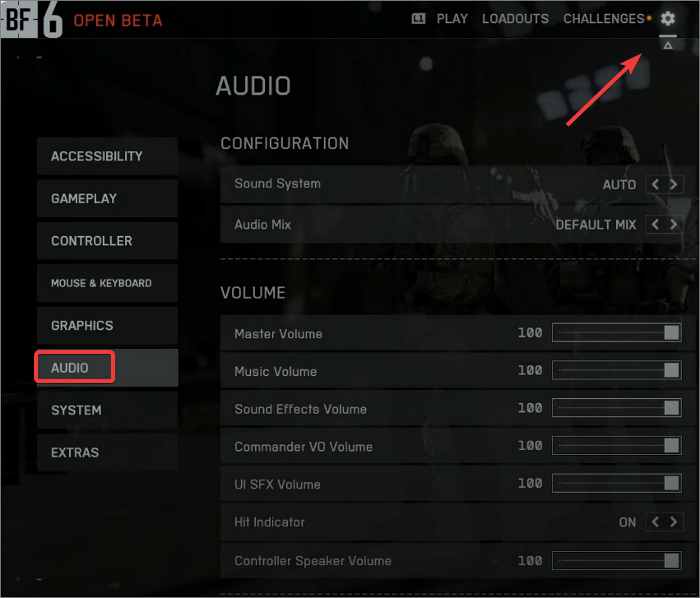
Step 1. Go to "Settings" > "AUDIO."
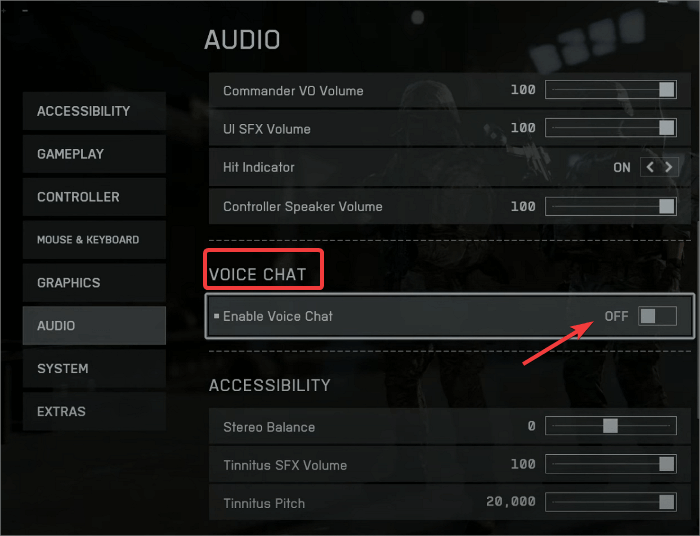
Step 2. Go to "VOICE CHAT" and click to enable or disable voice chat.
You can also check the video to get more details:
Make Your Battlefield Voice Chat More Fun with EaseUS VoiceWave
Once you've figured out how to turn on voice chat in Battlefield 6, why not take it one step further? Instead of using your regular mic voice, you can make your in-game communication more exciting or immersive with a real-time voice changer.
Meet EaseUS VoiceWave – Best Battlefield Voice Changer
EaseUS VoiceWave is an AI-powered real-time voice changer that works seamlessly with Battlefield 6 and over 2,000 other games and apps, including online games such as R.E.P.O., Minecraft, and ARC Raiders, as well as messaging apps like Skype and Discord. It lets you transform your voice into anything—from a tough soldier's deep tone to a robotic commander or even a playful character voice.
Key Features:
- Seamless integration with Battlefield 6 voice chat
- Real-time voice morphing with ultra-low latency
- 300+ AI voices and sound effects updated regularly
- Compatible with most mics and headsets
- Clone any voice with AI for your game
How to Use VoiceWave with Battlefield 6
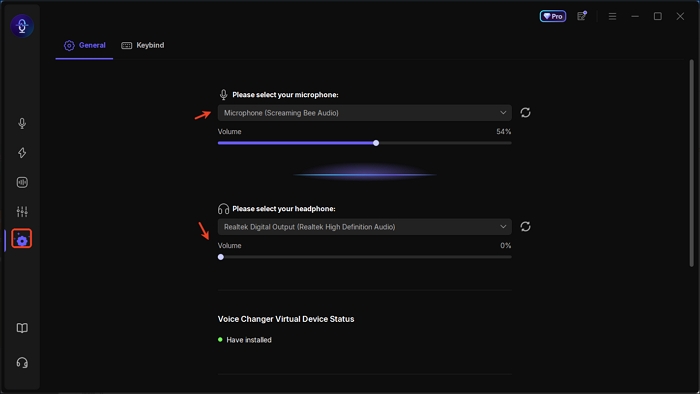
Step 1. Launch EaseUS VoiceWave, and set your input and output devices properly.
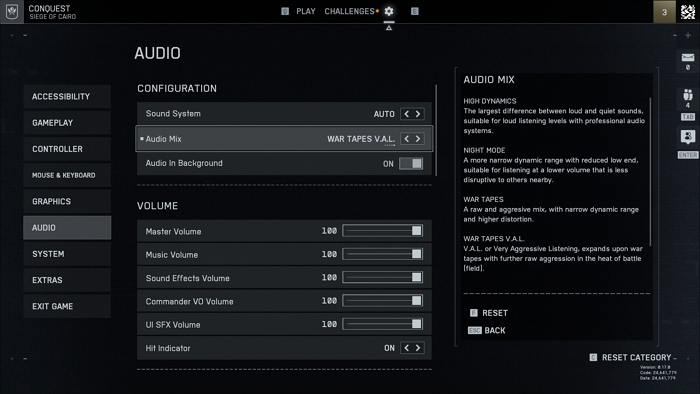
Step 2. Go to BF6 and set VoiceWave as your input device.
Step 3. Go back to EaseUS VoiceWave, pick a voice effect in VoiceWave, and start speaking in-game.
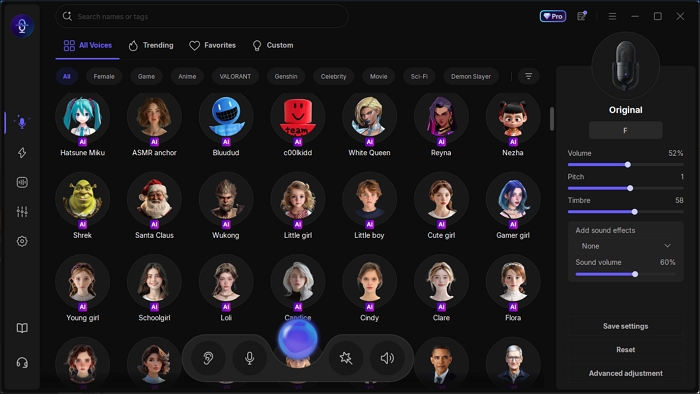
Now, when you use voice chat in Battlefield 6, your teammates will hear your transformed voice in real time.
Whether you're role-playing as a fearless squad leader, adding humor to your team chat, or simply keeping your voice anonymous, VoiceWave helps you stand out on the battlefield while keeping your communications secure and engaging.
👉 Try EaseUS VoiceWave today and turn every match into an unforgettable voice experience.
To Conclude
This article explains how to enable voice chat in Battlefield 6 and describes its four voice chat settings. You’ll also discover how EaseUS VoiceWave can help you customize your voice to match different in-game roles for a more immersive experience.
FAQ About Using VoiceWave Voice Changer in Battlefield 6
1. Is it safe to use a voice changer in Battlefield 6?
Yes. Using a voice changer like EaseUS VoiceWave is completely safe as long as you use it responsibly. The tool simply modifies your microphone input—it doesn't interfere with game files or give you any unfair advantages. Always respect community rules and avoid using inappropriate voice effects.
2. Will VoiceWave cause lag or delay during voice chat?
No noticeable lag. EaseUS VoiceWave is optimized for real-time voice processing with ultra-low latency, ensuring your team communication stays smooth and responsive even during intense firefights.
3. Can I use VoiceWave while recording or streaming Battlefield 6?
Absolutely. VoiceWave works with OBS, Discord, Twitch, YouTube, and other popular streaming platforms. You can enable it for in-game chat, then use the same virtual mic for your livestreams or recorded clips without additional setup.
4. What if my mic doesn't work after enabling the voice changer?
If your microphone stops working, go to Battlefield 6 > "Settings" > "Audio" > "Voice Chat" and ensure that "VoiceWave Virtual Microphone" is selected as your input device. Also, ensure that your Windows system settings recognize VoiceWave as the active input device.
5. Does EaseUS VoiceWave support other online games?
Yes, besides Battlefield 6, EaseUS VoiceWave supports over 2,000+ games and voice apps, including Call of Duty, Valorant, League of Legends, Fortnite, Apex Legends, and more. You can use it anywhere real-time communication is supported.
Share it on: