-
![]()
Joey Albert
Joey has been involved with tech ever since she joined the EaseUS editor team in March 2011 and now she is a senior website editor. She is good at solving various issues, such as video downloading and recording.…Read full bio -
![]()
Alin
Alin is a sophisticated editor for EaseUS in tech blog writing. She is proficient in writing articles related to screen recording, voice changing, and PDF file editing. She also wrote blogs about data recovery, disk partitioning, data backup, etc.…Read full bio -
Jean has been working as a professional website editor for quite a long time. Her articles focus on topics of computer backup, data security tips, data recovery, and disk partitioning. Also, she writes many guides and tutorials on PC hardware & software troubleshooting. She keeps two lovely parrots and likes making vlogs of pets. With experience in video recording and video editing, she starts writing blogs on multimedia topics now.…Read full bio
-
![]()
Gorilla
Gorilla joined EaseUS in 2022. As a smartphone lover, she stays on top of Android unlocking skills and iOS troubleshooting tips. In addition, she also devotes herself to data recovery and transfer issues.…Read full bio -
![]()
Rel
Rel has always maintained a strong curiosity about the computer field and is committed to the research of the most efficient and practical computer problem solutions.…Read full bio -
![]()
Dawn Tang
Dawn Tang is a seasoned professional with a year-long record of crafting informative Backup & Recovery articles. Currently, she's channeling her expertise into the world of video editing software, embodying adaptability and a passion for mastering new digital domains.…Read full bio -
![]()
Sasha
Sasha is a girl who enjoys researching various electronic products and is dedicated to helping readers solve a wide range of technology-related issues. On EaseUS, she excels at providing readers with concise solutions in audio and video editing.…Read full bio
Page Table of Contents

Gorilla
Updated on Jun 22, 2026
0 Views |
0 min read
Looking for an amazing way to download YouTube videos in laptop on Windows? This guide introduces three YouTube downloaders for Windows, which lets you search, select, and save videos without copying links. It also compares the pros and cons, helping you choose the best method for fast, high-quality downloads on Windows.
✅Key Takeaways:
Best YouTube Downloader for Windows: EaseUS Video Downloader (free download & free trial)
Simple Use: Copy & paste the URL of a YouTube video, and choose the best quality (up to 4K/8K), then start downloading!
Fair Use Reminder
This article is intended for informational purposes. Downloading videos from YouTube may violate YouTube's Terms of Service, especially when done without permission from the content owner. All the YouTube downloaders for Windows introduced here are meant to help users download content they own, or content that is explicitly allowed to be downloaded (such as videos under Creative Commons licenses or for offline personal use).
We do not encourage or support the unauthorized downloading, distribution, or reuse of copyrighted content. Users are solely responsible for ensuring their actions comply with all applicable laws, platform rules, and copyright regulations.
At-a-glance Overview of YouTube Downloaders for Windows:
| Feature | EaseUS Video Downloader✅ | Addoncrop YouTube Video Downloader | Online YouTube Video Downloader |
| Platform | Windows application | Browser extension | Web-based |
| Video Quality | Up to 8K | Typically up to 1080p | Usually up to 720p or 1080p |
| Batch Download | Yes | Limited | No |
| Ads | No | No | Yes |
| Effectiveness | Safe and effective | Less effective | Less effective |
*Always keep in mind that you can only download publicly available videos that you have permission to access and download from YouTube using the tools in this article. Ensure you comply with YouTube's Terms of Service and related copyright laws in your country.*
EaseUS Video Downloader — AIO YouTube Video Downloader for Windows
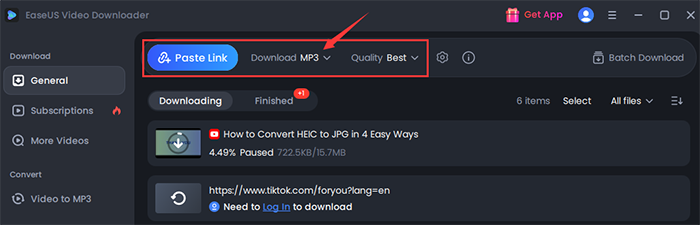
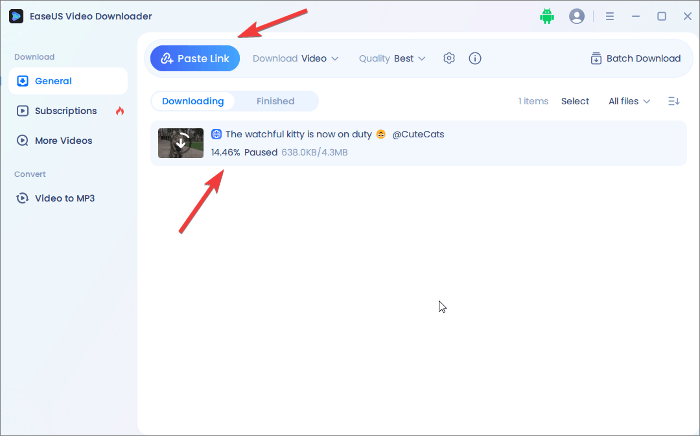
The first YouTube downloader for Windows we'd like to recommend is EaseUS Video Downloader. It is one of the best video downloader for Windows 7/8/10/11. It enables you to download videos from more than 1000 websites. You can even download full playlists or channels. What makes it remarkable is downloading 8K/4K videos from YouTube in a few minutes (very few downloaders support that). For users who pursue original or high-quality videos, this video downloader is definitely what they need.
✍️ All you need to do is: copy the URL of a YouTube video that you want to download to your computer, then paste the video's link in this program, and it will download the video with best quality in MP4/MP3.
Free Download video downloader for Windows
Secure Download
Free Download video downloader for Mac
Secure Download
Except downloading regular YouTube videos, EaseUS Video Downloader is also:
- An audio downloader to save audio from YouTube
- A video converter to convert any videos to MP3/WAV format
- download playlists or videos from one YouTube channel
Addoncrop YouTube Video Downloader — Easy-to-Use Chrome Extension
If you don't want to install a program on your Windows computer or laptop, you can try a browser extension to save YouTube videos to gallery without installing any software.
By adding the Addoncrop YouTube downloader extension to your browser, you can download YouTube videos to your computer with different video quality and formats. Besides, you don't need to copy links or switch back and forth between the video downloader and YouTube. You can click the "Download" button shown on the video page to save the item to your computer.
To download YouTube videos with a video downlaoder extension:
Step 1. Go to visit the video downloader. (https://addoncrop.com/youtube-video-downloader)
Step 2. Confirm your browser and click "INSTALL VIA CROSSPILOT".
Step 3. Restart your browser after you add the extension.
Step 4. Go to find and play the video you want to download from YouTube.
Step 5. Now you could see a download option under the video playing window. Click the "Download" icon to save it to your computer or click the "More" option to choose another quality and format available.
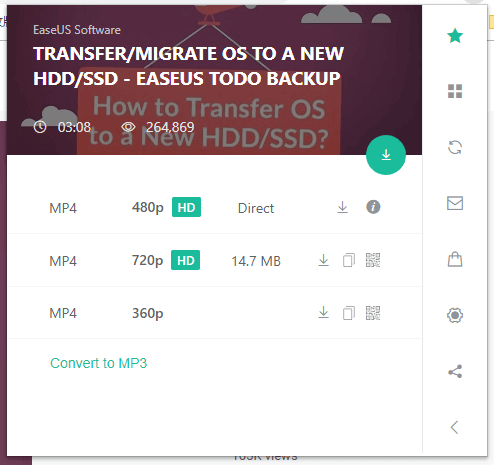
The downloaded videos will be saved in the "Downloads" folder on your computer. Go to the folder to check it after the video downloading.
Web Video Downloader on Chrome — Online Website
If you don't want to install or add anything to your computer or browser, you may prefer to use an online YouTube downloader.
Compared with desktop downloaders or browser extensions, an online YouTube downloader is more convenient since no software installation is needed. However, it is also more "dangerous".
When you use an online tool to download videos from YouTube on Chrome, you may encounter many annoying ads, redirections, and download failures. That's why you should pick the tool carefully among the numerous choices.
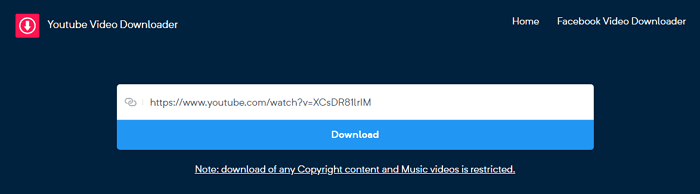
Here I'd like to take the one called YouTube Video Downloader as an example:
Step 1. Copy the link of the YouTube video that you want to download.
Step 2. Visit the online video downloader and paste the URL in the address box.
Step 3. Click the "Download" button. If you are redirected to another page, close that page and switch back to the video downloader.
Step 4. Select to download the video with or without sound and select the video quality you prefer.
Step 5. When the downloading process completes, the downloaded videos will be saved in the "Downloads" folder. Go to check and watch the video offline.
Conclusion
A YouTube video downloader for Windows enables you to download videos from YouTube to your computer easily. You can select a Windows program like EaseUS Video Downloader for a more stable, effective and long-term downloading workflow. If you are bored of installing applications on your laptop, choosing an online video downloader in Chrome or add a Chrome extension is also a great option.
FAQs
1. Which is the safest YouTube downloader?
Among multiple choices on the market, EaseUS Video Downloader is one of the safest YouTube downloaders that combines reliability, security, and ease-of-use. It is widely recognized for its safe download without ads and watermarks. Online video download tools or download chrome extensions might be unstable and less-effective.
2. Is it OK/safe to use a third-party YouTube downloader?
Using a YouTube downloader is generally not allowed under YouTube's Terms of Service. However, if you have permission from the content owner, a YouTube downloader is OK to use. You can also subscribe to YouTube Premium, which allows offline viewing within the official app on mobile devices and supported browsers.