-
![]()
Joey Albert
Joey has been involved with tech ever since she joined the EaseUS editor team in March 2011 and now she is a senior website editor. She is good at solving various issues, such as video downloading and recording.…Read full bio -
![]()
Alin
Alin is a sophisticated editor for EaseUS in tech blog writing. She is proficient in writing articles related to screen recording, voice changing, and PDF file editing. She also wrote blogs about data recovery, disk partitioning, data backup, etc.…Read full bio -
Jean has been working as a professional website editor for quite a long time. Her articles focus on topics of computer backup, data security tips, data recovery, and disk partitioning. Also, she writes many guides and tutorials on PC hardware & software troubleshooting. She keeps two lovely parrots and likes making vlogs of pets. With experience in video recording and video editing, she starts writing blogs on multimedia topics now.…Read full bio
-
![]()
Gorilla
Gorilla joined EaseUS in 2022. As a smartphone lover, she stays on top of Android unlocking skills and iOS troubleshooting tips. In addition, she also devotes herself to data recovery and transfer issues.…Read full bio -
![]()
Rel
Rel has always maintained a strong curiosity about the computer field and is committed to the research of the most efficient and practical computer problem solutions.…Read full bio -
![]()
Dawn Tang
Dawn Tang is a seasoned professional with a year-long record of crafting informative Backup & Recovery articles. Currently, she's channeling her expertise into the world of video editing software, embodying adaptability and a passion for mastering new digital domains.…Read full bio -
![]()
Sasha
Sasha is a girl who enjoys researching various electronic products and is dedicated to helping readers solve a wide range of technology-related issues. On EaseUS, she excels at providing readers with concise solutions in audio and video editing.…Read full bio
Page Table of Contents

Sasha
Updated on Jun 17, 2026
0 Views |
0 min read
- ‼️Disclaimer:
- This article is for educational purposes only. Downloading YouTube videos without permission may violate YouTube’s Terms of Service and copyright laws. We do not encourage or promote any unauthorized downloading of copyrighted content. Always respect the rights of content creators and use legal methods when saving online videos.
When it comes to downloading YouTube videos in Chrome, I guess you intend to download videos in a lightweight manner without installing software. That's easy to do, and there are a number of online YouTube video downloaders available in Chrome. In addition to downloading from YouTube via Chrome online tools, you can also rely on some Chrome extensions, which are as easy to use as Chrome online tools. Let's dive in!
PAGE CONTENT:
Download YouTube Video on Chrome Browser with Online Video Downloader
There are many online YouTube video downloaders in Chrome browser, enabling to save videos from YouTube to your computer. When you search "youtube video downloader chrome" or "online youtube video downloader" in your Chrome Browser, a lot of results of third-party web-based online tools may appear before you.
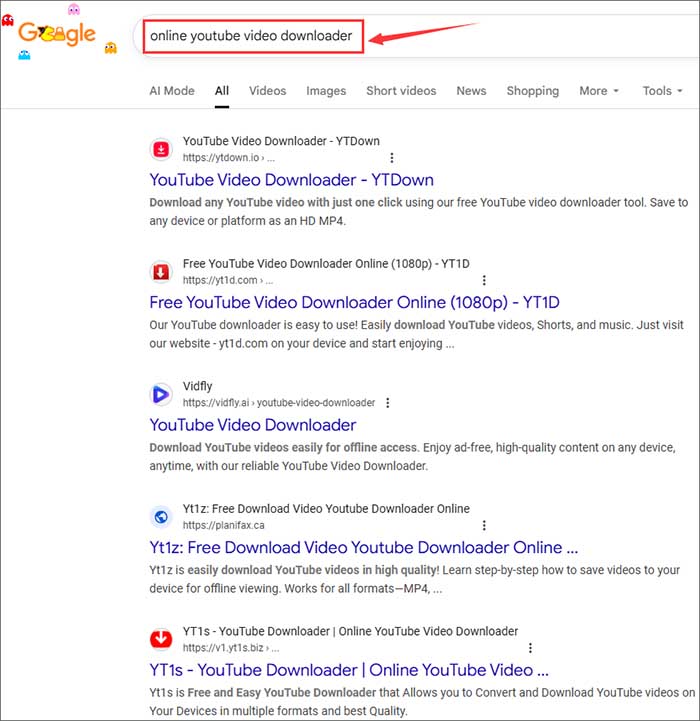
But before you start, you should be conscious of the flaws of these YouTube video downloaders on Chrome. They are convenient and simple to use, indeed, but there are issues you may encounter:
- You will be redirected to other websites that interrupt you from downloading videos.
- You will be bothered by the ads on these websites.
- Some may fail to work due to unknown reasons, and others are slow to download online videos.
Once you understand the potential risks, follow the sections below and proceed with caution.
After some trials, I'd like to recommend the following YouTube video downloaders. They performs well when downloading YouTube videos to MP4 or MP3, and you can choose the quality you prefer.
- Keepvid
- 9convert
- Vidfly
- YT1s
- Y2Mate
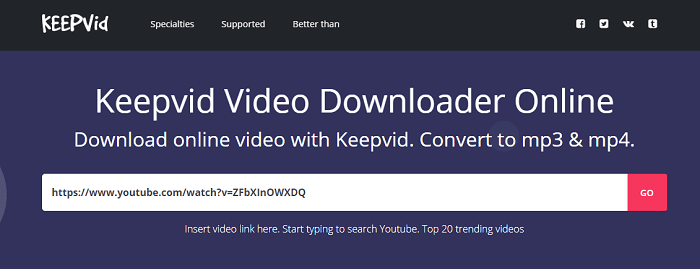
Here's how to download YouTube videos on Chrome via Keepvid:
Step 1. Open Chrome and visit YouTube.
Step 2. Play the video you want to download and copy its URL.
Step 3. Go to the online Keepvid YouTube video downloader and paste the video link into the address bar.
Step 4. Wait for the downloader to parse the URL automatically.
Step 5. Check for the options available and click the "Convert" button next to the format and quality you prefer.
Step 6. Click "Download" to save the YouTube video to the "Downloads" folder on your computer.
Download Videos from YouTube in Chrome with Chrome Extensions
Recent Updated Information (June 2025):
💡According to Google's policy, Chrome Web Store does not permit extensions that download videos from YouTube, circumvent YouTube's protections, or enable saving videos outside of YouTube Premium features.
💡Those Chrome extensions we mentioned below do not work anymore.
✔️To download a YouTube video with Chrome, you could try some reliable online video downloaders for YouTube.
Downloading YouTube videos in laptop using Chrome plug-in can be a convenient way to save content for offline viewing. These extensions typically add a download button to the YouTube interface, making it easy to save videos in different formats and resolutions. It's important to note that while some extensions might still work, many have been restricted by YouTube's policies, so their availability can vary.
Video Downloader Professional is a powerful Chrome extension that allows you to download and save videos playing on a website directly to your hard disk. This plug-in supports multiple resolutions. Additionally, it enables you to stream MP4 videos you find on your TV via Google Chromecast or play them on your Google Home. But it disables the feature to download YouTube videos.
Fortunately, Video Downloadhelper still works. This versatile and user-friendly tool is designed to help you download videos from the web with ease. Supporting over 1,000 websites, including those using Dash, HLS, and MPD formats, it provides a comprehensive solution for capturing your favorite content.
It allows you to download YouTube videos as mp4 in Chrome. It can download videos in high-definition and convert them to various formats such as MP4, MKV, and WebM, ensuring optimal viewing pleasure. Additionally, you can extract audio from videos, converting them into MP3s or podcasts for easy listening on the go.
Here's how to download YouTube videos online in Chrome browser vis extensions:
Step 1. Add Video Downloadhelper to your Chrome.
Step 2. Open YouTube and play the video you want to download.
Step 3. Open the extension tab and click on it to automatically detect the video.
Step 4. Choose the preferred quality and format to download.

Best Alternative to YouTube Video Downloader Chrome: Desktop Software
An online tool, although it spares you the hassle of software installation, is not the best option for downloading online videos, especially when you are looking to download videos in bulk. Given that, here's a powerful video downloader I'd like to show you: EaseUS Video Downloader. You can use this YouTube multi-downloader to download videos from a YouTube playlist/channel or save multiple random videos simultaneously.
What's more, it provides various download options for you to get a YouTube video in the format and quality you like. In other words, you can download YouTube videos in MP4/MP3 or other formats with a quality of up to 8K. You can also convert YouTube videos to MP3 directly if you need to.
Free Download video downloader for Windows
Secure Download
Free Download video downloader for Mac
Secure Download
To download YouTube videos with the desktop YouTube video downloader:
Like most online video downloads in Chrome, open the video downloader program, paste the video's URL(s) and select the video format, quality and store path, then start the downloading.
The Bottom Line
In this article, we commend 5 online YouTube video downloaders in Chrome. Before you begin, just be cautious of intrusive ads and redirects. In order to download videos from YouTube in Chrome without installing third-party software, you can also choose reliable Chrome extensions.
But however, for a safer and more versatile solution, we recommend a dedicated desktop program like EaseUS Video Downloader. In addition to YouTube, it supports multiple platforms, including Facebook, Twitter, Twitch, Dailymotion, and more. Try it now for a seamless downloading experience!
Free Download video downloader for Windows
Secure Download
Free Download video downloader for Mac
Secure Download
How to Download YouTube Videos with Chrome FAQ
1. How to download videos from Chrome to the gallery?
- On your iPhone or iPad, open the Chrome app.
- Navigate to the webpage containing the file you want to download.
- Tap the file you wish to download.
- Select "Open in..."
- Tap "Save to Files" and then "Save."
2. How to download YouTube videos with Chrome using developer tools?
- Open the Chrome browser and navigate to the YouTube video you want to download.
- Press
Ctrl + Shift + I(orCmd + Option + Ion Mac) to open the Developer Tools panel, or right-click on the page and select "Inspect." - In the Developer Tools panel, click on the "Network" tab.
- Start playing the video, then in the Network tab, type "MP4" in the filter bar to narrow down the requests to media files.
- Right-click on the URL of the identified request and select "Open in new tab." This should open the video file directly in a new tab.
- Right-click on the video in the new tab and select "Save video as..." to download the video to your device.
3. How to download YouTube videos with Chrome on Android?
To download a file on your Android phone or tablet using the Chrome app:
- Open the Chrome app.
- Navigate to the website where the file is located.
- Press and hold the item you want to download, then select "Download link" or "Download image."
- For some video and audio files, simply tap "Download."
- To view all your downloaded files, open the Downloads app on your device.
4. Can you download YouTube videos on a Chromebook?
- Open Chrome on your Chromebook.
- Go to YouTube and find the video you want to download.
- Copy the Video URL from the address bar.
- Visit an Online Video Downloader website (such as KeepVid).
- Paste the URL into the downloader's input field and follow the instructions to download the video.