-
![]()
Joey Albert
Joey has been involved with tech ever since she joined the EaseUS editor team in March 2011 and now she is a senior website editor. She is good at solving various issues, such as video downloading and recording.…Read full bio -
![]()
Alin
Alin is a sophisticated editor for EaseUS in tech blog writing. She is proficient in writing articles related to screen recording, voice changing, and PDF file editing. She also wrote blogs about data recovery, disk partitioning, data backup, etc.…Read full bio -
Jean has been working as a professional website editor for quite a long time. Her articles focus on topics of computer backup, data security tips, data recovery, and disk partitioning. Also, she writes many guides and tutorials on PC hardware & software troubleshooting. She keeps two lovely parrots and likes making vlogs of pets. With experience in video recording and video editing, she starts writing blogs on multimedia topics now.…Read full bio
-
![]()
Gorilla
Gorilla joined EaseUS in 2022. As a smartphone lover, she stays on top of Android unlocking skills and iOS troubleshooting tips. In addition, she also devotes herself to data recovery and transfer issues.…Read full bio -
![]()
Rel
Rel has always maintained a strong curiosity about the computer field and is committed to the research of the most efficient and practical computer problem solutions.…Read full bio -
![]()
Dawn Tang
Dawn Tang is a seasoned professional with a year-long record of crafting informative Backup & Recovery articles. Currently, she's channeling her expertise into the world of video editing software, embodying adaptability and a passion for mastering new digital domains.…Read full bio -
![]()
Sasha
Sasha is a girl who enjoys researching various electronic products and is dedicated to helping readers solve a wide range of technology-related issues. On EaseUS, she excels at providing readers with concise solutions in audio and video editing.…Read full bio
Page Table of Contents

Jane Zhou
Updated on Jun 17, 2026
0 Views |
0 min read
Are you wondering how to download YouTube videos in mobile gallery on your Android or iPhone so that you can directly share a YouTube video with your friends instead of sending them a link and needing them to open it first? Or do you want to save a fantastic video on your device and re-watch it over and over again?
If that's the situation, then you're coming to the right place, where you'll learn how to save YouTube videos to your phone's camera roll in the following content. This is a comparison table of each method, and you can choose the one that fits you most.
| Downloader▶️ | Platform📱 | Pros✅ | Cons❌ |
|---|---|---|---|
| YouTube App | Official | Download YouTube videos directly without any app. | Upgrade to a premium account. |
| EaseUS Video Downloader | Windows, Mac, Android | Ad-free, easy to use, with multiple quality and format options. | Need to install the software on the computer first. |
| Keepvid | Online | Free online YouTube downloader. | Have ads. |
| Yt-dlp | CMD | Potent command to download videos. | Command-line tool, not ideal for beginners. |
| Video Downloader | Android | Free and supportive video and music downloader. | Irrelevant ads and occasional glitches. |
| Shortcut | iPhone | Convenient and fast. | It cannot download in batch. |
Download YouTube Videos to Gallery on Mobile with Premium Subscription
If you don't mind paying for the privilege of saving videos, consider subscribing to YouTube Premium (formerly YouTube Red). That way, you can download any video you love to watch offline later.
Besides that, there are many other benefits to using a Premium account. YouTube Premium costs $11.99 per month, which is arguably worthwhile if you download videos regularly, but if you want to download YouTube video clips occasionally, it's probably pricey.
If you decide to use this method, you can go for a YouTube Premium on its official site.
Step 1. Log in to your premium YouTube account on your phone.
Step 2. Find the video you want to download and click "Download."

Step 3. Choose the video resolution.
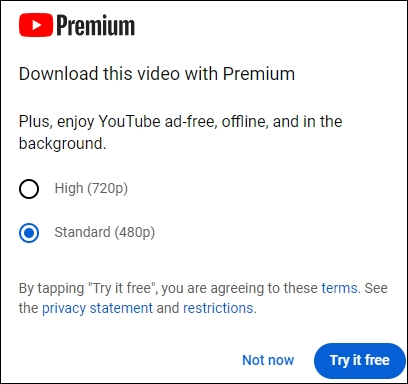
Step 4. The video starts to download.
For starters, you can download YouTube videos to your phone's gallery via some online video downloaders or dedicated apps available for Android/iOS devices.
To save YouTube videos to the gallery:
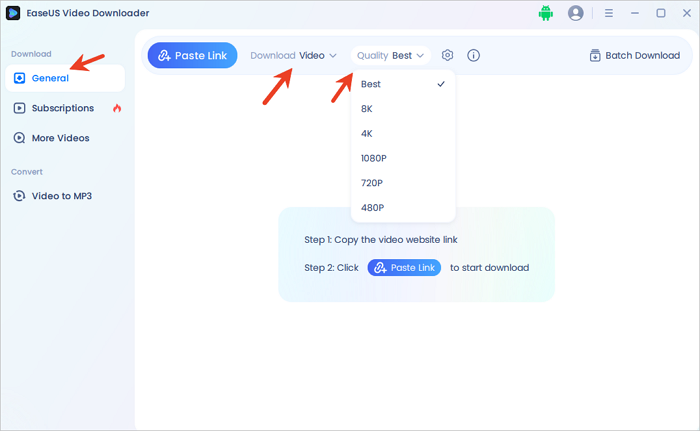
Step 1. Launch EaseUS Video Downloader, navigate to the "Download" tab, then expand the "Download" menu to select your desired video format, and the "Quality" menu to choose the resolution.
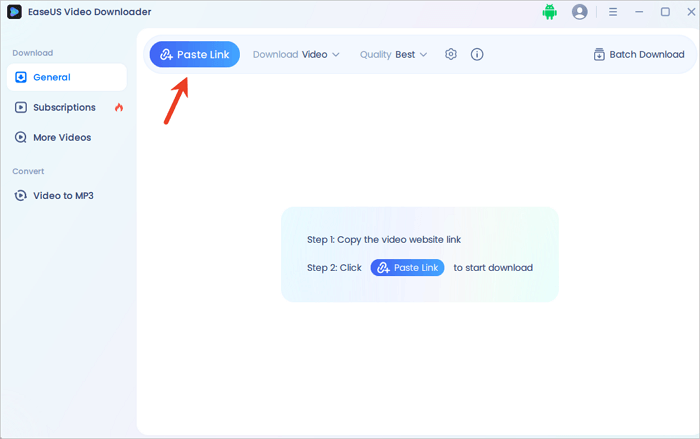
Step 2. Copy the URL of the YouTube video from the address bar, then open EaseUS Video Downloader and click "Paste Link." The video will start downloading automatically.
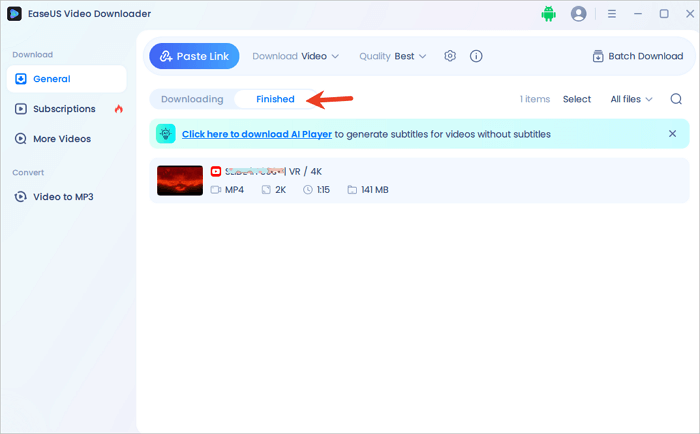
Step 3. Once the download is complete, go to the "Finished" tab to view your downloaded YouTube video.
Disclaimer: It is illegal to download copyrighted content from YouTube for any commercial purpose without permission. This guide is demonstrated ONLY for personal use.
Step 4. In the Finished tab, open the file location, usually C:\EaseUS_VideoDownloader. Then, right-click the file and copy it.
Step 5. Connect your Android phone to the computer with a USB cable. Go to This PC > [your device name] > Internal Storage > DCIM folder. Paste the file into the desired folder.
Good news for Android users, EaseUS Video Downloader has an Android app so that you can download videos directly to your Android phone gallery without extra steps like transferring data. (Install the software on your computer first, and scan the in-software QR code to download the app on your Android phone.)
Free Download video downloader for Windows
Secure Download
Free Download video downloader for Mac
Secure Download
On iPhone, due to iOS restrictions, you cannot drag and drop a file from the desktop into the Photos app. However, you can use EaseUS MobiMover to transfer videos from Windows/Mac to your iPhone's internal storage space.
Download YouTube Videos to Gallery Without Any App
📱Compatibility: Android and iPhone. This applies to Chrome, Firefox, Safari, Microsoft Edge, etc.
Keepvid is a web-based video downloader that allows you to download YouTube videos to the iPhone camera roll easily. It features a clean and straightforward interface without annoying ads or pop-ups. You can download videos in multiple formats, like MP4, MP3, etc.
And the best video quality available for your video is 1080P, and the audio is 128Kbps. However, the bad part of this site is that you can't download videos in bulk, which makes it inconvenient to download many videos. Now, you can check the steps below to download YouTube videos using Keepvid.
Step 1. Open YouTube and copy the URL of the video you want to download.
Step 2. Open Keepvid and paste the URL in the Search box. Press "Start."

Step 3. Select the format (audio or video) you need and click the "Download" button.
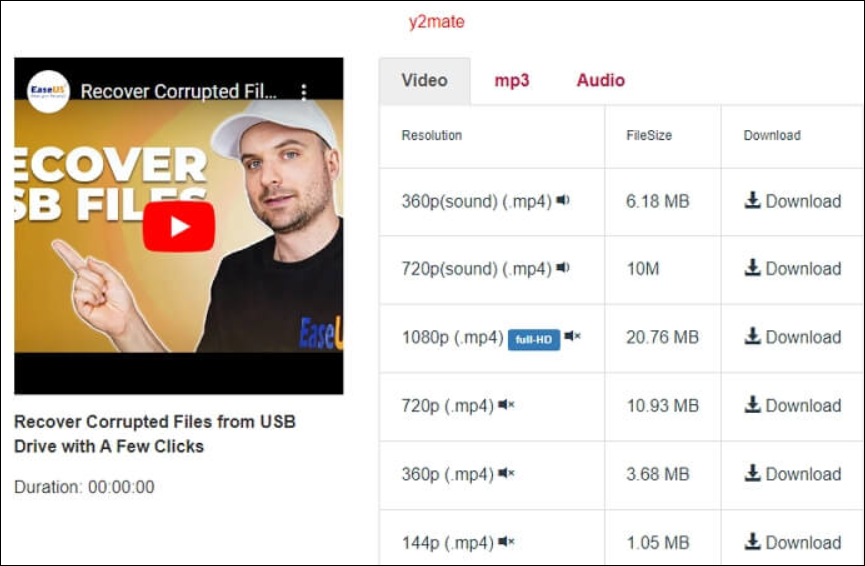
Step 4. Wait for the website to process. And after that, press "Download" to get the video on your phone.
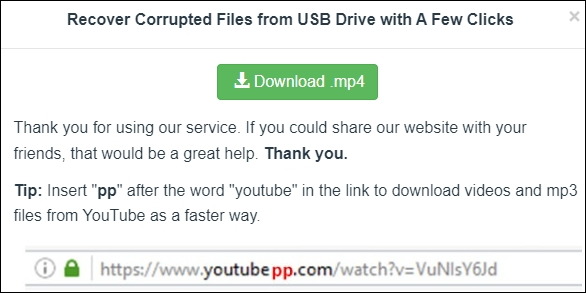
Don't forget to share this helpful content and let more users know how to transfer YouTube videos to their phone galleries:

Save YouTube Videos to Mobile Gallery with Open Source Software
YT-DLP, a free and open-source software derived from the now-defunct youtube-dlc project, offers enhanced features and improvements for downloading videos from YouTube, Vimeo, and similar platforms. It is one of the most potent YouTube downloaders available.
Its notable features include support for Clips, Stories, Search (with filters), YouTube Music Search, Channel-specific search, Mixes, and Feeds. Moreover, it supports some age-gated content without cookies, allows downloading live streams from the start, and enables downloading all uploads of a channel, including shorts and live videos, from Channel URLs.
Although relatively easy to download and install, mastering its usage may require some time due to its command-line interface across Windows, macOS, and Linux systems, which lacks a graphical user interface and can be tricky to use.
Step 1. Download and install yt-dlp.
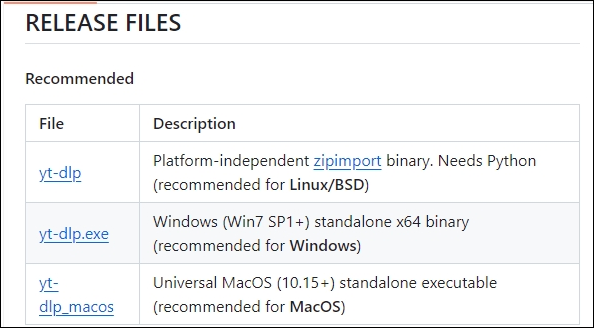
Go to the GitHub website, find the release files, and select the file to download based on your system. Double-click on the exe file.
Step 2. Install FFmpe and FFProbe dependencies.
FFmpeg, essential to yt-dlp, manages multimedia tasks like merging different formats. Without it, yt-dlp can't merge requested formats, e.g., downloading a 1080p video without audio.
FFProbe, bundled with FFmpeg, extracts metadata such as codecs and resolution. Yt-dlp depends on FFProbe for metadata extraction; without it, some features may malfunction.
- On Windows: Go to the FFmpeg website and download the exe file.
- On Linux: Type in the command $ sudo apt install ffmpeg.
Unzip the package, find ffmpeg, ffplay, and ffprobe from ffmpeg-(name of the file) > bin, and unzip them to a new folder. Record the path.
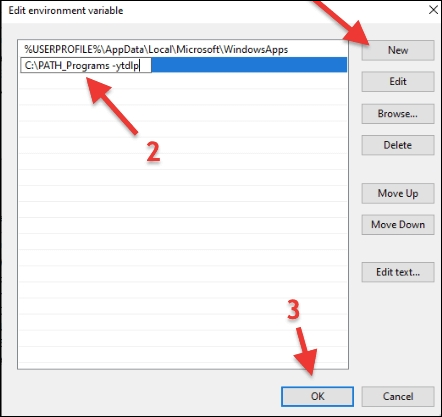
Go to the search bar on Windows and type path, click "System Properties" > "Advanced" > "Environment Variables" > "User variables for Administrators," choose path 1, then click "Edit." Click on "New," enter the recorded path where FFmpeg is, and press ok.
Step 3. Download YouTube videos.
- Download YouTube videos: yt-dlp (following the YouTube URL)
- Find out which formats the video has: yt-dlp -F --list-formats (following the YouTube URL)
- Download the best quality video format -f: yt-dlp -f "bestvideo[ext=mp4]+bestaudio[ext=m4a]"(following the YouTube URL)
- To learn more options: yt-dlp –help
After downloading the wanted YouTube videos to your computer, you can simply drag and drop the file to your Android's DCIM folder, where it stores your camera pictures and downloaded media files. Still, you need a third-party data transfer tool to transfer videos from a computer to an iPhone or iPad.
How to Save YouTube Videos from YouTube to Gallery on Android
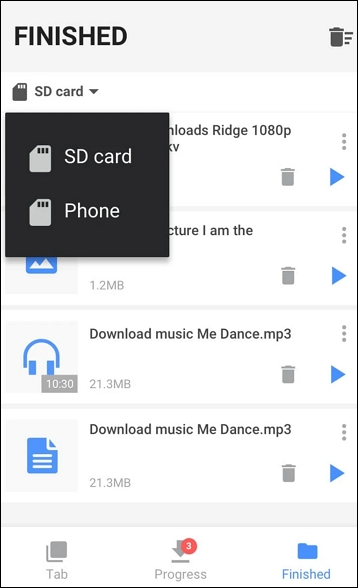
Video Downloader is a free app enabling easy video downloads from online sources. It includes a built-in browser and player for seamless browsing and offline viewing. With support for various formats and automatic detection, it allows one-click downloads. It permits pausing, resuming, and concurrent downloads, even in the background. Additionally, it supports SD card usage, offers bookmarking, and allows for downloading music and pictures.
However, users have complained about the excessive and disruptive ads, including videos that freeze and disrupt usage, along with stability issues, particularly crashes with multiple tabs open.
Step 1. Download the app and type YouTube video website.
Step 2. Tap the download button.
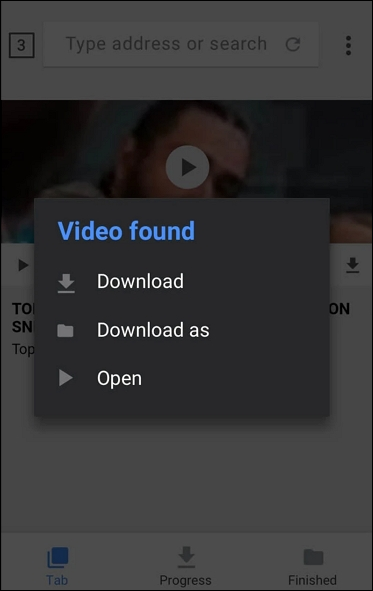
Step 3. Choose which video you want to download.

Step 4. Find the video on your phone.
How to Save YouTube Video to Camera Roll on iPhone
Apple Shortcut allows you to automate tasks and actions on your iPhone. Using the Shortcuts app, you can craft custom shortcuts to simplify intricate processes into a single voice command or tap.
By doing so, you can download YouTube videos to your phone without installing an app; however, you should note that creating a custom shortcut is overwhelming.
Step 1. Download and install the shortcut.
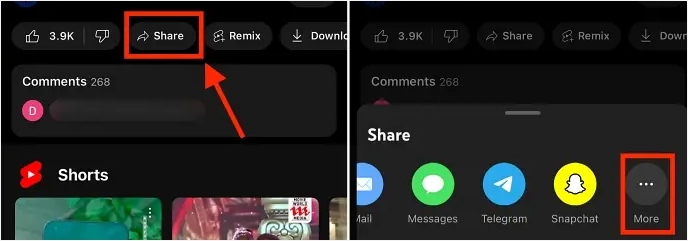
Step 2. Open the desired YouTube video on your iPhone and press the share button.
Step 3. Click the "More" option and scroll down to find YouTube Shorts Downloader. Select "Allow Always."
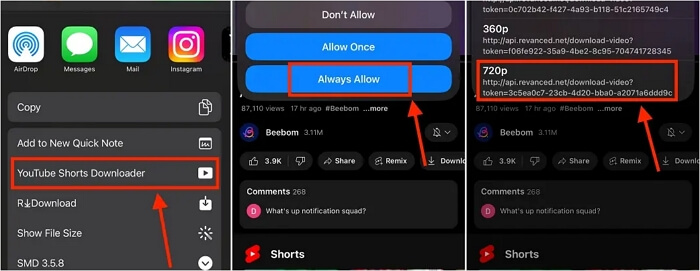
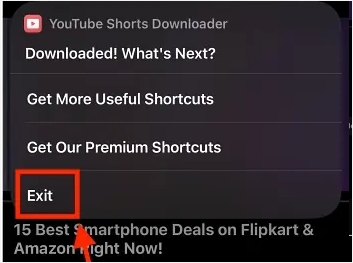
Step 4. Choose the video resolution. Exit the program after the processing.
Conclusion
You can easily save YouTube videos to a gallery with the methods introduced above. Of these options, the computer-based video downloader is the most recommended since it is safe, fast, simple, and provides more features. If you don't want to install any application, you can try online video downloaders. If you don't want to use the computer, use the mobile video downloader app instead.
Free Download video downloader for Windows
Secure Download
Free Download video downloader for Mac
Secure Download
Transfer YouTube Videos to the Mobile Gallery FAQ
1. How can I download YouTube videos to my gallery?
To save YouTube videos to your phone's gallery, utilize the offline viewing option provided by YouTube. Launch the YouTube app, locate the desired video, tap the download icon, and choose the preferred video quality. Once downloaded, the video will be accessible in your phone's gallery.
2. How do you transfer a video from YouTube to your gallery?
To store the video in your phone's gallery, launch the YouTube app, locate it in your library, and tap the Share icon. Then, opt either to save the video to your phone's gallery or share it with other applications.
3. Can you save a YouTube video to your camera roll?
- Open Chrome on your Android device.
- Go to an online video downloader website.
- Enter the YouTube video's address (URL) in the provided field.
- Select the desired video quality/format.
- Tap on the "Download" button.
- Once the video is downloaded, you may find it in your device's storage.