-
![]()
Joey Albert
Joey has been involved with tech ever since she joined the EaseUS editor team in March 2011 and now she is a senior website editor. She is good at solving various issues, such as video downloading and recording.…Read full bio -
![]()
Alin
Alin is a sophisticated editor for EaseUS in tech blog writing. She is proficient in writing articles related to screen recording, voice changing, and PDF file editing. She also wrote blogs about data recovery, disk partitioning, data backup, etc.…Read full bio -
Jean has been working as a professional website editor for quite a long time. Her articles focus on topics of computer backup, data security tips, data recovery, and disk partitioning. Also, she writes many guides and tutorials on PC hardware & software troubleshooting. She keeps two lovely parrots and likes making vlogs of pets. With experience in video recording and video editing, she starts writing blogs on multimedia topics now.…Read full bio
-
![]()
Gorilla
Gorilla joined EaseUS in 2022. As a smartphone lover, she stays on top of Android unlocking skills and iOS troubleshooting tips. In addition, she also devotes herself to data recovery and transfer issues.…Read full bio -
![]()
Rel
Rel has always maintained a strong curiosity about the computer field and is committed to the research of the most efficient and practical computer problem solutions.…Read full bio -
![]()
Dawn Tang
Dawn Tang is a seasoned professional with a year-long record of crafting informative Backup & Recovery articles. Currently, she's channeling her expertise into the world of video editing software, embodying adaptability and a passion for mastering new digital domains.…Read full bio -
![]()
Sasha
Sasha is a girl who enjoys researching various electronic products and is dedicated to helping readers solve a wide range of technology-related issues. On EaseUS, she excels at providing readers with concise solutions in audio and video editing.…Read full bio
Page Table of Contents

Sasha
Updated on Oct 23, 2026
0 Views |
0 min read
Highlights:
🎯YouTube Facts:
1. YouTube Premium offers the option to download videos in up to 1080p quality and provides an ad-free viewing experience.
2. Videos downloaded via YouTube Premium can be played offline for up to 29 days. [Source]
3. According to Google's policies and YouTube's Terms of Service, the use of Chrome extensions to download YouTube videos is not permitted.
💡Alternative Download Options:
1. For users seeking free solutions, it's possible to use online video downloaders or your device's built-in screen recording tools, provided that content is used for personal and lawful purposes.
2. To download videos in higher resolutions such as 4K and save them for long-term offline access, a desktop application like EaseUS Video Downloader may offer additional features and flexibility.
📝To use EaseUS Video Downloader to save videos from YouTube for long-term offline access:
Step 1. Download EaseUS Video Downloader on your Mac. (get it from the banner above)
Step 2. Copy and paste the video links into it.
Step 3. It starts downloading.
As the biggest video site in the world, YouTube has a wide range of users who search, view, and upload videos every day. However, unlike you can freely view and upload videos on YouTube, you can't download YouTube videos in their original quality from the site. That's why so many users are looking for a way to save videos from YouTube to PC, especially on Mac.
Given that, here we provide five proven ways to download videos from YouTube to a Mac. Read on to learn how to download YouTube videos on Mac in different ways and choose the one best suited to your needs.
Before Downloading: Legal and Ethical Considerations⚠️⚠️
Respect Copyright: Most YouTube videos are protected by copyright. Downloading without permission may violate YouTube's terms and the rights of content creators.
Personal Use Only: Download videos only for personal, non-commercial use. "Fair use" may apply in some cases, but always check local laws.
Avoid Premium Content: Don't download paywalled or subscription-only videos without proper access — this is both unethical and potentially illegal.
Support Creators: Watch content on YouTube, subscribe, or donate to help creators earn revenue and keep producing quality content.
Which YouTube Download Method Fits You Best?
| Method | Batch Download | Quality | Ease of Use | Legal Risk |
| EaseUS Video Downloader | ✅ | Up to 4K/8K | ★★★★★ | Low |
| Online Tool | ❌ | 720p | ★★★ | Medium |
| Browser Extension | ✅ | 1080P | ★★★ | High |
| VLC | ❌ | 480p | ★★ | Medium |
| Screen Recorder | ❌ | Original | ★★★★ | None |
How to Download YouTube Videos on Mac Safely
100% no ads and no plugins, EaseUS Video Downloader is a reliable 4K video downloader that allows Mac users to save YouTube videos in resolutions up to 2160p. What sets it apart is its ability to download multiple videos at once—supporting batch downloads of up to 50 videos simultaneously. It also enables users to download all videos from an entire YouTube playlist with ease. Here are some of its key features:
- Multiple download formats - Download YouTube videos in MP4, MP3, or WAV format
- High-quality videos - Download YouTube videos without losing quality
- Batch downloads - Allow downloading videos in bulk
- Subtitle downloads - Allow you to download the subtitles of the video you want
To download YouTube Videos on Mac easily:
Step 1. Customize the video format and quality from the dropdown.
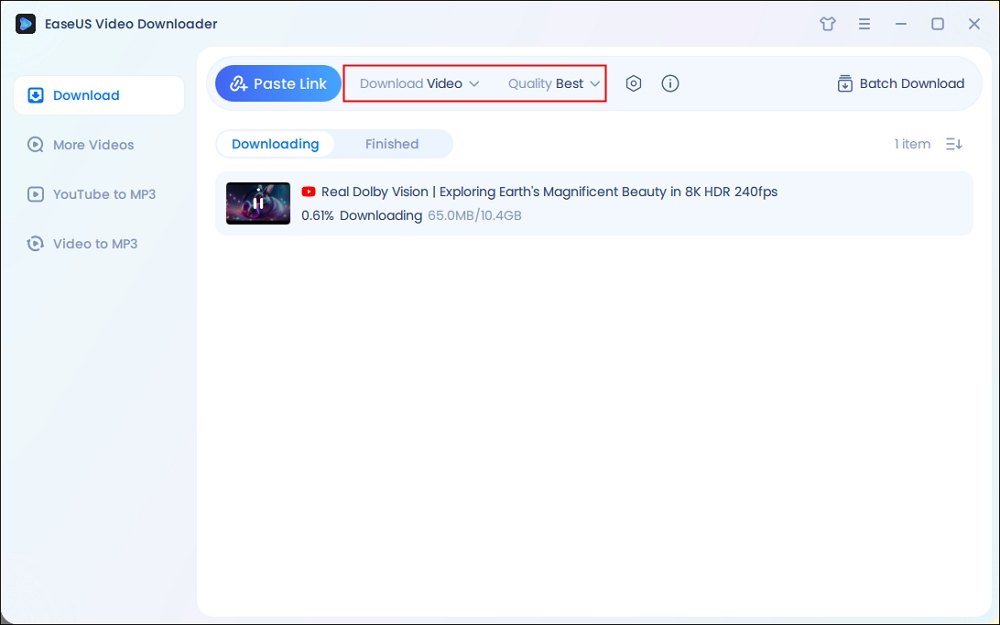
Step 2. Copy the YouTube URL and click "Paste Link" on EaseUS Video Downloader.
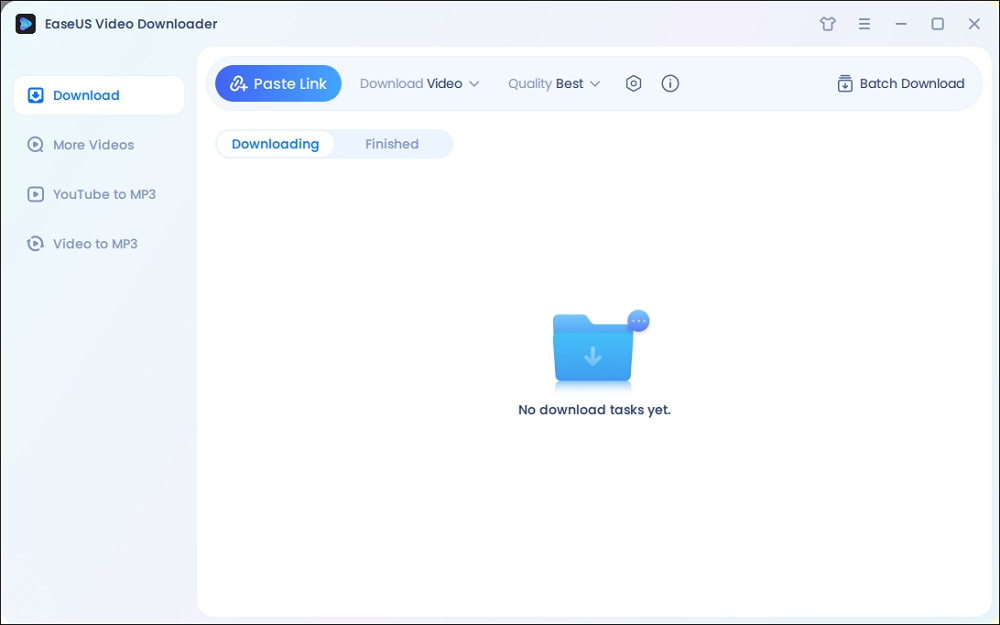
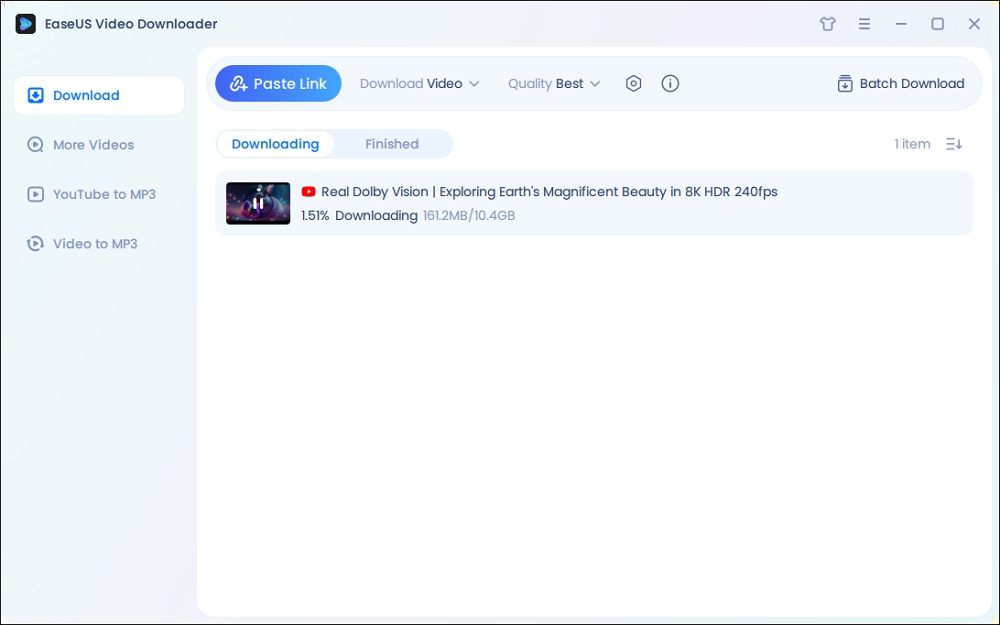
Step 3. Wait for the downloading process to finish and then click "Open" to check the YouTube video.
Disclaimer: This guide is compiled for personal fair use ONLY. EaseUS is in no way collaborated or affiliated with YouTube and never advocates any copyright infringement action. The end-user should be solely responsible for their behavior.
Other than YouTube, EaseUS Video Downloader also supports many other video sites or social networking sites, including Facebook, Twitter, TikTok, Instagram, Twitch, and more. If you always need to download online video or audio from various sites, it's advisable to use such a tool to help in various situations. The next time you need to download Facebook Messenger videos in HD or save Twitch clips to your Mac, you won't need to ask for help from the Internet anymore.
Free Download video downloader for Mac
Secure Download
Free Download video downloader for Windows
Secure Download
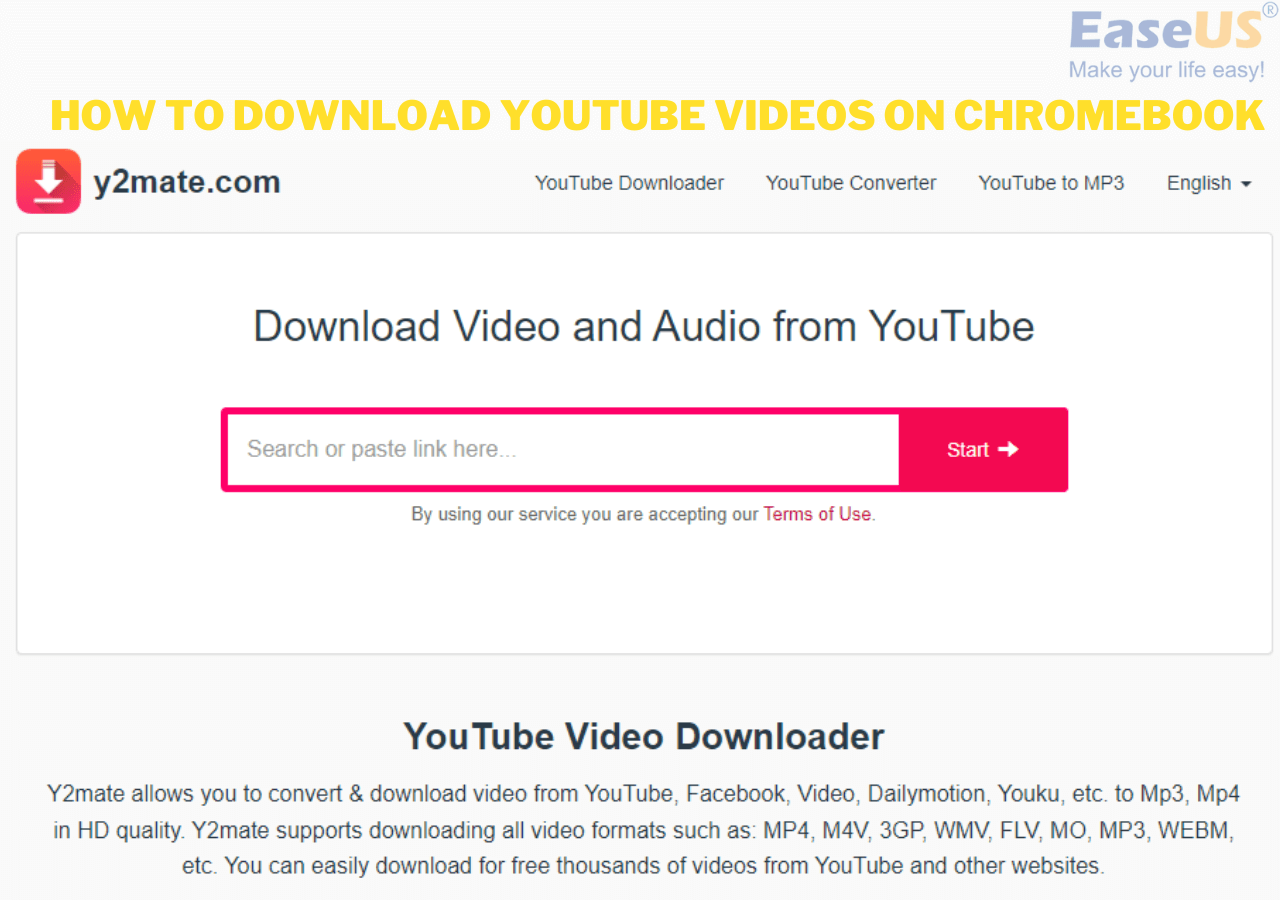
How to Save YouTube Videos on Mac Online for Free
Don't want to install any software? If so, you may prefer online YouTube video downloaders compared with desktop software. Honestly speaking, although much more convenient, an online YouTube downloader may cause more trouble than a desktop program. According to my own experience, there are some issues that may occur while using an online tool to save YouTube videos on a computer, including:
- Ads keep popping up
- The users are redirected to another shopping site
- The tool can't find the video according to the link
And more. Luckily, not all online YouTube downloaders are that troubling. Here is Keepvid that works well to get videos from YouTube onto your Mac.
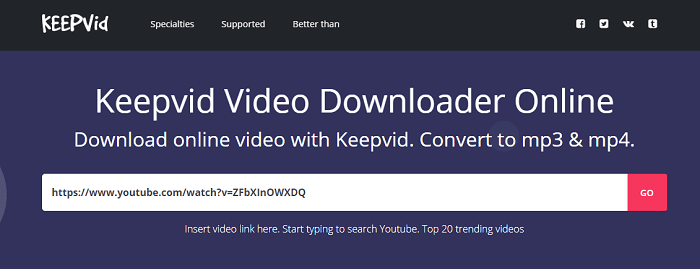
Keepvid is one of the most popular online video downloaders that allows you to download videos from websites on Mac by inserting the video link into the address bar. You will like it if downloading YouTube videos in different formats and quality is what you need. Besides, it also serves the function of an audio converter that will extract music or other audio files from a YouTube video for you.
To download a YouTube video on Mac with Keepvid:
Step 1. Go to YouTube and copy the URL of the video you want to download.
Step 2. Visit KeepVid on your Mac and click the "Download" button.
Step 3. After an analysis process, you will see the download options available, including videos in different qualities and audio in various formats. Choose the format and click "Download" to start downloading YouTube videos to your Mac.
How to Download YouTube Videos for Mac with Chrome/Firefox
- ⚠️Notice:
- According to Google's policy, Chrome extension is not allowed to download videos from YouTube.
Still want to download a YouTube video with the browser? If that's exactly what you want, you can't miss the helpful browser extensions shown below, which allow you to save YouTube videos on a Mac using Chrome or Firefox for free. This is the only working extension that allows you to save these videos in a sandboxed environment. We have no idea when it will stop working. Use it if it is still available.
To download videos from YouTube with Chrome:
Step 1. Go to visit YouTube Video and MP3 Downloader.
Step 2. The webpage will detect your browser automatically. Confirm your browser and click "INSTALL VIA CROSSPILOT".
Step 3. Download and install the extension. Afterward, restart the browser.
Step 4. Go to YouTube and play the video you want to download.
Step 5. Now you should see there is a Download button under the video. Click the Download button to save the YouTube video to your laptop directly or click the three dots next to it to choose other qualities available. (If you don't see the download button, click the icon of the YouTube Video and MP3 Downloader from the menu bar of the browser to download the video.)
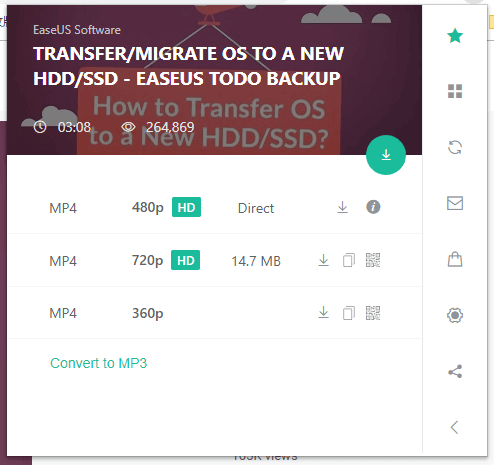
To save a YouTube video on Mac with a YouTube video downloader for Firefox:
Step 1. Go to add the extension - Easy Youtube Video Downloader Express to Firefox.
Step 2. Restart Firefox.
Step 3. Go to YouTube and play the video you intend to download.
Step 4. Under the video, click the "Download" button and choose one of the versions (MP4 360p, MP4 720p, MP4 1080p, MP3...) to download.
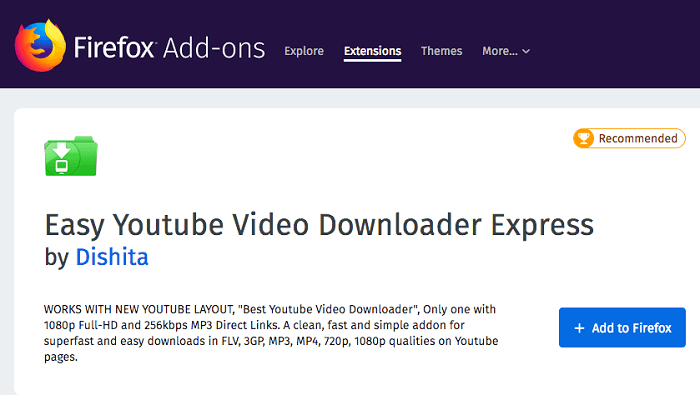
Of course, there are video download tools for Safari. You can search on the Internet and choose the one you like.
How to Download YouTube Videos to Mac with VLC Media Player
📢Updates in 05.2025: VLC stops playing YouTube as of 2025.05. For more information, refer to How to Save YouTube Videos with VLC.
How can you download YouTube videos on your Mac for free? One of the answers is to use the VLC media player. VLC is known as a free and open-source portable cross-platform media player software and streaming media. It also enables you to download a YouTube video on your computer, be it Mac, PC, or laptop.
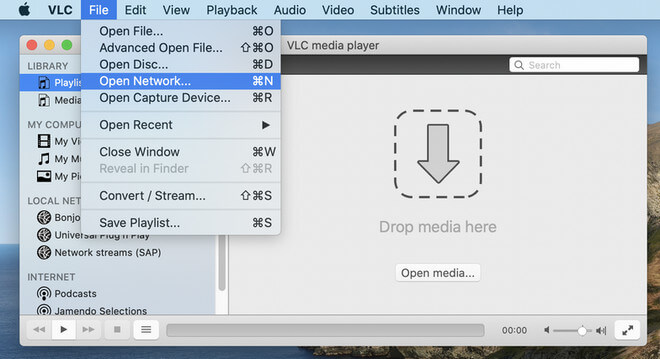
- Step by step guide (click to expand if required)
-
Step 1. Download and install the VLC media player on your Mac and launch the program.
Step 2. Go to YouTube and copy the link to the video you attempt to download.
Step 3. In VLC, choose "File" > "Open Network". In the "Open Source" window, paste the video URL in the address bar and click "Open".
Step 4. Right-click the video and select "Media Information".
Step 5. Copy the content in the "Location" bar and paste the copied URL into the address bar. Then press "return" to begin to play on your browser.
Step 7. Right-click the video and select "Save Video as.." to start downloading videos from YouTube to your Mac.
How to Capture Videos from YouTube to Mac by Screen Recording
Other than downloading videos from YouTube, you can choose to record the video and save it on your Mac. This method works best when you can't download a YouTube video due to copyright issues or other problems.
To capture the screen, you can either use the built-in screen recording feature in macOS or QuickTime Player.
- To use the built-in screen recording feature: Press Command + Shift + 5.
- To use QuickTime: Choose "File" in QuickTime and select "New Screen Recording".
Common Issues Related to YouTube Video Download
There are some frequently asked questions from users about YouTube video download:
"How do I download YouTube videos to my Mac for free?"
If you have read this article, you know now that most of the five methods detailed in this guide enable you to save YouTube videos to your Mac. Use the built-in screen capture feature to save videos from YouTube completely free and totally safe.
"Can I download a video from YouTube with YouTube Premium?"
The YouTube Premium subscription allows you to download videos from YouTube, but only to mobile devices like phones and tablets. Thus, if you attempt to save a YouTube video to Mac, it won't help.
"Why can't I download YouTube videos?"
If you are going to download a private video or a video containing music, you may fail since these videos may give rise to copyright issues. For more reasons, check here!
The Bottom Line
Now you not only know how to download YouTube videos to your Mac but also learn all the other tips to download video/audio files from YouTube to other devices. If you find this detailed guide helpful, don't hesitate to share it with others. By the way, if you want to do further editing on your downloaded videos, some of the best free video editing software with no watermark can make it easy.