Download videos right now
With EaseUS Video Downloader, save any video in seconds - download copyright-free video from public websites.
Affiliate
Earn commissions when you drive sales through your affiliate links.
Resellers
Sell EaseUS products as a distributor.

Creators & Influencers
Partner with us on YouTube, TikTok, Twitch to earn commissions.
OEM & Outsourcing Service
Put your brand on EaseUS software, or get custom solutions.

Refer & Earn
Earn rewards when you refer others to EaseUS solutions.

Education
Verified students and teachers get exclusive discounts.
Page Table of Contents

Jun 25, 2026 0 mins read
To save the Facebook Messenger videos that were sent to you:
Facebook Messenger is a popular platform for sharing texts, images, GIFs, and videos. Whether it's a memorable moment, an important work-related clip, or a funny video, you may want to save Messenger videos permanently on your device for easy access and offline watching. This guide will walk you through simple and effective methods to download videos from Facebook Messenger on your PC or mobile phone.
To save videos sent to you or uploaded to Facebook, use a third-party video downloader like EaseUS Video Downloader. Then, copy and paste the video link to download it quickly.
Download videos right now
With EaseUS Video Downloader, save any video in seconds - download copyright-free video from public websites.
Before downloading any video from Facebook Messenger, it's important to keep a few key considerations in mind. Ensure that you have permission to save the video, verifying the source’s trustworthiness, and using safe methods to protect your device and personal data. Taking these precautions helps you avoid potential risks and ensures a smooth, secure experience when saving videos locally.
See also:
Forwarded videos in Facebook Messenger are videos shared from other Facebook posts or external sources rather than directly uploaded by your contact. Because these videos are not stored within Messenger itself, downloading them requires a slightly different approach.
Step 1. Open your Messenger app or web client and find the chat with the forwarded video.
Step 2. Click the forwarded video. If it's linked to a Facebook post, open the original post by clicking on the video or the accompanying link.
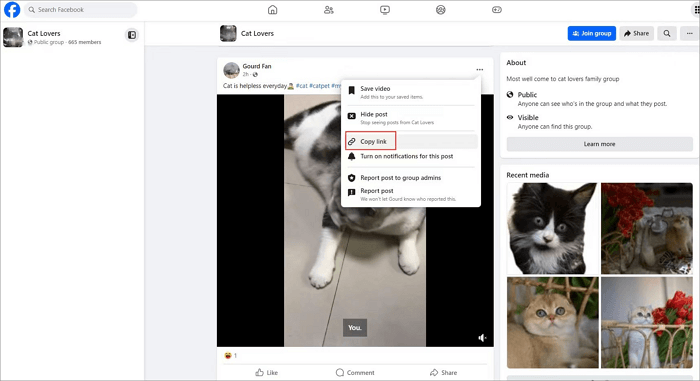
Step 3. Click to open the post on a new page, then click the three dots at the top-right corner of the video and choose "Copy link."
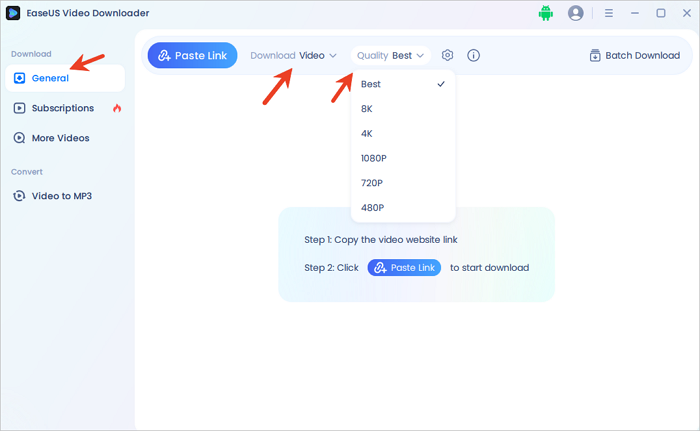
Step 4. Open EaseUS Video Downloader on your computer. Choose the file format and set the quality.
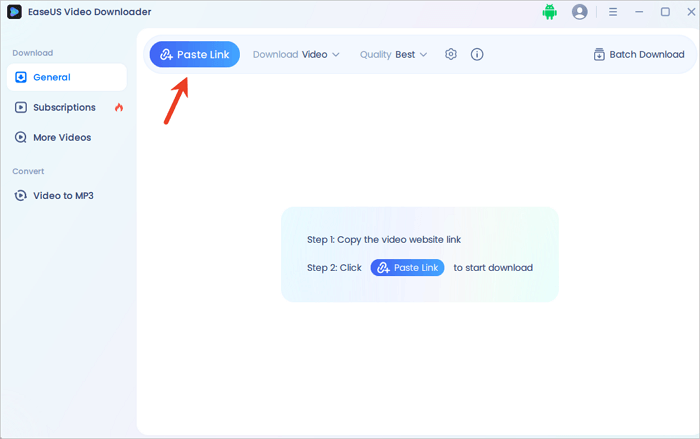
Step 5. Click "Paste Link" and it will start analyzing the URL and downloading the video.
Download videos right now
With EaseUS Video Downloader, save any video in seconds - download copyright-free video from public websites.
Step 1. To save this video on your mobile device, long-press the video your friend forwarded to you, then click "More" at the bottom right of the screen.
Step 2. Click "Copy" to copy the video link, open Toolzu, an online Facebook video downloader, and paste the link into it.
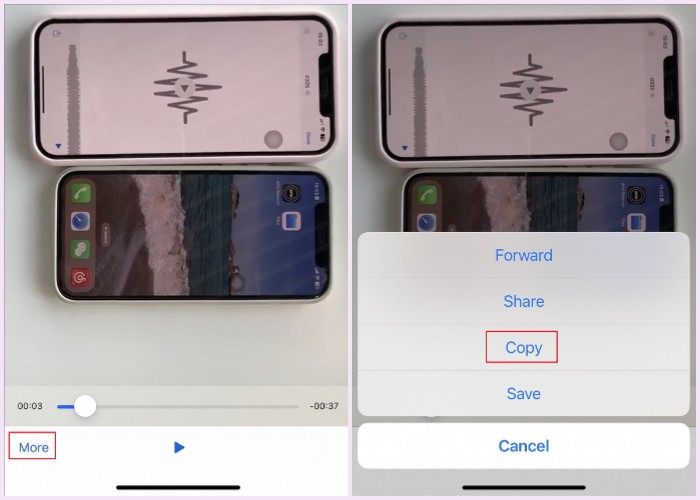
Step 3. Click "Download." That's all.
📺Here is a video tutorial to help you understand this topic more quickly.
If the video your friends sent to you was uploaded from local files, downloading these uploaded videos is simple and can be done on both mobile devices and desktop computers. Follow the steps below to download videos others have uploaded and shared with you via Messenger.
The Facebook Messenger app and its web version are perfectly synchronized, allowing you to download Messenger videos on your PC browser. Want to know how? Let me guide you through the process.
Step 1. Open your browser. Here, we will open Google Chrome and log in to our Facebook account. To download the video you want, start by locating the Messenger icon in the upper-right corner. Once you've found it, simply browse through the list and select the video you wish to download.
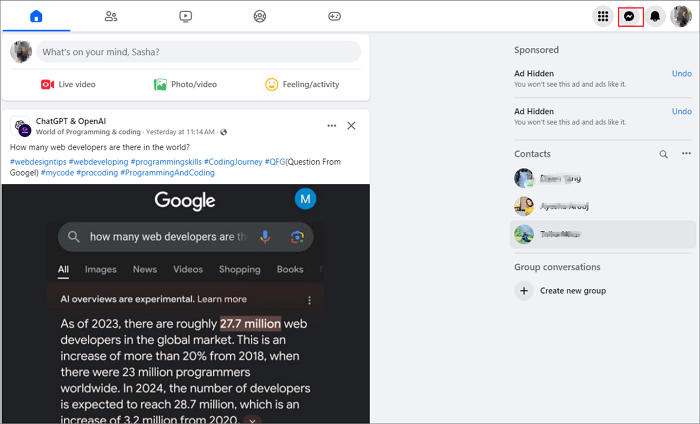
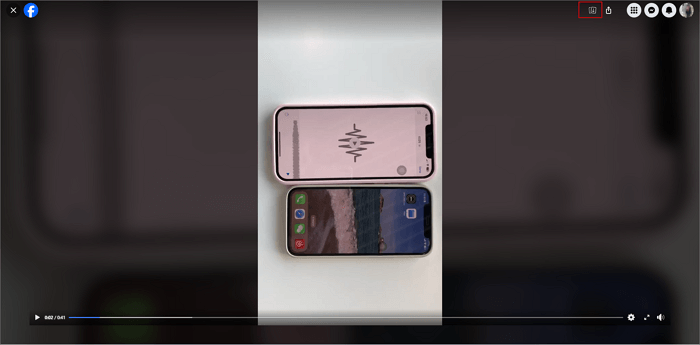
Step 2. Click the video to open it on the page.
Step 3. Simply tap on the download icon at the upper right-hand side of the screen to initiate the video download process from Facebook Messenger straight to your computer.
No need for third-party apps if you want to save a video uploaded from your friend's local file. You can save the video directly. Let's learn how to save a video from Facebook Messenger to your mobile device.
Option 1.
Step 1. Run Facebook Messenger and find the conversation with videos you intend to download.
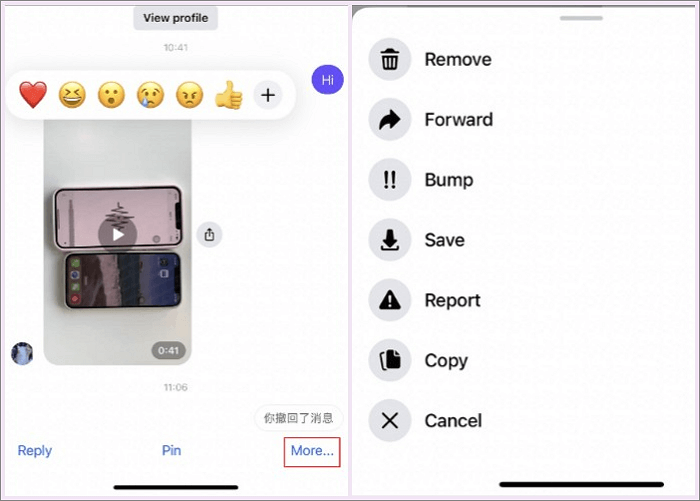
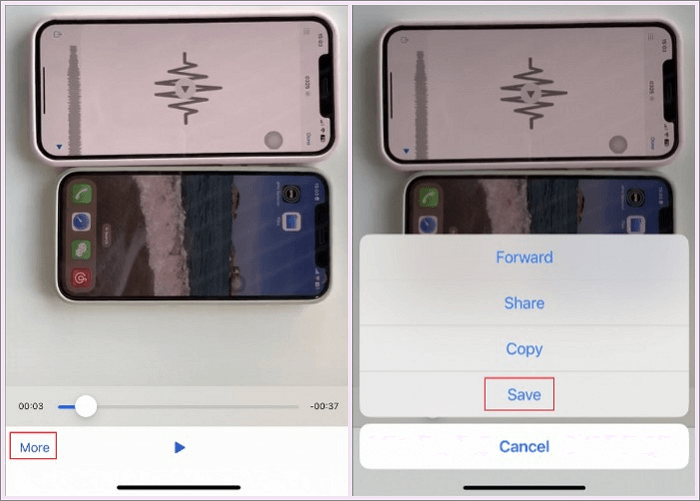
Step 2. Long-press the video; then, a settings menu appears at the bottom of the screen when the emoji bar appears over the video.
Step 3. Simply tap on More > Save to download the video that your friends have shared with you to your Photos or Gallery.
Option 2
Step 1. Tap the video to start playing, and please make sure to full-screen it.
Step 2. You may see a "More" button, click it, and choose and click "Save" to download the video into your photo gallery.
Some users may want to try Facebook video downloaders online. Unfortunately, the end result may not be as good as expected, as most Facebook video downloaders are capable of downloading post videos, Facebook live videos, and saving Facebook reels. However, they cannot be used to download private videos. As you can see, only a Facebook private downloader is functional, although it takes much longer than the built-in download feature.
| 🔧Tool | ↪️Result |
| Toolzu | Failed - You have entered the link for a private account. |
| FDDOWN | Failed - This video might be private and not public. |
| Publer | Failed - The provided URL is not a publicly accessible media. |
| FDownloader | Failed - Error: Video not found |
| Getfbstuff | The only effective way |
Looking for a powerful video downloader for your PC? Look no further than EaseUS Video Downloader! This amazing tool enables you to save posts, videos, live videos, reels, and a wide range of video clips from popular platforms such as Facebook, Twitter, YouTube, Vimeo, and more.
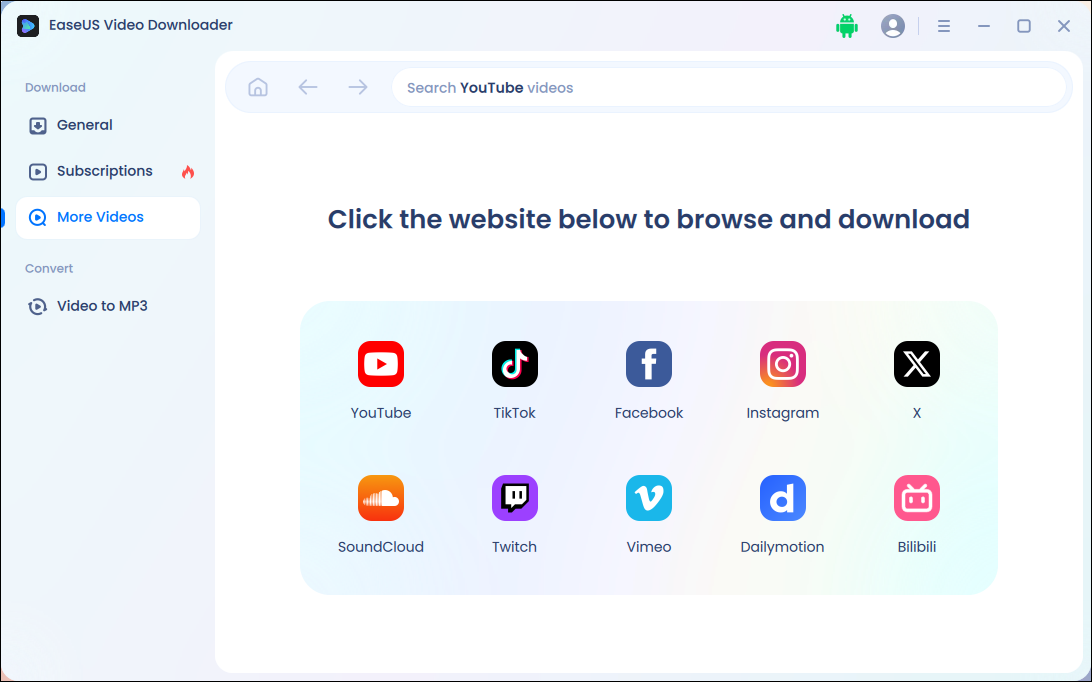
The best part? You can save high-quality videos, ranging from 360, 1080P to stunning 4K Ultra HD. Not only that, but you can also extract audio/background music from videos in MP3 with ease. Copy and paste the video URL, and your video will be saved within seconds. With its impressive features, EaseUS Video Downloader is the perfect choice for saving videos from any website.
💡Features of EaseUS Video Downloader include:
Secure Download
Secure Download
Note: Before downloading videos from Facebook, you should always get permission from the video owner or original creator to avoid copyright laws. Downloading videos without permission can infringe on copyright and may also violate Facebook's terms of service, potentially leading to legal consequences.
In summary, there are several effective methods to download videos from Facebook Messenger, whether you are using a PC, iPhone, or Android device. It is important to choose the method that best fits your device and needs. Remember to always respect copyright laws and obtain permission from content creators before downloading or sharing videos, especially if they are private or copyrighted. By following the outlined steps and legal considerations, you can safely save videos from Messenger for personal use.
Read this part to get more insight into this topic.
1. Does Facebook Messenger show if you save a video?
No, Facebook Messenger does not notify the sender if you save or download a video they sent you. The only exception is if you are using Messenger's special privacy modes like Secret Conversations, Disappearing Messages, or View Once media, where certain actions like screenshots or screen recordings may trigger notifications. But for regular videos and chats, saving or downloading content remains private and undetectable by the sender.
2. How do I save an FB video to my camera roll?
To save a FB video to your Photos (camera roll), follow these steps:
3. Where are downloaded Messenger videos saved?
On mobile devices, videos are saved to your Photos or Gallery app. On desktops or laptops, videos are usually saved to the default Downloads folder.
4. What if I don't see a download option for a video in Messenger?
Some videos may not have a direct save option due to privacy or source restrictions. In such cases, you can screen record these videos for backup or offline watching. Only do it when you have permission.
5. Are there any legal issues with downloading videos from Messenger?
Always ensure you have permission from the content creator before downloading videos to respect copyright and privacy laws.

Copyright Disclaimer
This article is for educational and technical reference only. Do not use the described methods to download or share copyrighted content without permission.
Users are fully responsible for any legal consequences. Please:

Respect content creators' rights

Use official or authorized platforms

Avoid unauthorized downloads

Use official or authorized platforms
Columnist
Sasha is a girl who enjoys researching various electronic products and is dedicated to helping readers solve a wide range of technology-related issues. On EaseUS, she excels at providing readers with concise solutions in audio and video editing.
Read Full Bio More Related Articles
Cannot Download Videos from Facebook? See Reasons & Fixes
This blog covers some practical methods to fix the can't download Facebook video issue. If you're experiencing the same problem, don't hesitate to use the methods introduced in this guide to fix it.
Sasha. Jun 25, 2026
3 min read
Download Video from Facebook Ads Library in 3 Free Ways
How to download videos from the Facebook ads library for free? This post lists four different ways for you: the code, an online downloader, a Chrome extension, and a desktop software. Keep reading.
Sasha. Jun 25, 2026
3 min read
5 Methods to Download Telegram Videos on PC
Want to download videos from Telegram, which is rather tricky? Then, follow our guide to learn about multiple methods to download and watch the videos offline. We have also discussed a powerful video downloader that can simplify things.
Sasha. Jun 25, 2026
3 min read
Facebook Downloader for PC Windows 10/11/7/8 [2026 Update]
The Facebook video downloader for PC - EaseUS Video Downloader will help you download a Facebook video to your computer or mobile device at no cost. Get this Facebook video downloader for Windows and apply it to download Facebook videos with ease.
Sasha. Jun 25, 2026
3 min read