Download videos right now
With EaseUS Video Downloader, save any video in seconds - download copyright-free video from public websites.
Affiliate
Earn commissions when you drive sales through your affiliate links.
Resellers
Sell EaseUS products as a distributor.

Creators & Influencers
Partner with us on YouTube, TikTok, Twitch to earn commissions.
OEM & Outsourcing Service
Put your brand on EaseUS software, or get custom solutions.

Refer & Earn
Earn rewards when you refer others to EaseUS solutions.

Education
Verified students and teachers get exclusive discounts.
Page Table of Contents


Oct 23, 2026 0 mins read
✅ New Update for VLC:
VLC Media Player No Longer Supports Downloading YouTube Videos due to changes in YouTube's encryption and playback settings. Previous methods, such as updating youtube.luna file or using the Network Stream option may no longer work. Users seeking to download YouTube videos should now consider alternatives like EaseUS Video Downloader, YT-DLP, or Stacher.
Before we begin, it's important to clarify the purpose of this article. The information provided here is for educational and informational purposes only. We do not encourage or promote downloading copyrighted YouTube videos without permission. YouTube's Terms of Service prohibit downloading content unless the platform itself provides a download option (such as YouTube Premium).
By following this guidance, you can ensure that your use of VLC Media Player or EaseUS Video Downloader remains legal, ethical, and safe.
What's going on with VLC?
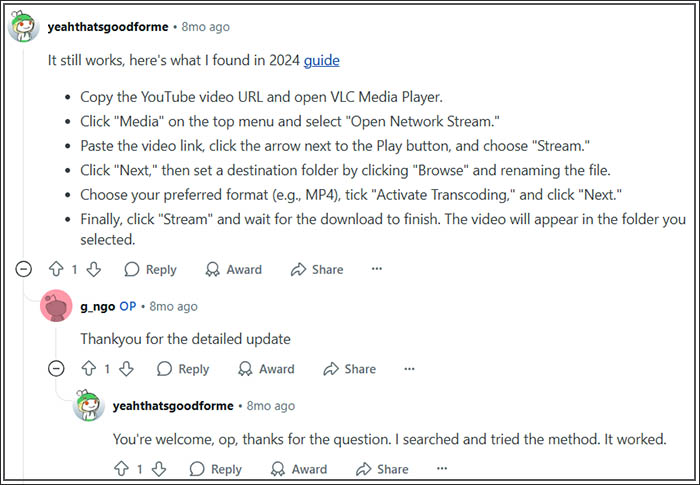
I previously posted a comment outlining the detailed steps for using VLC to download YouTube videos on a Reddit thread titled "VLC to download YouTube videos still works." However, some users responded, indicating that the VLC methods failed to download YouTube videos.
Can VLC Still Download YouTube Videos?
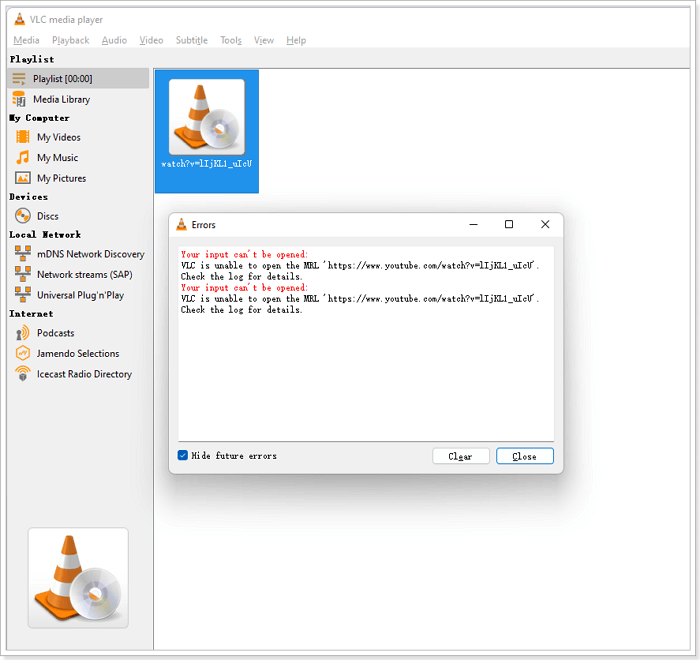
After seeing that comment, I immediately launched the VLC Media Player on my Windows computer, entered the URL of a video from YouTube and click "Play". To my surprise, it turned out that it didn't work as the Reddit comment suggested. Whether I tried to click the "Play" option or the "Stream" option, I always failed to download and save videos from YouTube to my computer.
The result is that I'm unable to use the VLC media player to play YouTube videos. Therefore, it makes sense that the download option cannot be available.
Therefore, I regret to inform that as of March 2025, VLC can't support downloading YouTube videos any more. After reviewing posts and fixes on The VideoLAN Forums (the official forum of VLC), it is clear that methods relying on indirect ways to save YouTube videos, such as those created before 2025 using Chrome, are no longer effective.
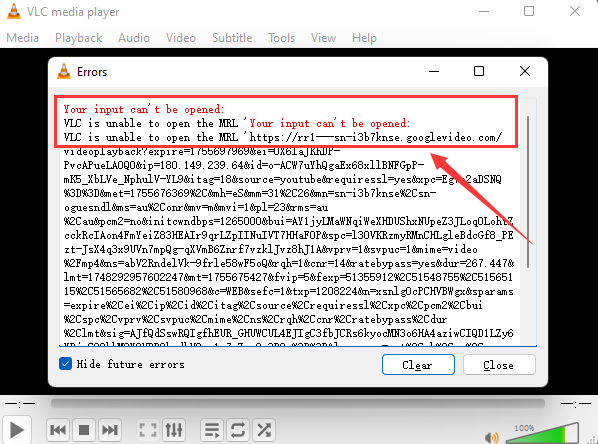
(VLC can't download videos from YouTube anymore, see the VLC Alternative section for an alternative way to download YouTube videos to computer.)
Step 1. Copy the video's URL that you'd like to download. Then, open VLC Media Player on your computer.
Step 2. Click "Media" on the top bar. Then, choose "Open Network Stream."
Step 3. Paste the video link, and click the down arrow next to the play button, then choose the "Stream" option.
Step 4. Click on the "Next" button. Then, you can see an option to set a destination. Click the "Browse" button to rename the file.
Step 5. Next, click on the drop-down icon and select the format you need. Here, we choose to download it in MP4. Remember to tick the "Activate Transcoding" button. Click "Next."
Step 6. Finally, click "Stream" and wait for it to download the videos. You may see this file in the folder you chose before.
Step 1. Paste the YouTube video link.
Step 2. Click "Media" > "Convert/Save..."
Step 3. You will see a pop-up window; choose "Network" and paste the YouTube link. Then, we do not choose the "Convert/Save" button; click the inverted triangle next to this button and choose "Play."
Step 4. After it finished parsing this link, it playback this video automatically.
Step 5. For Windows users, go to "Tools" > "Codec Information." For Mac users, go to "Window" > "Codec Information."
Step 6. Copy the location link, and then open this link in a browser.
Step 7. After loading, right-click the mouse and choose "Save video as..." or click the three dots at the left corner of the video and click "Download. Then, you finish downloading the video on your computer.
Since VLC can not open, play, and download YouTube videos anymore, you might want to look for an alternative. EaseUS Video Downloader can be a great VLC alternative. In the process of downloading videos, the steps are similar to those of the VLC Media Player.
Download videos right now
With EaseUS Video Downloader, save any video in seconds - download copyright-free video from public websites.
This YouTube video downloader can help you save publicly available videos from YouTube to your Windows or Mac computer easily. Its user-friendly interface lets you easily download YouTube long videos or YouTube Shorts with a few clicks.
What you'll love in EaseUS Video Downloader:
⚠️EaseUS Video Downloader is intended for personal use and authorized content only. We do not encourage downloading videos that are protected by copyright without permission from the content owner. Please comply with YouTube's Terms of Service and local copyright laws before using this tool.
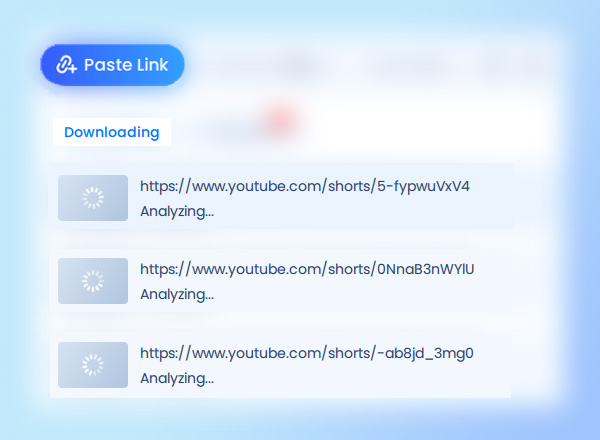
Since you can not download YouTube videos with VLC any more, you can always try EaseUS Video Downloader to download publicly available videos from YouTube and save YouTube video to gallery. It also allows you to download videos from YouTube to an SD card/HD card. So, it's always the best VLC Media Player alternative for you to use. If you need any help, Team EaseUS will be here to help you.
↪️Don't forget to share this helpful content with your friends:
VLC used to allow users to stream YouTube videos directly, but due to YouTube’s frequent changes to its streaming protocols, this feature no longer works reliably. As of now, VLC cannot play or download YouTube videos. If you need a stable option, a dedicated tool like EaseUS Video Downloader is recommended.
Since VLC no longer supports YouTube videos, it is not a valid method for downloading. In general, downloading YouTube videos is only legal if you are saving your own uploads, Creative Commons content, or videos you have permission to use. Downloading copyrighted videos without authorization is against YouTube’s Terms of Service and may infringe copyright laws.
No. EaseUS Video Downloader is intended for legal and personal use only. It allows you to download your own YouTube videos, Creative Commons materials, or authorized content for offline viewing. It does not support or encourage downloading copyrighted videos without permission.
Update Log Explaination

Copyright Disclaimer
This article is for educational and technical reference only. Do not use the described methods to download or share copyrighted content without permission.
Users are fully responsible for any legal consequences. Please:

Respect content creators' rights

Use official or authorized platforms

Avoid unauthorized downloads

Use official or authorized platforms
Columnist
Gorilla joined EaseUS in 2022. As a smartphone lover, she stays on top of Android unlocking skills and iOS troubleshooting tips. In addition, she also devotes herself to data recovery and transfer issues.
Read Full Bio More Related Articles
Download TikTok Video Extension [7 Free Tools without Watermark]🌐
Unlock TikTok's true potential with our recommended video extensions. Download unlimited TikTok videos for free without any teasing watermarks.
Gorilla. Oct 23, 2026
3 min read
How to Download View-Only Video from Google Drive Easily
In this guide, we will discuss how to download a video from Google Drive through a public video link. If you want to download a video shared by your family or friends from Google Drive, you can follow the guide in this article to save the video from GDrive to your device efficiently.
Gorilla. Oct 23, 2026
3 min read
How to Download Saved TikTok Videos | With Bonus
How to download saved, bookmarked or liked TikTok videos? You can download each one using the developer tools or copy the video link to an online downloader, but they are not smart and takes manual effort.
Gorilla. Oct 23, 2026
3 min read
How to Download GIFs from Tenor on PC/Mobile
If you want to keep Tenor GIFs, read this article and learn how to easily download GIFs from Tenor. Enhance your digital content with engaging GIFs.
Gorilla. Oct 23, 2026
3 min read