Download videos right now
With EaseUS Video Downloader, save any video in seconds - download copyright-free video from public websites.
Affiliate
Earn commissions when you drive sales through your affiliate links.
Resellers
Sell EaseUS products as a distributor.

Creators & Influencers
Partner with us on YouTube, TikTok, Twitch to earn commissions.
OEM & Outsourcing Service
Put your brand on EaseUS software, or get custom solutions.

Refer & Earn
Earn rewards when you refer others to EaseUS solutions.

Education
Verified students and teachers get exclusive discounts.
Page Table of Contents


Oct 23, 2026 0 mins read
Tenor offers a vast library of GIFs through GIF Keyboard, available on Android, iOS, and macOS. This platform makes it so easy for users to find and share the most relevant and engaging GIFs worldwide across different devices. On Tenor, you will find GIFs in various themes, ranging from Happy Birthday and Good Morning to memes, which attract users to download animated images for personal use or content creation, adding humor, emotion, or visual appeal to digital market and social media use, such as VLOG, YouTube videos, TikTok shorts, or Reddit comments.
Overall, Tenor's features make it a go-to source for downloading GIFs that can elevate user engagement and interaction. Now, let's see how to download GIFs from Tenor on your computer and mobile devices.
Download videos right now
With EaseUS Video Downloader, save any video in seconds - download copyright-free video from public websites.
Works on both desktop and mobile browsers.
You can download Tenor GIFs directly without any software or apps:
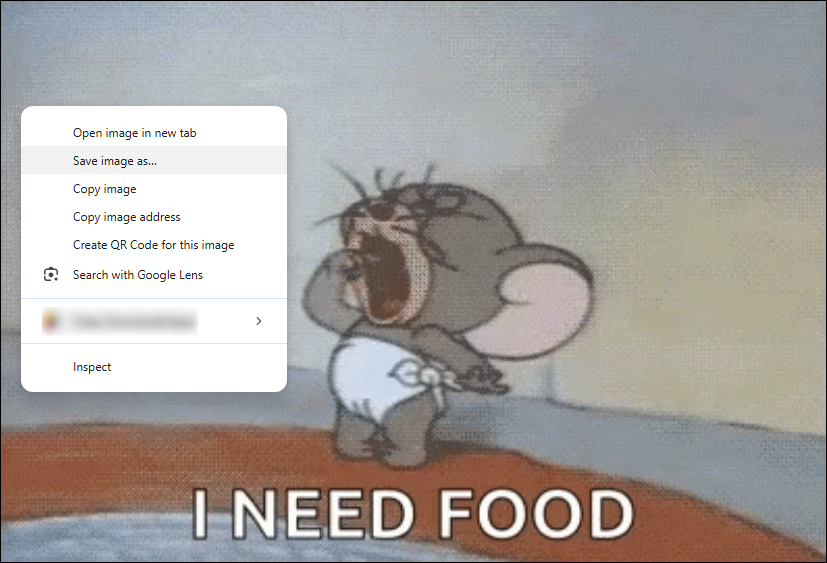
Moreover, Tenor allows you to edit and customize the GIF content.
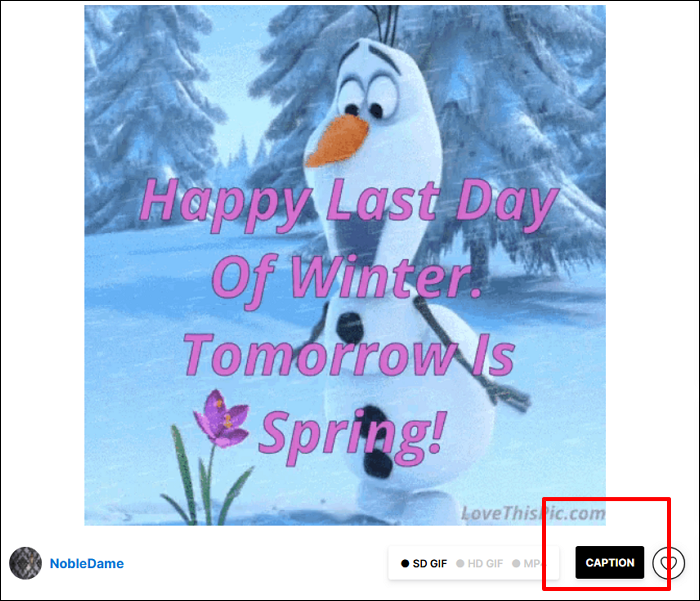
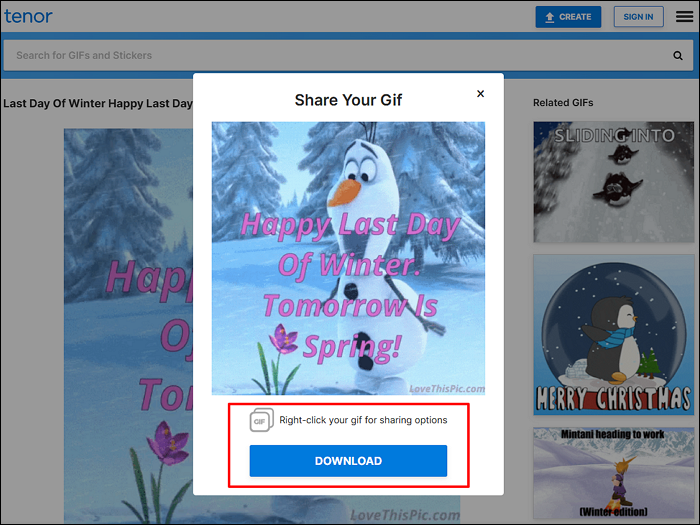
However, some users have reported issues downloading GIFs from Tenor in certain browsers, such as Waterfox, where the downloaded files may be empty or very small. In such cases, switching to another browser, such as Chrome or Firefox, might resolve the issue.
Works on both Windows and macOS.
If you want to download Tenor GIFs in MP4 format for better compression, smoother playback, and smaller file sizes, you can paste the direct link of the GIF file into a GIF downloader - EaseUS Video Downloader. It can save GIFs as MP4s, which are widely supported across devices, browsers, and media players. It can reduce the file size from 617KB to 97KB, which means faster downloads and less storage space used when you have a lot to save on your device. EaseUS Video Downloader displays no ads or pop-ups and offers technical support, ensuring a safe downloading process.
Benefits of Converting GIF to MP4:
Secure Download
Secure Download
Step 1. Download and install EaseUS Video Download on your Windows or Mac. Launch it.
Step 2. Locate and copy the URL of the animated picture you want to download.
Step 3. Click 'Paste Link' in EaseUS Video Downloader, and it will initiate the downloading process.
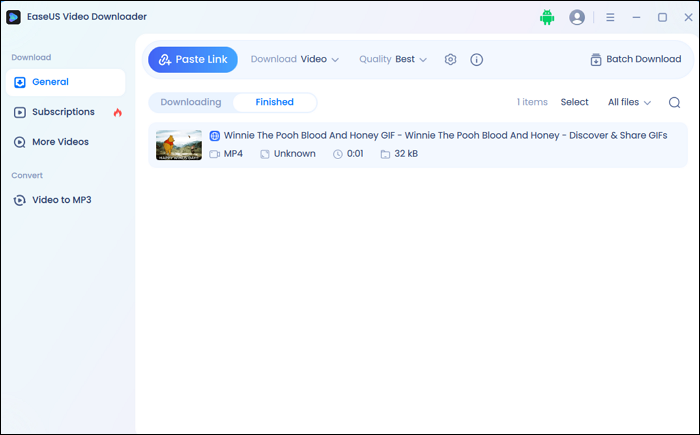
Works on both desktop and mobile browsers.
If you want straightforward, fast, and hassle-free downloading of Tenor GIFs for offline use or sharing on various platforms. There are two online Tenor GIF downloaders for you. With them, you don't have to download any third-party software. Just ensure you have a stable internet connection, and you can save GIFs on your phone or computer successfully.
Both allow you to paste any Tenor GIF URL and instantly get a direct download button. They are particularly useful when right-click saving from Tenor is disabled or inconvenient.
Note:
If you prefer downloading GIFs to your mobile phone for easy sharing on social media, there are two ways for you: the Tenor mobile app and the browser.
The Tenor app is available on iOS and Android, which allows you to download GIFs.
Step 1. Install the Tenor GIF Keyboard app from the Google Play Store or Apple App Store.
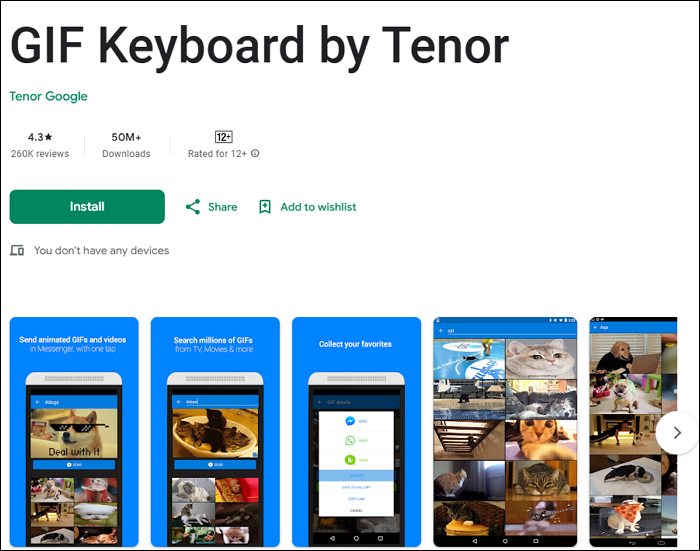
Step 2. Browse through the app to find the GIF you want.
Step 3. Long-press the picture, and you will see the 'Save to Camera Roll' option. Also, you can add the GIF to 'Favorite' for later access.
Still, you can use the browser directly to download GIFs, which is convenient and frees you from third-party software.
Step 1. Open the Tenor GIF in a browser.
Step 2. If the browser allows it, you might be able to save the GIF directly. However, some browsers or newer versions of apps might only allow saving as a video.
Unfortunately, the app or the browser may not directly allow downloading GIFs in the GIF file format; it might save them as videos or still images. If you're unable to download Tenor GIFs directly as GIFs on mobile, consider using a desktop browser that can handle GIF downloads, for which EaseUS Video Downloader is suitable.
Both Giphy and Tenor are popular GIF platforms, but they cater to different user preferences and have distinct integrations with major tech companies. While Giphy is integrated into Meta platforms and supports larger file sizes, Tenor benefits from its integration with Google services and has a strong user base, particularly in the U.S.
| Feature | GIPHY | Tenor |
| Ownership | Meta (Facebook) | |
| Integration | Facebook, Instagram, Slack, etc. | Google products (Gboard, Search, Android Messages) |
| File Size Support | Larger files (over 20MB) | Smaller file size limitations |
| Focus | Balanced on web and mobile | Strong focus on mobile |
| Creation Tools | GIPHY Studio for creating GIFs | Limited creation tools |
Which is Better?
Downloading Tenor GIFs can be achieved through both manual and automated methods. Manually, users can right-click on a GIF and select 'Save Image As' to download it directly from the Tenor website. You can also download animated images automatically from Tenor via GIF downloaders like EaseUS Video Downloader. Simply paste a URL or a bunch of URLs into the downloader, and you will get all the files saved on your devices.
Why can't I download GIFs on Tenor?
If you cannot download GIFs from Tenor, there are a few reasons for this:
When you face the Tenor downloading not working issue, try using another browser or device.
Can I use Tenor GIF for free?
Yes, you can use Tenor GIF for free for non-commercial purposes. Tenor allows you to browse, search, and share GIFs without any cost. For commercial purposes, you need the proper licensing and permission.
How to download a GIF on an iPhone?
You can use Safari to download a GIF to your iPhone:
Why are my GIFs downloading as WEBP?
Some sites automatically convert GIFs to the WEBP format for better compression and performance, especially if they support modern image formats. When you try to save these images, they might be saved as WEBP instead of GIF, especially if the website is using a content delivery network (CDN) or a browser that defaults to WEBP for image downloads.

Copyright Disclaimer
This article is for educational and technical reference only. Do not use the described methods to download or share copyrighted content without permission.
Users are fully responsible for any legal consequences. Please:

Respect content creators' rights

Use official or authorized platforms

Avoid unauthorized downloads

Use official or authorized platforms
Columnist
Myra joined EaseUS in 2017. As a big fan of Apple products, she mainly focuses on iOS data transfer and iOS troubleshooting tips. Meanwhile, she is expanding her knowledge and skills in other fields like data recovery and disk management. Myra is open-minded and likes both extensive and intensive reading. Other than reading and writing, she is also fond of mobile games and K-pop stars.
Read Full Bio More Related Articles
Top 5 Firefox Extensions to Download YouTube Videos
Here is a collection of YouTube video downloader add-ons for Firefox that allow you to download YouTube videos directly via Firefox. With them, you will be able to choose the video format and video quality you like before the downloading process starts.
Myra. Oct 23, 2026
3 min read
Convert YouTube to USB Free in 8 Ways
To download and save popular or valuable videos from YouTube for sharing or other purposes, you may want to save them to your USB flash drive. This blog will walk you through 8 ways to convert YouTube to USB drive for free. Do not miss the information.
Myra. Oct 23, 2026
3 min read
4 Still Working Video Downloader Extension for YouTube
Let's see how many extensions still work for downloading YouTube videos on Chrome and Firefox. Get the final YouTube video downloader from this article!
Myra. Oct 23, 2026
3 min read
Best YouTube Downloader for Windows 11/10/8/7
A YouTube downloader for Windows allows you to download HD videos from YouTube to your PC for offline watching. To enable you to save YouTube videos at no cost, this article explores three different types of YouTube video downloader.
Myra. Oct 23, 2026
3 min read