
-
![]()
Joey Albert
Joey has been involved with tech ever since she joined the EaseUS editor team in March 2011 and now she is a senior website editor. She is good at solving various issues, such as video downloading and recording.…Read full bio -
![]()
Alin
Alin is a sophisticated editor for EaseUS in tech blog writing. She is proficient in writing articles related to screen recording, voice changing, and PDF file editing. She also wrote blogs about data recovery, disk partitioning, data backup, etc.…Read full bio -
Jean has been working as a professional website editor for quite a long time. Her articles focus on topics of computer backup, data security tips, data recovery, and disk partitioning. Also, she writes many guides and tutorials on PC hardware & software troubleshooting. She keeps two lovely parrots and likes making vlogs of pets. With experience in video recording and video editing, she starts writing blogs on multimedia topics now.…Read full bio
-
![]()
Gorilla
Gorilla joined EaseUS in 2022. As a smartphone lover, she stays on top of Android unlocking skills and iOS troubleshooting tips. In addition, she also devotes herself to data recovery and transfer issues.…Read full bio -
![]()
Rel
Rel has always maintained a strong curiosity about the computer field and is committed to the research of the most efficient and practical computer problem solutions.…Read full bio -
![]()
Dawn Tang
Dawn Tang is a seasoned professional with a year-long record of crafting informative Backup & Recovery articles. Currently, she's channeling her expertise into the world of video editing software, embodying adaptability and a passion for mastering new digital domains.…Read full bio -
![]()
Sasha
Sasha is a girl who enjoys researching various electronic products and is dedicated to helping readers solve a wide range of technology-related issues. On EaseUS, she excels at providing readers with concise solutions in audio and video editing.…Read full bio
Page Table of Contents

Sasha
Updated on Jan 21, 2026
0 Views |
0 min read
Marvel Rivals, a team-based, multiplayer hero shooter game, has introduced a new feature, Voice Changer, with its latest October 16 game update. We already know that this game allows real-time communication between teammates to coordinate strategies, such as calling out enemy positions, warning about ultimates, or sharing strategies. How the new feature helps improve your game experience, keep reading to learn about Marvel Rivals' voice changer feature, and some alternatives are also recommended.
About Built-in Voice Changer in Marvel Rivals
Thought using a real-time voice changer like Voicemod software is one of the most commonly used tricks employed by Rivals players. NetEase has added a voice changer option to in-game settings. This feature comes with the October 16 game update, allowing you to make yourself sound like a monstrous Symbiote or a spooky Pumpkin Monster. There are 5 preset voice filters available.
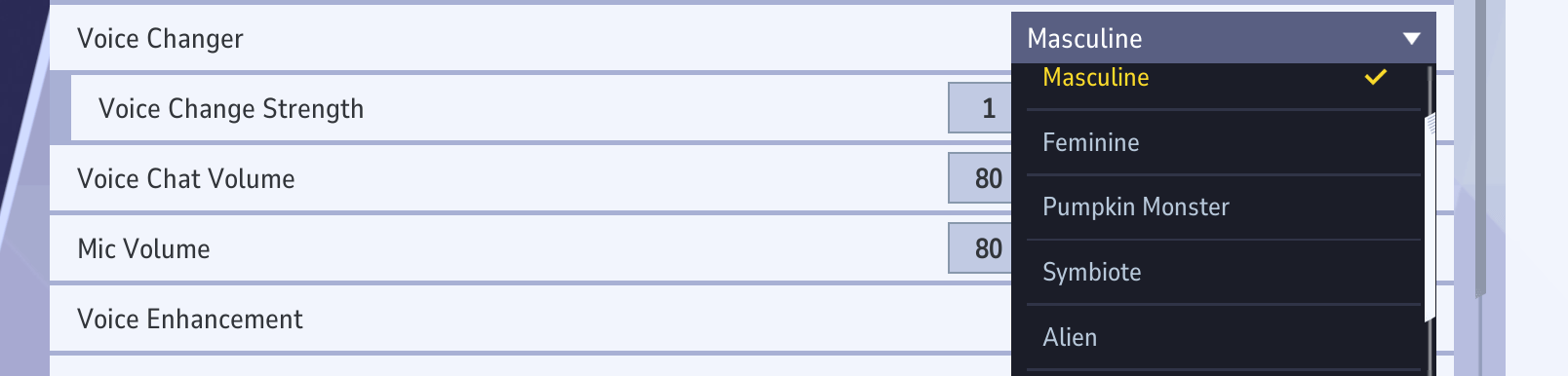
Masculine - Deep, Commanding, and Grounded
This filter drops your vocal pitch to create a fuller, heavier tone — think of it as giving your voice a cinematic bass boost. It's perfect for players who want to sound more authoritative in team chats or simply mask their natural voice without sounding too artificial. The result is smooth, bold, and convincingly natural.
Feminine - Bright, Light, and Expressive
The Feminine preset raises your pitch for a softer, higher-toned sound. It adds clarity and a touch of playfulness to your voice — ideal for creators who want a lighter vocal presence or for role-playing different characters. Subtle enough for casual use, yet distinct enough to make you feel like you're embodying a new persona on the battlefield.
Pumpkin Monster - Rough, Creepy, and Theatrical
This one leans straight into Halloween territory. The Pumpkin Monster filter layers your voice with gravelly distortion and eerie resonance, producing a raspy, undead growl that feels tailor-made for horror or supernatural heroes like Ghost Rider. It's the go-to choice for players who love dramatic flair — spooky, fun, and slightly unhinged in the best way possible.
Symbiote - Dark, Guttural, and Iconically Venom-Like
Easily the fan favorite. The Symbiote filter drenches your voice in deep growls, multi-layered echoes, and a sinister, almost liquid distortion that captures the essence of Venom's alien tone. It's gritty, menacing, and incredibly immersive. Perfect for tactical callouts that send shivers down your teammates' spines.
Alien - Synthetic, Futuristic, and Out-of-This-World
The Alien preset gives your voice a distinctly sci-fi twist. Expect modulated pitch shifts and a shimmering, robotic texture that feels right at home in the cosmos. It's ideal for playing as spacefaring heroes like Star-Lord or Luna Snow — cool, quirky, and unmistakably extraterrestrial.
How to Enable the Voice Changer Feature?
Step 1. Go to the "Settings" panel, and navigate to "AUDIO"> "BASIC" > "Voice Changer" under the "VOICE CHAT" menu.
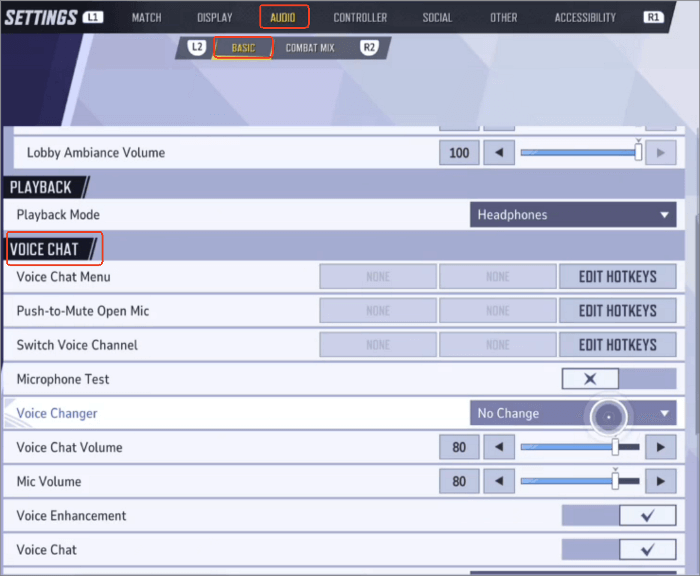
Step 2. Click the dropdown menu next to "Voice Changer," then choose a voice filter.
Then you can turn on "Microphone Test" to hear yourself over.
How to Create Custom Voice Filters?
In addition to preset voice filters, it also lets you create your own voice profile. By scrolling to the bottom of the voice changer dropdown list, you can see the "Add New Save" option. Then a small window will pop up. Give your voice profile a name, and then select tone from natural, masculine 1, 2, and 3, Feminine 1, 2, and 3, and add environmental sound effects like indoors, valley, robot, and walkie-talkie.
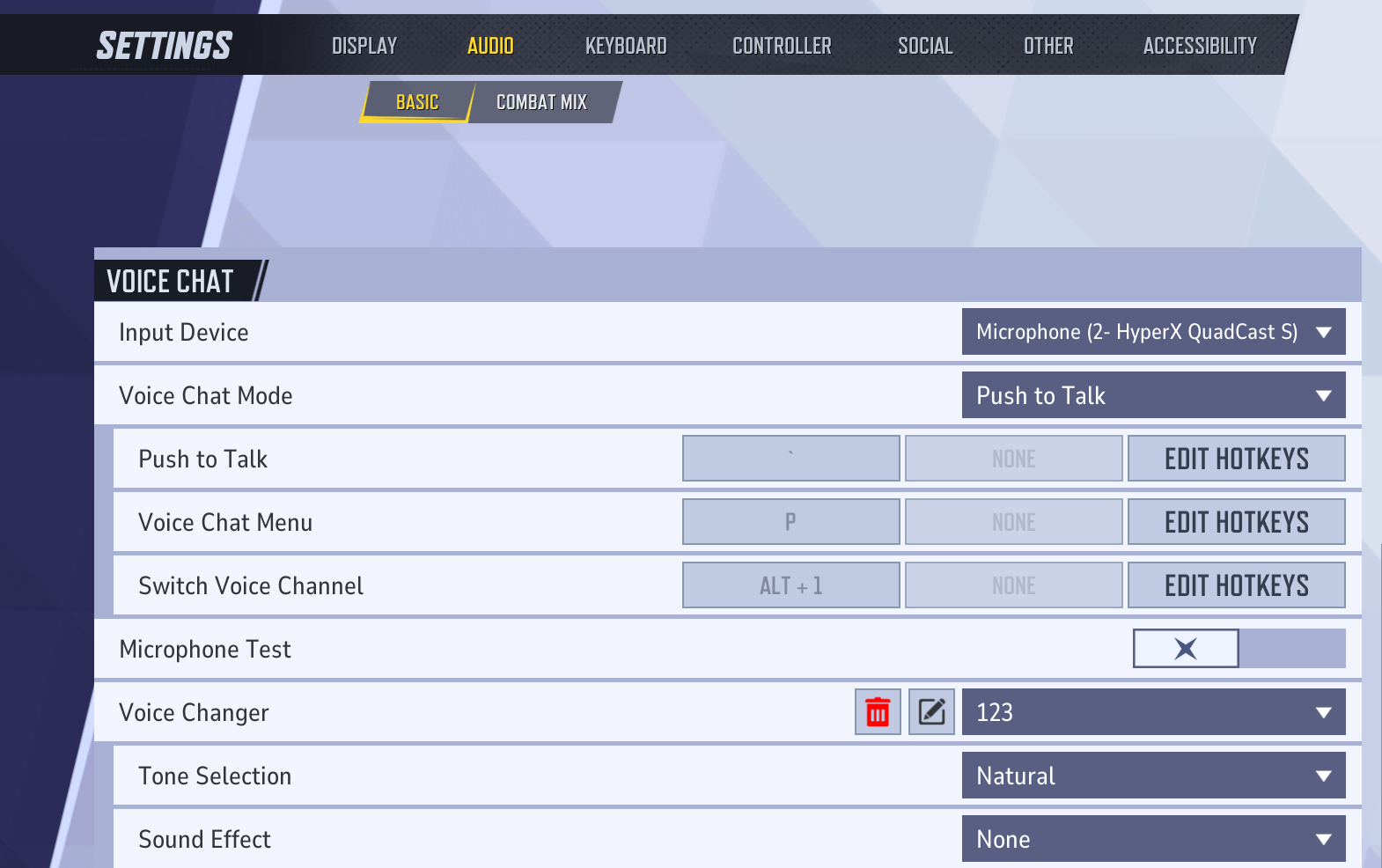
Although the custom voice changer doesn't offer a wide range of presets, combining its available tones and effects — and skillfully switching between them to match your character — can significantly enhance your overall gaming experience.
Though many players are skeptical about this feature, arguing that it might harm the community or that the voice effects aren't particularly entertaining, an even larger group finds it intriguing, believing it could actually help reduce the likelihood of harassment toward female players. You can check out the discussions in the game's Reddit community to see how users are responding.
Now you can use the in-game voice changer to sound like Venom, Alien, and Pumpkin Monster!
byu/dejuna1 inmarvelrivals
It's undeniable that both voice chat and voice changers have become standard elements in online gaming. Tools like these genuinely enhance the overall experience—whether it's for concealing one's gender or role-playing as different characters.
Marvel Rivals In-Game Voice Changer Alternatives
If you'd like to explore more unique voice tones and sound effects without going through the trouble of manual setup, we've also listed several real-time voice changers here that integrate seamlessly with Marvel Rivals.
EaseUS VoiceWave
EaseUS VoiceWave is a powerful real-time AI voice changer for PC that lets you transform your voice instantly with minimal latency. Since it operates at the system level, any app that uses your microphone—whether it's for gaming, streaming, or chatting—will automatically adopt your modified voice. It works seamlessly with popular online games such as Marvel Rivals, R.E.P.O., Call of Duty, Fortnite, and Minecraft.
You could preview from here!
Original
Modified
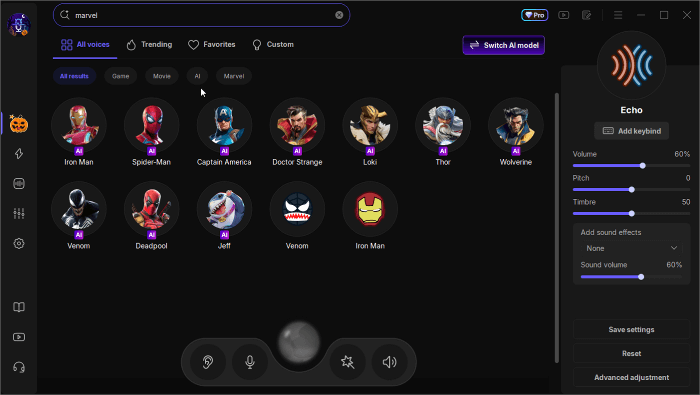
Pre-Made Marvel AI Voices
Whether you're after the calm and thoughtful tone of Adam Warlock, the crisp and seductive charm of Black Widow, or the mysterious authority of Doctor Strange, you'll find the perfect Marvel-inspired voice here. VoiceWave offers over 300 AI voices, spanning everything from classic anime (Dragon Ball) to iconic cartoons (Family Guy) to legendary games (Battlefield).
Marvel Soundboard
Explore an extensive soundboard library packed with entertaining clips, organized into 10 categories: funny, horror, game, movie, music, and life. You'll find legendary lines such as SpongeBob's fails, Arnold's "I'll be back," and Avengers quotes—perfect for spicing up your streams, roleplays, or voice chats.
Clone Marvel Character Voices
VoiceWave also lets you clone voices with incredible accuracy. Simply record or upload a short sample, and the AI will analyze it to generate a digital replica. For even greater customization, head to the Voice Lab, where you can apply effects like robot, echo, and reverb to craft a voice that perfectly matches your chosen character's personality.
❯❯❯❯To use EaseUS VoiceWave in Marvel Rivals ON PC:
Step 1. Download and install VoiceWave on your PC, then follow its setup tutorial to configure your input and output devices.
Step 2. In Marvel Rivals, go to "Settings" > "Audio" > "VOICE CHAT," and make sure your input device is the VoiceWave microphone. Once that's done, you're all set!
Voicemod
Voicemod is one of the most powerful real-time voice changers for gaming, making it a great alternative to Marvel Rivals. It offers a vast library of AI voices and a thriving community where users have created over 300,000 unique sound clips. You can also build your own custom soundboards, mix and match effects, loop sound clips, and even assign keybinds for quick access during gameplay.
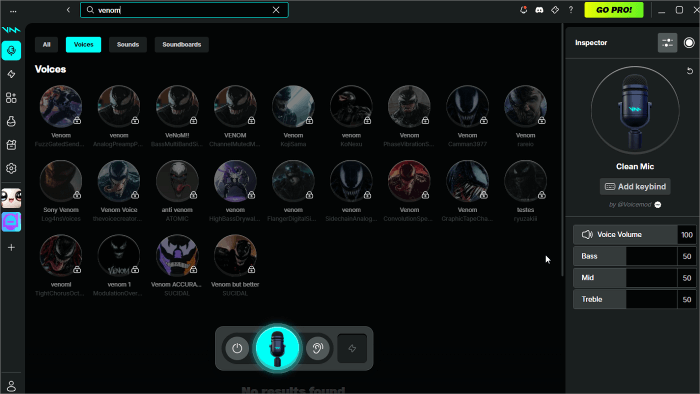
❯❯❯❯Change Your Voice in Marvel Rivals on Console
To use Voicemod in Marvel Rivals on console, connect your controller, phone, and headset through the Voicemod mobile app. Once connected, select your desired voice or soundboard preset—and you're ready to sound like your favorite Marvel character while playing.
❯❯❯❯Change your voice in Marvel Rivals on PC:
Step 1. Download the Voidemod app.
Step 2. Go to "Settings," choose your microphone, and then choose your headset.
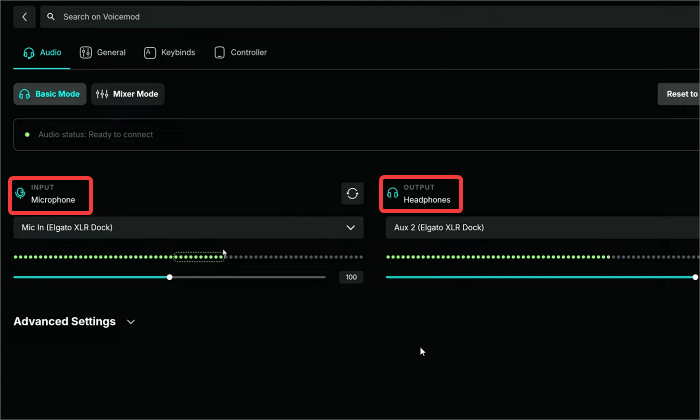
Step 3. In Marvel Rival "Settings" > "Audio">"Voice Chat," and choose Voicemod Virtual Device as your input device.
To Conclude
This blog has shared everything you need to know about Marvel Rivals' in-game voice changer and how to set it up quickly. If you're looking for more voice filters, sound effects, and soundboards, try powerful alternatives like EaseUS VoiceWave and Voicemod. Both tools offer extensive voice libraries and real-time customization options—perfect for bringing your favorite Marvel characters to life in every match.
FAQs on Marvel Rival Voice Changer Update
1. Are voice changers illegal?
No, voice changers are generally legal, but using them for deception, fraud, impersonation without consent, or to violate privacy or copyright laws can lead to serious legal consequences.
2. Can you change the announcer in Marvel Rivals?
No, you cannot change the announcer to a different character in Marvel Rivals through the game's settings; you can only adjust the announcer's volume or turn off voice lines in the Audio settings.
3. How to change voice chat in Marvel Rivals?
To change voice chat in Marvel Rivals, go to Settings > Audio, enable voice chat, select your input device, and choose your preferred mode (Open Mic or Push to Talk).
4. Who is the voice announcer in Marvel Rivals?
The voice announcer in Marvel Rivals is Galacta, voiced by Cassandra Lee Morris.
5. How do I change my voice on voice chat?
You could use its in-game voice changer or use a third-party voice changer to change your voice into that of anyone in voice chat in Marvel Rivals. For other chat apps, EaseUS VoiceWave also works.
6. Is "Marvel Rivals" free to play?
Yes, Marvel Rivals is a free-to-play game.
Shar➤: