-
![]()
Joey Albert
Joey has been involved with tech ever since she joined the EaseUS editor team in March 2011 and now she is a senior website editor. She is good at solving various issues, such as video downloading and recording.…Read full bio -
![]()
Alin
Alin is a sophisticated editor for EaseUS in tech blog writing. She is proficient in writing articles related to screen recording, voice changing, and PDF file editing. She also wrote blogs about data recovery, disk partitioning, data backup, etc.…Read full bio -
Jean has been working as a professional website editor for quite a long time. Her articles focus on topics of computer backup, data security tips, data recovery, and disk partitioning. Also, she writes many guides and tutorials on PC hardware & software troubleshooting. She keeps two lovely parrots and likes making vlogs of pets. With experience in video recording and video editing, she starts writing blogs on multimedia topics now.…Read full bio
-
![]()
Gorilla
Gorilla joined EaseUS in 2022. As a smartphone lover, she stays on top of Android unlocking skills and iOS troubleshooting tips. In addition, she also devotes herself to data recovery and transfer issues.…Read full bio -
![]()
Rel
Rel has always maintained a strong curiosity about the computer field and is committed to the research of the most efficient and practical computer problem solutions.…Read full bio -
![]()
Dawn Tang
Dawn Tang is a seasoned professional with a year-long record of crafting informative Backup & Recovery articles. Currently, she's channeling her expertise into the world of video editing software, embodying adaptability and a passion for mastering new digital domains.…Read full bio -
![]()
Sasha
Sasha is a girl who enjoys researching various electronic products and is dedicated to helping readers solve a wide range of technology-related issues. On EaseUS, she excels at providing readers with concise solutions in audio and video editing.…Read full bio
Page Table of Contents

Dawn Tang
Updated on Dec 09, 2025
0 Views |
0 min read
Quick Answer
- 🎉 If Minecraft starts narrating suddenly, press Ctrl + B first.
- 🎉 Or check Accessibility text-to-speech settings, then your system-level screen reader.
Why Is Minecraft Narrating Everything?
Minecraft includes a built-in text-to-speech (TTS) Narrator that reads chat messages, system alerts, menus, buttons, and other on-screen text aloud. This feature is designed for accessibility, helping players who rely on audio feedback to navigate the game.
However, the Narrator is tied to a keyboard shortcut (Ctrl + B) and can be turned on accidentally. When that happens, Minecraft may start reading nearly every interface element, which many players find distracting or unplayable. This issue is widely discussed on Reddit and forums, and some players even quit the game temporarily because they don't know how to disable it.
How do I compleatly turn off the minecraft narrator as I've realised that ctrl+w+b toggles it [java] - r/MinecraftHelp
Below is a complete, platform-by-platform guide explaining how to turn off the Minecraft Narrator on Windows, Java Edition, Bedrock, Switch, Xbox, PlayStation, Dungeons, Pocket Edition, and how to permanently disable it using hotkeys or mods.
- 1. Using Keyboard Shortcuts
- 2. Minecraft Java Edition
- 3. Bedrock / Nintendo Switch / Lunar Client
- 4. Xbox (Xbox One / Series X|S)
- 5. Minecraft Dungeons
- 6. PlayStation (PS4 / PS5)
- 7. Pocket Edition
- 8. How to Disable Minecraft Narrator Permanently
- 9. Find Your Favorite Voice for Minecraft
How to Turn Off the Narrator in Minecraft
In most cases, disabling the Narrator means turning off Text-to-Speech settings inside Minecraft or the system itself. The exact steps depend on your platform.
1. Turn Off Narrator Using Keyboard Shortcuts (Windows)
Minecraft Narrator Shortcut
- Press Ctrl + B
- This toggles the Minecraft Narrator between:
- Narrator Enabled
- Narrates All
- You should hear a voice confirmation, such as "Narrator off."
- Tip
- This is the most common way the Narrator is accidentally enabled.
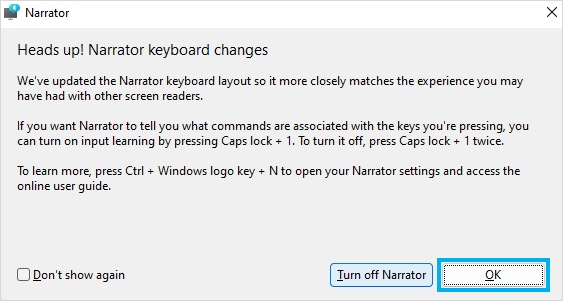
Windows System Narrator
If Windows itself is reading text:
- Press Win + Ctrl + Enter
- This opens Windows Narrator settings
- Turn Narrator off
This step is optional but recommended if narration continues outside Minecraft.
2. Minecraft Java Edition (Windows / macOS / Linux)
Method 1: Hotkey (Fastest)
- Launch Minecraft Java Edition
- From the main menu or in-game, press Ctrl + B
- Listen for the confirmation that Narrator is off
Method 2: Accessibility Menu
- Open Options
- Click Accessibility Settings
- Locate Narrator
- Set it to Off
- ✅Tip
- This method prevents the narrator from re-enabling accidentally.
Method 3: Chat Settings
- Open Game Menu
- Click Options…
- Locate Chat Settings…
- Set Narrator: Narrates All to Off

3. Bedrock Edition / Nintendo Switch / Lunar Client
Lunar Client does not override Minecraft's narrator, so the steps are identical.
- Open Minecraft Settings
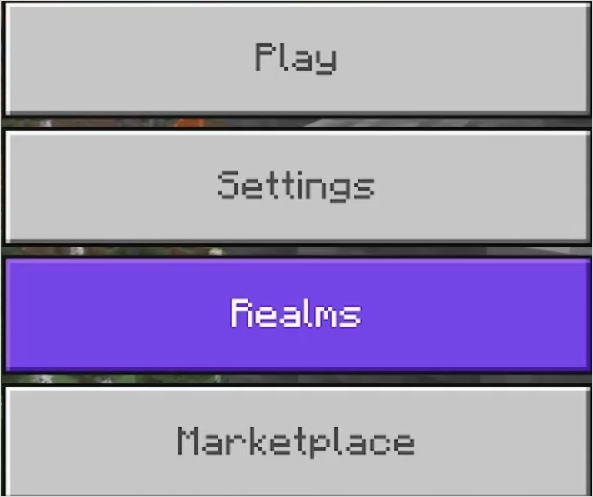
- Scroll to Accessibility
- Disable the following:
- Text-to-Speech with Device Settings
- Text-to-Speech for UI
- Text-to-Speech for Chat
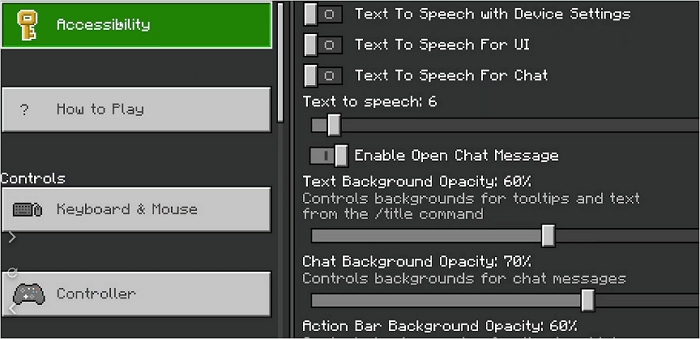
- Exit settings to apply changes
- 💡 Tip
- On consoles, this must be done manually since keyboard shortcuts don't apply.
4. Xbox (Xbox One / Series X|S)
Step 1. Xbox System Settings
- Press the Xbox button
- Go to Profile & System > Settings
- Select Ease of Access > Game and Chat Transcription
- Turn off:
- Let games read to me
- Let me read to games
Step 2. Inside Minecraft
- Open Settings
- Go to Accessibility
- Disable:
- Text-to-Speech with Device Settings
- Text-to-Speech for UI
- Text-to-Speech for Chat
- ✅ Tip
- Both system and in-game settings are required for full disablement.
5. Minecraft Dungeons
Minecraft Dungeons uses Screen Narration, not the same hotkey system.
- Go to Settings > Accessibility
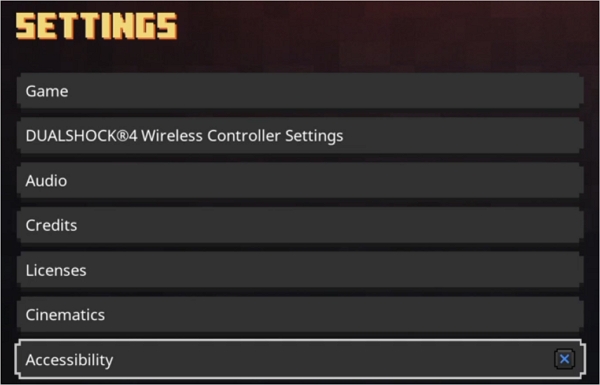
- Turn off Screen Narration
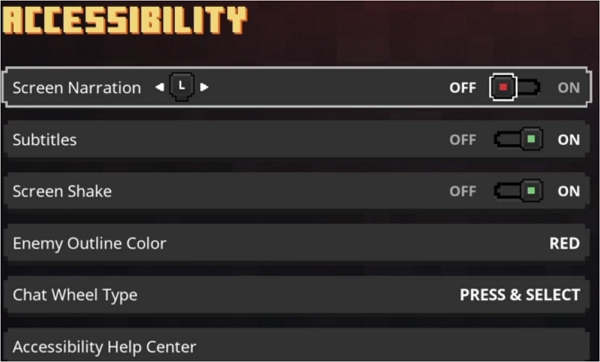
or
- Go to Accessibility > Screen Narration > Off
6. PS4 / PS5
Step 1. PlayStation System Settings
- Go to Settings
- Open Accessibility
- Select Screen Reader
- Set it to Off
Step 2. In Minecraft
- Open Settings
- Go to Accessibility
- Ensure all Text-to-Speech options are disabled
7. Pocket Edition (Android / iOS)
- Open Minecraft
- Tap Settings
- Scroll to Accessibility
- Turn off:
- Text-to-Speech with Device Settings
- Text-to-Speech for UI
- Text-to-Speech for Chat
- ✅ Tip
- Works the same on both Android and iOS.
How to Disable Minecraft Narrator Permanently
If you're tired of accidentally triggering it, here are long-term solutions.
Option 1: Block the Narrator Hotkey (AutoHotKey – Windows)
You can intercept Ctrl + B so it never reaches Minecraft.
Requirements
- AutoHotKey installed on Windows
1. Sample Script (Blocks Ctrl + B)
^b:: Send {}}
- This replaces Ctrl + B with a harmless key
- Minecraft will no longer toggle the narrator
2. Alternative (Alt + B)
!b:: Send {}}
🔧You can customize the output if you want a different character.
Option 2: Use a Mod (Recommended for Advanced Players)
Because the narrator toggle (Ctrl + B) in Minecraft is handled by a low-level listener — before the regular keybind system — normal in-game key remapping won't reliably prevent accidental activation. Mods let you override or disable the narrator hotkey at a deeper level.
Compatible solutions:
- Rebind Narrator — supports Forge, Fabric, and NeoForge and lets you change or completely unbind the narrator key. Also works with key-modifier mods like AMECS / AMECS-Reborn.
- NoNarrator (Fabric) — simply removes the narrator functionality altogether, so pressing Ctrl + B (or any key) won't trigger it.
✅ Best solution if you want zero chance of accidental activation.
🔧 Using mods to disable or rebind Narrator (for Java Edition)
- Step 1. Install a compatible mod loader if you don't already — e.g. Forge, Fabric, or NeoForge, depending on the mod version.
- Step 2. Download the mod you choose:
- For re-binding: download Rebind Narrator matching your Minecraft version + mod loader.
- For disabling entirely: download NoNarrator (Fabric version) if available for your Minecraft version.
- Step 3. Place the mod .jar file into your Minecraft "mods" folder.
- Step 4. Launch Minecraft using the mod loader (not vanilla).
- Step 5. If using Rebind Narrator, open Controls → locate the Narrator toggle key, and either assign a harmless key combination or leave it unassigned (disable).
- Step 6. If using NoNarrator, the narrator will be disabled completely — Ctrl + B will no longer trigger narration.
- Important notes & caveats
-
- Mod loader required: These mods only work on the Java Edition of Minecraft, not on console or Bedrock editions.
- Compatibility: Use a mod build that matches your game version and loader (Forge, Fabric, NeoForge). For example, Rebind Narrator offers builds for 1.20.x and 1.21.x.
- Conflicts: Some key-modifier mods (like AMECS / AMECS-Reborn) enhance key remapping. Rebind Narrator supports these — making rebinding more reliable.
- Not for Bedrock / consoles: Mods like these are only for Minecraft Java Edition — Bedrock, console, and mobile versions handle narrator differently or may lack mod support.
Option 3: Remove the Library
Edit the natives library and remove com.mojang:text2speech.
Find Your Favorite Voice for Minecraft with EaseUS VoiceWave
Whether you want to protect your privacy, coordinate proximity chat strategies, roleplay with teammates, or even prank enemies during streams, using a Minecraft voice changer can dramatically level up your gameplay experience.
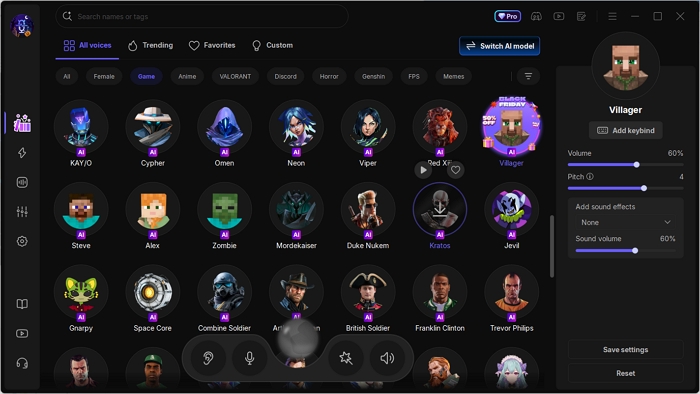
EaseUS VoiceWave is one of the best voice changers for Minecraft, letting you transform your voice into 400+ AI-powered characters in real time. From switching your voice from male to female to roleplaying as a Minecraft villager, Hatsune Miku, Batman, or Darth Vader, it delivers high-quality, lag-free voice changing with natural sound output. Here's an example for the villager voice:
Original
Modified
More than just a Minecraft tool, EaseUS VoiceWave works seamlessly with 2,000+ games and chat apps, including Discord, WhatsApp, Zoom, Dota 2, and many more—making it ideal for gaming, streaming, and online communication.
Key Features
- ✅ Supports 2,000+ online games and voice apps
- 🎭 Includes 400+ pre-made AI voice effects
- 🎚️ Fine-tune pitch, tone, and timbre for each voice
- 🤖 AI voice cloning to replicate real voices
- 🔊 300+ soundboard effects for instant fun in-game or on stream
- ⚡ Low-latency, real-time voice conversion with high audio quality
How to Use a Voice Changer for Minecraft?
Step 1. Set Up EaseUS VoiceWave
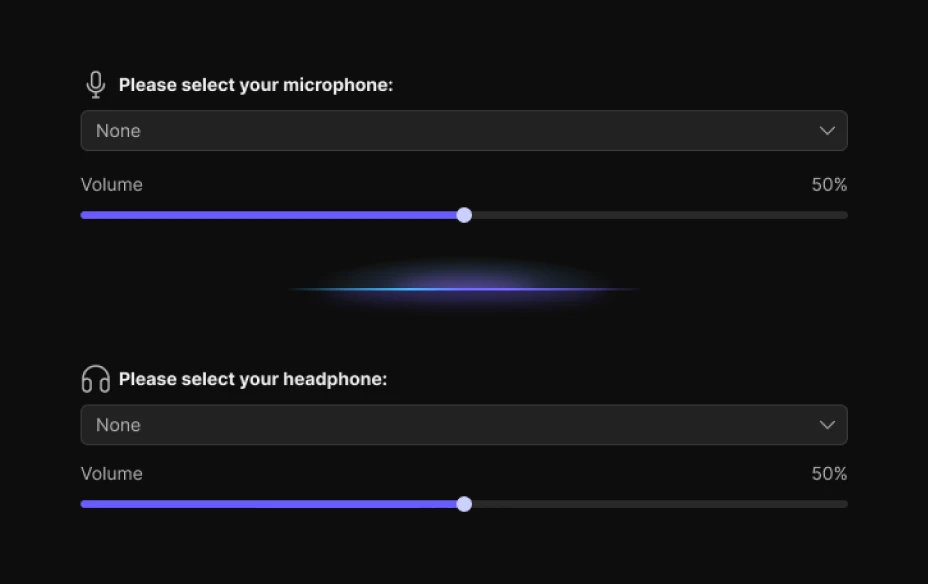
Download and launch EaseUS VoiceWave. Go to Settings and select your headphones and physical microphone as the input and output devices.
Step 2. Configure Minecraft Voice Chat
Install a voice chat mod (such as Simple Voice Chat) from Modrinth.
Then:
- Open your Minecraft world or join a server
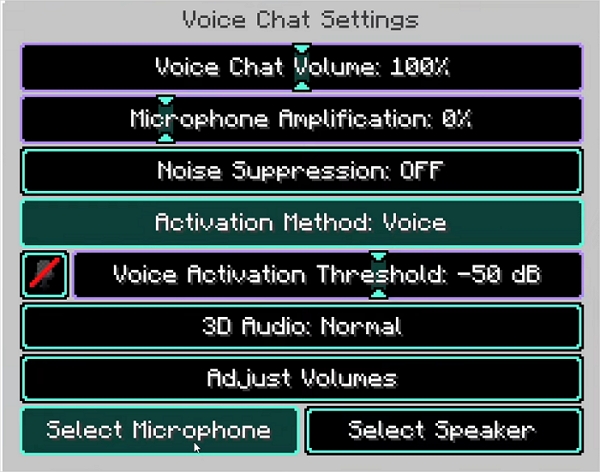
- Press V > Settings
- Set Activation Method to Voice
- Under Select Microphone, choose Input Device > VoiceWave Microphone
Step 3. Change Your Voice in Real Time
Return to EaseUS VoiceWave, choose your desired Minecraft character voice or effect, adjust the settings if needed, and start speaking. Your transformed voice will now be heard in Minecraft instantly.
Wrapping up
The Minecraft narrator can be helpful as an accessibility feature, but when it's accidentally enabled, it quickly becomes frustrating and disruptive. Luckily, no matter what platform you're playing on—Java, Bedrock, PC, console, or mobile—there's always a way to turn it off through accessibility settings, system controls, or keyboard shortcuts.
Once you've regained control of your audio, enhancing your gameplay with a Minecraft voice changer like EaseUS VoiceWave can take things even further.
FAQ
How to get rid of a Minecraft Narrator?
From the main menu or while playing, press Ctrl + B to toggle the Minecraft Narrator.
You'll hear a short audio confirmation (for example, "Narrator off") when it's been turned off.
What button is Narrator in Minecraft?
Ctrl + B on Windows or ⌘ Cmd + B on Mac is Narrator in Minecraft.
How do I turn the Narrator off?
Press Ctrl + B and turn the Narrator off completely.
Why is my Minecraft narrating everything?
Minecraft is narrating everything because the narrator feature is turned on. This usually happens because the narrator was toggled on — often by pressing its default shortcut by mistake.