-
![]()
Joey Albert
Joey has been involved with tech ever since she joined the EaseUS editor team in March 2011 and now she is a senior website editor. She is good at solving various issues, such as video downloading and recording.…Read full bio -
![]()
Alin
Alin is a sophisticated editor for EaseUS in tech blog writing. She is proficient in writing articles related to screen recording, voice changing, and PDF file editing. She also wrote blogs about data recovery, disk partitioning, data backup, etc.…Read full bio -
Jean has been working as a professional website editor for quite a long time. Her articles focus on topics of computer backup, data security tips, data recovery, and disk partitioning. Also, she writes many guides and tutorials on PC hardware & software troubleshooting. She keeps two lovely parrots and likes making vlogs of pets. With experience in video recording and video editing, she starts writing blogs on multimedia topics now.…Read full bio
-
![]()
Gorilla
Gorilla joined EaseUS in 2022. As a smartphone lover, she stays on top of Android unlocking skills and iOS troubleshooting tips. In addition, she also devotes herself to data recovery and transfer issues.…Read full bio -
![]()
Rel
Rel has always maintained a strong curiosity about the computer field and is committed to the research of the most efficient and practical computer problem solutions.…Read full bio -
![]()
Dawn Tang
Dawn Tang is a seasoned professional with a year-long record of crafting informative Backup & Recovery articles. Currently, she's channeling her expertise into the world of video editing software, embodying adaptability and a passion for mastering new digital domains.…Read full bio -
![]()
Sasha
Sasha is a girl who enjoys researching various electronic products and is dedicated to helping readers solve a wide range of technology-related issues. On EaseUS, she excels at providing readers with concise solutions in audio and video editing.…Read full bio
Page Table of Contents

Gorilla
Updated on Jan 21, 2026
0 Views |
0 min read
Quick Solutions:
If your Steam download speed is slow, the fastest way to fix it is to identify the type of slowdown and apply the matching fix. Most Steam slowdowns are caused by server congestion, bandwidth limits, corrupted cache, local system bottlenecks, Wi-Fi instability, or VPN routing.
Here's how to make Steam download faster:
❇️Remove Steam's download speed limit
❇️Change download region
❇️Disable throttle downloads while streaming
❇️Clear download cache
❇️Close background apps and optimize disk usage
❇️Set Steam to high priority in Task Manager
❇️Use a wired connection or improve Wi-Fi
❇️Schedule downloads during off-peak hours
❇️Disable VPN temporarily
If these steps don't fully resolve the issue, use the detailed troubleshooting guide below to match your specific download symptom with the correct fix.
Why Is My Steam Download Speed So Slow
A slow Steam download doesn't always mean your internet is slow. Many users with fast connections still experience low, unstable, or inconsistent download speeds on Steam.
That's because Steam downloads depend on more than just your internet plan. The speed is affected by which Steam server you're connected to, how busy that server is, and how Steam manages downloads on your system.
Unlike simple file downloads, Steam downloads involve downloading, unpacking, and installing game data at the same time. If your system resources or storage drive can't keep up, Steam may automatically slow the download to prevent errors.
Network stability also plays a role. Wi-Fi interference, background activity, or routing issues can cause speed drops—even when your overall internet connection is fine.
Since Steam download issues can have different causes, there's no single fix that works for everyone. That's why the next section focuses on matching your specific download behavior with the right solution, so you can fix the problem efficiently.
- Issue 1. Steam Download Speed Is Much Slower Than Expected
- Issue 2. Steam Download Speed Keeps Dropping to Zero
- Issue 3. Steam Is Slow While Everything Else Works Fine
- Issue 4. Steam Download Is Slow or Unstable on Wi-Fi
- Issue 5. Steam Download Is Slower During Peak Hours
- Issue 6. Steam Download Is Slower When Using a VPN
How to Make Steam Download Faster
If your Steam download speed is slow or unstable, the fastest way to fix it is to identify the exact behavior of the download, then apply the matching fix. Below are the most common Steam download symptoms, how to identify them, and what to do next. Hope you can easily get the Steam max download speed.
Issue 1. Steam Download Speed Is Much Slower Than Expected
If you have a fast internet connection but Steam only uses a small portion of it, the issue is often related to Steam's download server selection or built-in download speed controls. Steam does not always connect to the least busy server automatically, and even a nearby region can become overloaded during peak hours.
How to identify this cause:
- Download speed stays capped at a similar number
- Speed briefly improves after pausing and resuming
- Downloads are noticeably faster late at night
❇️Fix:
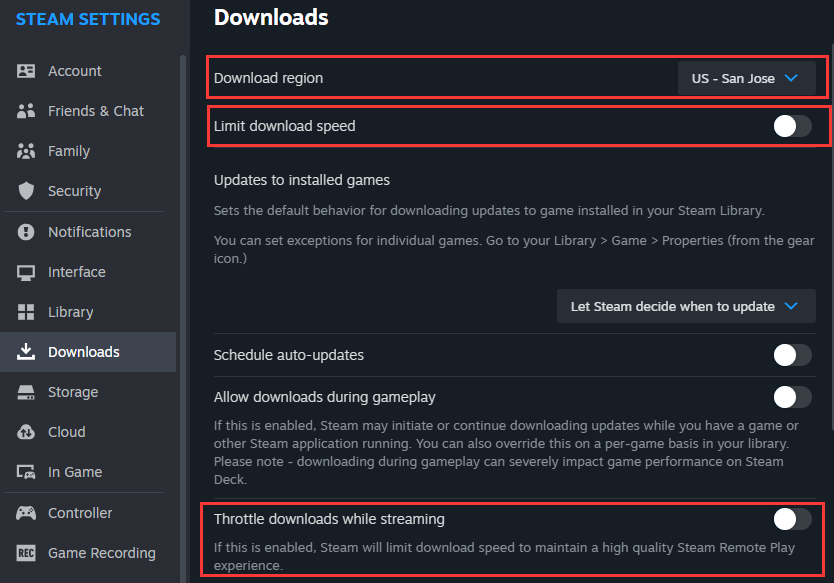
- Remove download speed limit: Open Steam > Settings and go to Downloads. Set Limit download speed to off.
- Change download region: Still in Downloads, click Download region and select another nearby city or a neighboring country. Then restart Steam and test the speed.
- Disable throttle downloads while streaming: Make sure Throttle downloads while streaming is unchecked in Steam settings, as it can reduce download speed even when you're not streaming.
Issue 2. Steam Download Speed Keeps Dropping to Zero
If your download starts normally but repeatedly drops to 0 MB/s or gets stuck, the problem is usually caused by a corrupted download cache or a stalled download session.
How to identify this cause:
- Download speed drops to zero multiple times
- Pausing and resuming temporarily restores speed
- The issue happens more often with large files
❇️Fix:
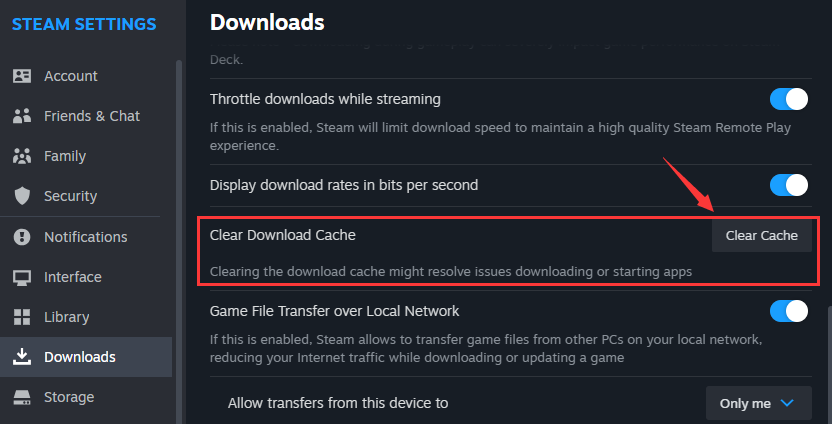
- Clear Steam download cache: Open Steam > Settings > Downloads, click Clear Download Cache, then log back into Steam when prompted.
- Restart Steam completely: To boost the download speed, exit Steam fully (not just minimize), reopen it, and resume the download.
Issue 3. Steam Is Slow While Everything Else Works Fine
If your internet feels fast everywhere else but Steam downloads remain slow, the issue is usually on your local system, not your network connection. Steam downloads require continuous bandwidth and disk access, which can be affected by background activity or slow storage.
How to identify this cause:
- Steam slows down when multitasking
- Network or disk usage spikes in Task Manager
- Steam shows “Installing” while download speed drops
❇️Fix:
- Close background apps: Pause or close apps that use bandwidth, such as Windows Update, cloud sync tools, browser downloads, or other game launchers.
- Optimize disk usage: Avoid running disk-heavy tasks during downloads, ensure enough free disk space, and install games on an SSD if possible.
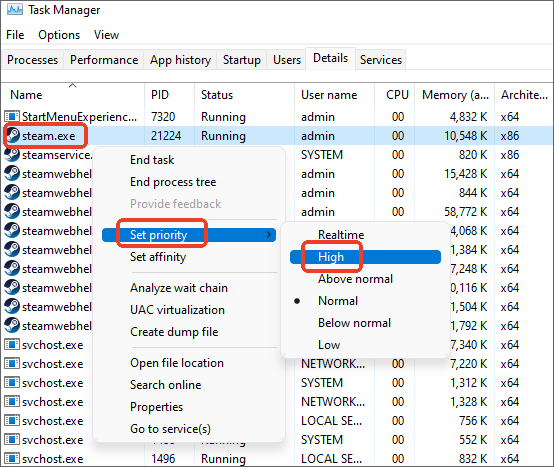
- Set Steam to high priority in Task Manager: press Ctrl + Shift + Esc to open Task Manager. From the top menu, go to the Details tab. Find steam.exe (or sometimes SteamService.exe), right‑click it, choose Set priority > High, and confirm Change priority to boost the Steam download speed.
Issue 4. Steam Download Is Slow or Unstable on Wi-Fi
If your Steam download speed fluctuates heavily or drops when other devices are active, the issue is often caused by Wi-Fi instability or interference. Here's how to identify and improve it.
How to identify this cause:
- Download speed fluctuates frequently
- Steam slows down when others use the same Wi-Fi
- Wired connections perform better
❇️Fix:
- Switch to wired Ethernet: Connect your PC directly to the router for stable downloads.
- Improve Wi-Fi performance: If you must use Wi-Fi, move closer to the router, switch to a 5 GHz band, and reduce other network activity.
Issue 5. Steam Download Is Slower During Peak Hours
If Steam downloads are fast late at night but slow during the day or weekends, the issue is likely server congestion during peak gaming hours.
How to identify this cause:
- Download speed improves overnight
- Speed drops during evenings or weekends
- Changing download regions sometimes helps
❇️Fix:
- Schedule downloads for off-peak hours: To speed up download in Steam, plan large downloads during late night or early morning.
- Change download region if needed: Select a different Steam download region (see issue 1's solution for details) to avoid overloaded servers.
Issue 6. Steam Download Is Slower When Using a VPN
If Steam downloads slow down after enabling a VPN, the issue is usually related to routing and increased latency.
How to identify this cause:
- Download speed drops immediately after turning on VPN
- Speed improves when VPN is disabled
❇️Fix:
- Disable VPN temporarily: Turn off VPN to test if download speed improves.
- Switch VPN servers if necessary: Choose a server closer to your Steam download region to reduce latency and increase the download speed on Steam efficiently.
Bonus: Make Your Multiplayer Games More Fun with a Voice Changer
This voice changer is best for VRChat, DayZ, Among Us for fun
Once your game is downloaded, the next step is to enhance your co-op experience. A voice changer can add humor, role-play, or privacy protection to your sessions, making multiplayer games even more engaging. One reliable option is EaseUS VoiceWave - best voice changer for gaming, which works in real time and supports a wide variety of voice types and sound effects.
Why use a voice changer in co-op games?
- ✅Make role-playing more immersive and entertaining
- ✅Protect your privacy while chatting online
- ✅Keep your multiplayer sessions fresh with different voices or effects
Key Features of EaseUS VoiceWave
- 1. Real-Time Voice Changing: Transform your voice live while playing games or chatting, with minimal delay or performance impact.
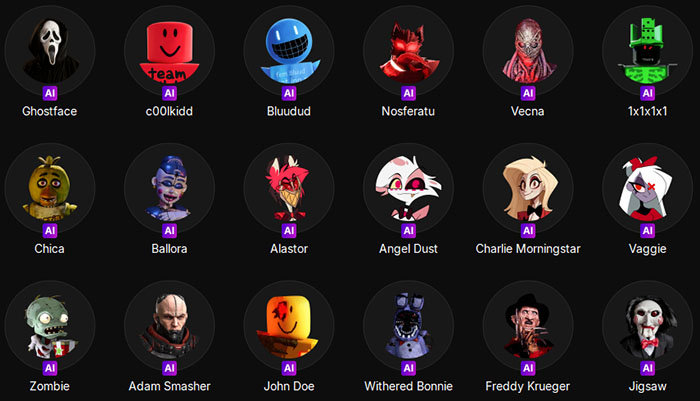
- 2. 300+ Built-in Voices and Sound Effects: Choose from a wide range of voices, including robot, deep, radio, game characters, loli voices, and more.
- 3. Custom Voice Creation: Create and save your own voice profiles for unique gaming personas.
- 4. Compatibility with Popular Platforms: Works with Steam, Discord, and other voice chat tools, so you can use it across your favorite multiplayer games.
- 5. Voice Effects for Streaming or Recording: Enhance your streams or recorded content with dynamic voice effects without extra software.

Best VRChat Voice Changer Download Free
EaseUS VoiceWave seamlessly transforms your voice in real time with 300+ AI-powered voice filters, adding an extra layer of fun and creativity.

👉Tip: With over 300 voices and effects, EaseUS VoiceWave keeps your co-op sessions dynamic, fun, and immersive.
The Bottom Line
Slow Steam downloads can be frustrating, but the solution isn't always to blame your internet. Often, the bottleneck comes from Steam servers, local system resources, Wi-Fi stability, or software settings. By matching the specific symptom with the right fix, you can quickly restore optimal download speed.
Remember:
- Remove built-in download limits and disable throttling while streaming
- Choose the fastest, least crowded download region
- Clear the download cache and optimize local system resources
- Use wired connections or improve Wi-Fi stability
- Schedule downloads during off-peak hours if possible
After your game is downloaded, you can further enhance your multiplayer sessions with tools like EaseUS VoiceWave, adding fun, role-play, or privacy protection through real-time voice effects.