Download Any Video in High Quality, Anytime
Download publicly available videos from YouTube, Facebook, Twitter, Instagram and more for personal use.
Affiliate
Earn commissions when you drive sales through your affiliate links.
Resellers
Sell EaseUS products as a distributor.

Creators & Influencers
Partner with us on YouTube, TikTok, Twitch to earn commissions.
OEM & Outsourcing Service
Put your brand on EaseUS software, or get custom solutions.

Refer & Earn
Earn rewards when you refer others to EaseUS solutions.

Education
Verified students and teachers get exclusive discounts.
Page Table of Contents


Oct 23, 2026 0 mins read
💡To download online videos from any site in Chrome:
Option 1. Use a reliable online video downloader.
Option 2. Try some safe video downloader extensions.
❓More recommended way? - Use a professional video downloader:
Open EaseUS Video Downloader > find the target video page with its built-in browser > click "Download" to choose video quality and format > press "Download" again.
Download Any Video in High Quality, Anytime
Download publicly available videos from YouTube, Facebook, Twitter, Instagram and more for personal use.
Videos are everywhere—from social media to streaming sites—but most platforms don't offer a download option. That's where third-party tools come in.
However, many online video downloaders and extensions are now blocked by Chrome for violating policies. This article will share with you several ways to download videos from any site in Chrome. If you need a reliable way to download videos when other tools fail, there is a surprise for you at the end of the article.
Both online video downloaders and video downloader extensions allow you to download videos from any website using Google Chrome. Generally, online video downloaders provide more features, while browser extensions free you from copying the video download link. Choose the one you like according to your preferences.
There are a plethora of online video downloaders for Chrome and other browsers that work to download video or audio files from various sites. Generally, one online video downloader only allows you to download videos from any site. That means you will need different video downloaders to save videos from various sites. For example, if you want to download YouTube videos via Chrome, you can use a YouTube Video Downloader, while if you are looking to download videos from Twitch, you can search for a Twitch video downloader instead.
As there are not many restrictions for an online video downloader for Chrome, you can use it to download YouTube videos from Safari as well. Here are two recommendations.
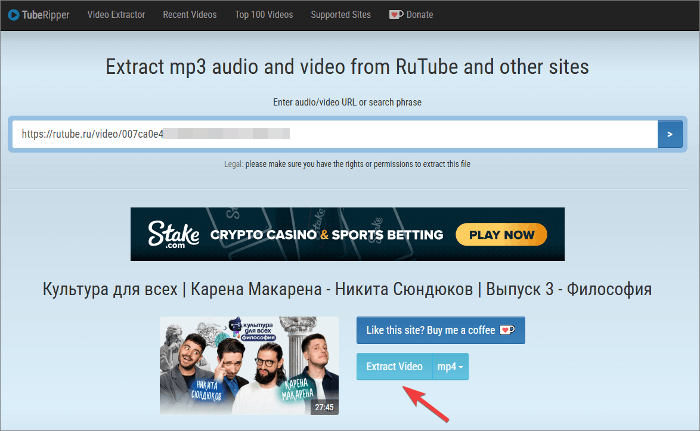
The process of using them to download videos is quite similar:
Step 1. Copy the video link.
Step 2. Paste it into any online video downloader we recommend.
Step 3. Then press "Enter," and select the format you prefer to download.
Being similar to an online video downloader, browser extensions also support limited sites. You may need more than one browser extension to get all the videos you like for offline watching. You can go to the Chrome Web Store and find the best video downloader you need.
Video DownloadHelper is a robust tool designed to enhance your online video experience. With support for over 1000 websites, including those using Dash, HLS, and MPD formats, it empowers you to download videos from a wide range of sources. Whether you're capturing live streams for offline viewing, downloading videos in high-definition for optimal clarity in formats like MP4, MKV, or WebM, or extracting audio to MP3s or podcasts for convenient listening.
Step 1. Add Video DownloadHelper to your Chrome.
Step 2. Open YouTube and find the video you want to download. Play it.
Step 3. Open the extension list and select Video DownloadHelper. It will locate the video automatically. If it doesn't work, just refresh the page.
Step 4. Select the video quality and format to download.

To download videos from websites using Chrome on mobile, you can utilize various methods tailored for mobile browsing. These include employing online video downloaders compatible with mobile browsers, built-in features, or using specific apps designed for video extraction.
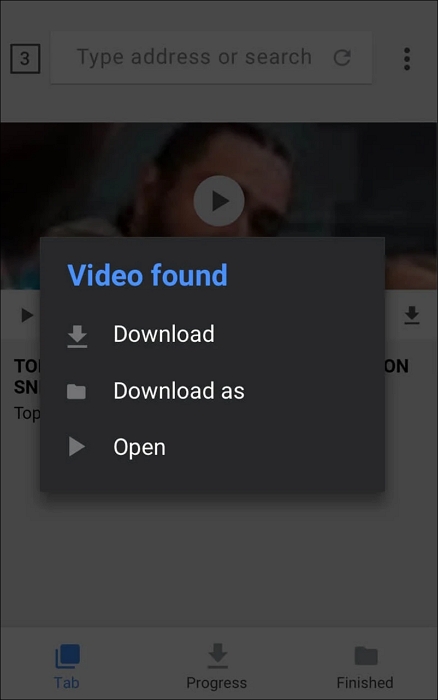
The Video Downloader app allows you to download videos and music directly from the internet in all formats, such as MP3, M4A, MP4, AVI, etc. It features an auto-detect function for easy one-click downloads and a powerful download manager that supports pausing, resuming, and managing multiple downloads simultaneously. You can preview videos before downloading and play them offline. With support for SD cards and a secure folder option, it provides a convenient way to organize and access your downloaded content.
Step 1. Download the app. Use the built-in browser to browse websites.
Step 2. It automatically detects videos, and you can tap the download button.
Step 3. Select the video you wish to download.
You can download YouTube videos from Chrome or Safari on your iOS devices. To download a file in Chrome on your iPhone or iPad, open Chrome and locate the video you want to download. Tap it then go to "Open in..." (or the share button) > "Save to Files" > "Save."
To download a video on your iPhone using Safari:
Step 1. Open Safari or Chrome on your iPhone and navigate to the webpage containing the video.
Step 2. Tap and hold on the video until a menu appears.
Step 3. Select "Download Linked File" or "Save Video" from the menu options.
Step 4. The video will be saved to your iPhone's camera roll or downloads folder, depending on the browser and settings.
Share the post if it helps!
Using online video downloaders and video downloader extensions can be convenient, but they come with several drawbacks, such as:
Therefore, I'd like to show you a versatile video downloader for PC & Mac, EaseUS Video Downloader. It performs well in downloading online video & audio from over 1000 sites, including YouTube, TikTok, Facebook, Twitter, Instagram, and more. Here are some of the things you can do with it:
Whether you want to save video or audio from video/audio websites or social networking sites, EaseUS Video Downloader will help you download videos from these websites with ease.
Secure Download
Secure Download
To download any video from any site:
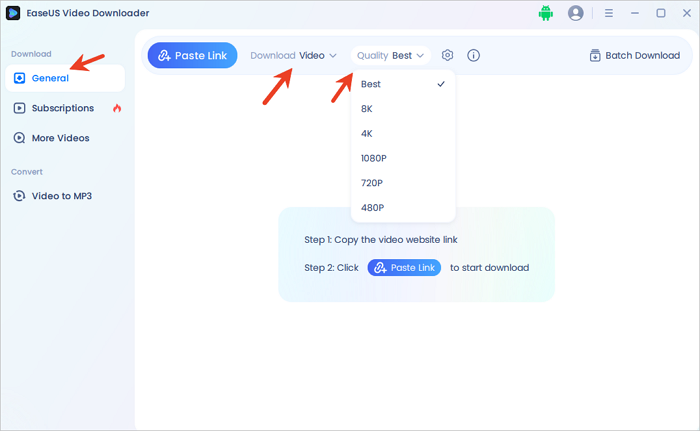
Step 1. Launch EaseUS Video Downloader on your PC. Go to "General" > "Download" to select the output format and press "Quality" for the resolution.
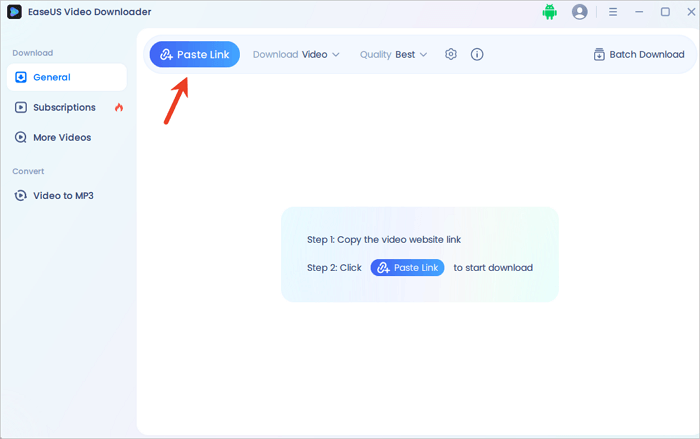
Step 2. Copy and paste the URL of the video you want to download and click "Paste Link" to proceed.
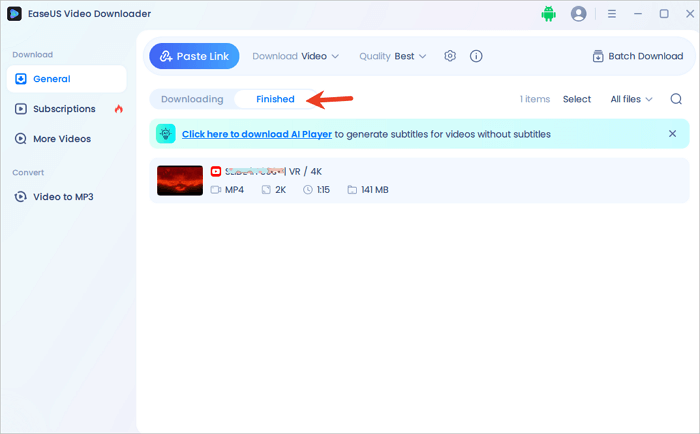
Step 3. After the downloading process finishes, you can check the downloaded video in the option "Finished."
Disclaimer: The information provided in this guide is for personal use. EaseUS is in no way collaborated or affiliated with the video-sharing site and will never approve any copyright infringement action. The end-user should be solely responsible for their behavior.
While Chrome offers some video download options, they're not ideal. Online tools are convenient, but desktop downloaders like EaseUS Video Downloader win in features, stability, and reliability. Plus, they're ad-free - unlike online tools plagued with ads and redirects. With so many options available, choose the one you trust most for worry-free video downloads.
Secure Download
Secure Download
To download a file using the Chrome app on your Android phone or tablet:
On your iPhone or iPad:
To inspect videos on a website using Chrome:
You might be unable to download videos in Chrome due to browser extensions, website restrictions, copyright protection, browser settings, cache data, updates, or legal restrictions against downloading copyrighted content without permission. Check browser settings, disable extensions, or use alternative methods that comply with legal video download guidelines.

Copyright Disclaimer
This article is for educational and technical reference only. Do not use the described methods to download or share copyrighted content without permission.
Users are fully responsible for any legal consequences. Please:

Respect content creators' rights

Use official or authorized platforms

Avoid unauthorized downloads

Use official or authorized platforms
Columnist
Sasha is a girl who enjoys researching various electronic products and is dedicated to helping readers solve a wide range of technology-related issues. On EaseUS, she excels at providing readers with concise solutions in audio and video editing.
Read Full Bio More Related Articles
How to Download YouTube Videos to Computer [6 Ways]
If you are wondering how to download a YouTube video to a computer, you cannot miss the seven methods here teaching you how to download YouTube videos to a computer, be it a PC or laptop. Apply one of them to save YouTube videos to your computer with a few simple clicks.
Sasha. Oct 23, 2026
3 min read
How to Use JDownloader 2 | Beginner Guide
Unlock the full power of JDownloader 2 with this easy beginner's guide. Learn proven tips and tricks to download faster and smarter — start now!
Sasha. Oct 23, 2026
3 min read
How to Download a GoToStage Video in 2 Free Ways
How do you download a GoToStage webinar, meet, or record a video on your PC? Right-click the GoToStage video and select "Inspect," find the video URL, and right-click it to open it in a new tab. The download will start itself.
Sasha. Oct 23, 2026
3 min read
How to Download Video from Facebook Messenger for Fair Use
Want to save the video clips your friends send to you via Facebook Messenger? Then read this post, which gives you three ways to download Messenger videos on PC and mobile devices.
Sasha. Oct 23, 2026
3 min read