-
![]()
Joey Albert
Joey has been involved with tech ever since she joined the EaseUS editor team in March 2011 and now she is a senior website editor. She is good at solving various issues, such as video downloading and recording.…Read full bio -
![]()
Alin
Alin is a sophisticated editor for EaseUS in tech blog writing. She is proficient in writing articles related to screen recording, voice changing, and PDF file editing. She also wrote blogs about data recovery, disk partitioning, data backup, etc.…Read full bio -
Jean has been working as a professional website editor for quite a long time. Her articles focus on topics of computer backup, data security tips, data recovery, and disk partitioning. Also, she writes many guides and tutorials on PC hardware & software troubleshooting. She keeps two lovely parrots and likes making vlogs of pets. With experience in video recording and video editing, she starts writing blogs on multimedia topics now.…Read full bio
-
![]()
Gorilla
Gorilla joined EaseUS in 2022. As a smartphone lover, she stays on top of Android unlocking skills and iOS troubleshooting tips. In addition, she also devotes herself to data recovery and transfer issues.…Read full bio -
![]()
Rel
Rel has always maintained a strong curiosity about the computer field and is committed to the research of the most efficient and practical computer problem solutions.…Read full bio -
![]()
Dawn Tang
Dawn Tang is a seasoned professional with a year-long record of crafting informative Backup & Recovery articles. Currently, she's channeling her expertise into the world of video editing software, embodying adaptability and a passion for mastering new digital domains.…Read full bio -
![]()
Sasha
Sasha is a girl who enjoys researching various electronic products and is dedicated to helping readers solve a wide range of technology-related issues. On EaseUS, she excels at providing readers with concise solutions in audio and video editing.…Read full bio
Page Table of Contents

Dawn Tang
Updated on Jan 21, 2026
0 Views |
0 min read
Quick Tips
Fix Discord voice chat not working:
- Restart Discord.
- Check Input/Output Devices.
- Run Discord as Admin.
- Reset Voice Settings.
- Check OS Permissions.
- Update Audio Drivers.
- Test Mic in Voice Settings.
- Temporarily Disable Exclusive Mode.
- Switch to Legacy Audio Subsystem.
Discord voice chat not working? Voice chat problems can interrupt your gaming, meetings, and chats with friends. Whether your microphone is not working, the sound keeps dropping, or you hear nothing at all, these problems happen more often than you might think. This easy-to-follow guide will show you simple ways to get your Discord voice chat working on all your devices.
You'll find step-by-step fixes for problems on PC, mobile, and game consoles. You'll also learn about extra tools that can make your Discord experience even better once everything is working.
- Why Discord Voice Chat Stops Working
- Discord Voice Chat Not Working on PC
- Discord Voice Chat Not Working on Phone
- Discord Voice Chat Not Working While Gaming
- Discord Voice Changer on the Go
Why Discord Voice Chat Stops Working
Discord voice chat problems come from a few main issues that affect many users every day. Knowing what causes these problems helps you fix them faster.
Hardware and Connection Problems
Your microphone or headset might have loose connections, faulty USB ports, or damaged cables. Sometimes the issue is as simple as a USB jack that isn't securely connected to your computer.
Software Configuration Issues
Discord requires proper permissions to access your microphone and speakers. When these permissions get revoked or misconfigured, your voice chat stops working entirely.
Audio Driver Conflicts
Outdated or corrupted audio drivers frequently cause Discord voice problems. Your system might not recognize your microphone correctly, leading to input device errors.
Discord Settings Mishaps
Incorrect input modes, wrong device selections, or accidentally enabled push-to-talk features can make your voice chat appear broken when it's actually a settings issue.
See also:
Roblox Voice Chat Not WorkingFortnite Voice Chat not Working?Roblox Error Code 524Call of Duty Voice Chat Not Working
Discord Voice Chat Not Working on PC
PC users face the most varied Discord voice issues due to complex audio systems and driver interactions. Here are the most effective solutions, starting with the quickest fixes.
- #1 Check Basic Discord Settings
- #2 Configure Windows Audio Permissions
- #3 Reset Discord Voice Settings
- #4 Update Audio Drivers
- #5 Advanced PC Troubleshooting
Fix 1. Check Basic Discord Settings
Start with Discord's internal settings before diving into system-level troubleshooting:
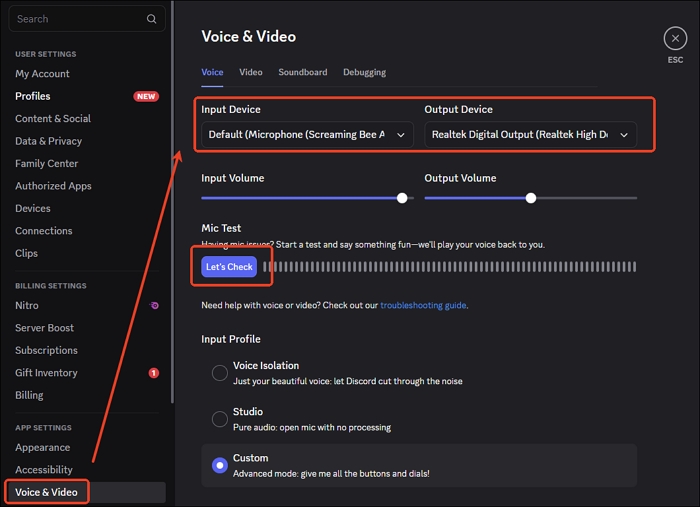
Step 1. Launch Discord and click the gear-shaped settings icon in the bottom-left corner.
Step 2. Navigate to "Voice & Video" in the left panel.
Step 3. Ensure you're not muted or deafened (check the microphone and speaker icons).
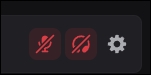
Step 4. Verify that the correct input and output devices are selected from the dropdown menus.
Step 5. Test your microphone using the "Let's Check" button under Input Device.
Fix 2. Configure Windows Audio Permissions
Windows privacy settings often block Discord from accessing your microphone:
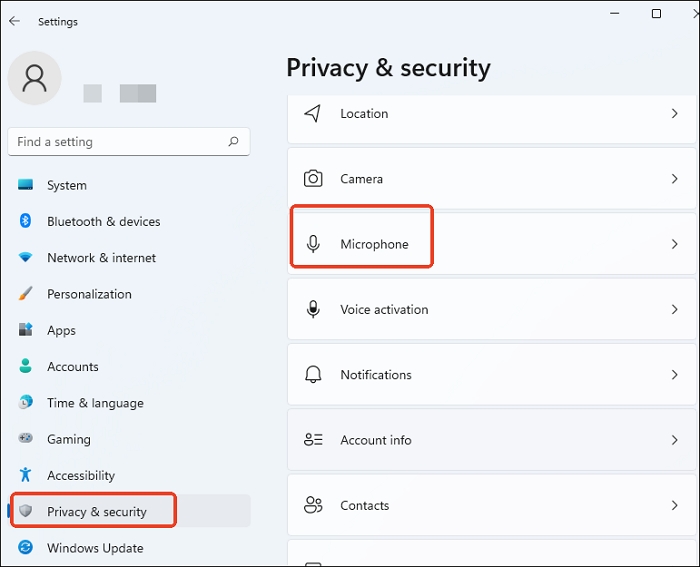
Step 1. Open Windows Settings (Windows key + I).
Step 2. Click "Privacy & security" then select "Microphone" from the left menu.
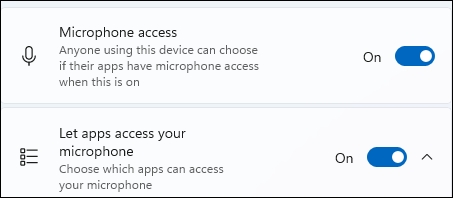
Step 3. Enable "Let apps access your microphone."
Step 4. Scroll down and ensure Discord is toggled ON in the app list.
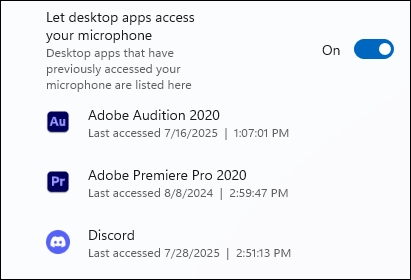
Step 5. Restart Discord to apply the changes.
Fix 3. Reset Discord Voice Settings
When multiple settings conflicts occur, resetting everything to defaults often resolves the issue:
Step 1. Open Discord settings and go to "Voice & Video" > "Debugging."
Step 2. Scroll to the bottom and click "Reset Voice Settings."
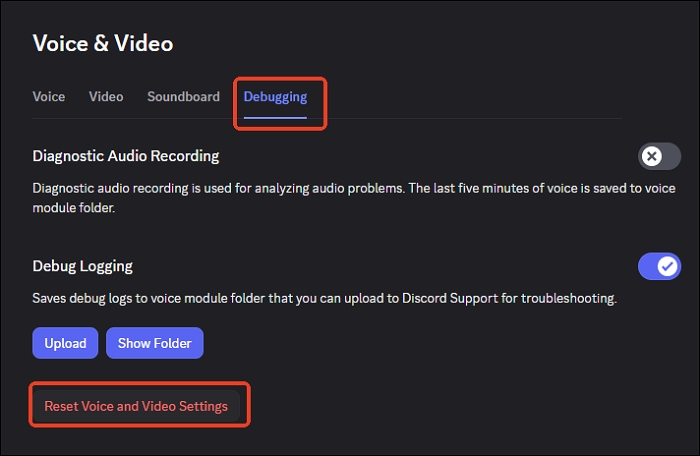
Step 3. Click "Okay" to confirm the reset.
Step 4. Discord will automatically refresh and restore default audio settings.
Step 5. Reconfigure your preferred input and output devices.
Fix 4. Update Audio Drivers
Outdated drivers cause persistent voice chat problems:
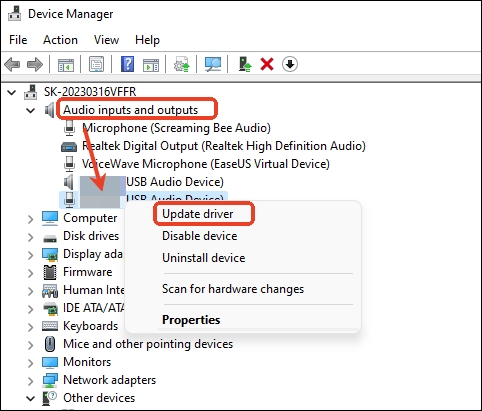
Step 1. Right-click the Start button and select "Device Manager."
Step 2. Expand "Audio inputs and outputs."
Step 3. Right-click your microphone device and select "Update driver."
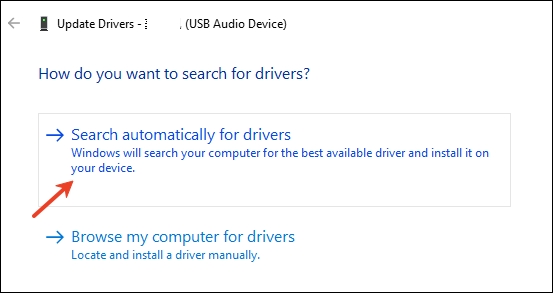
Step 4. Choose "Search automatically for drivers."
Step 5. Restart your computer after the update completes.
Fix 5. Advanced PC Troubleshooting
For persistent issues, try these advanced solutions:
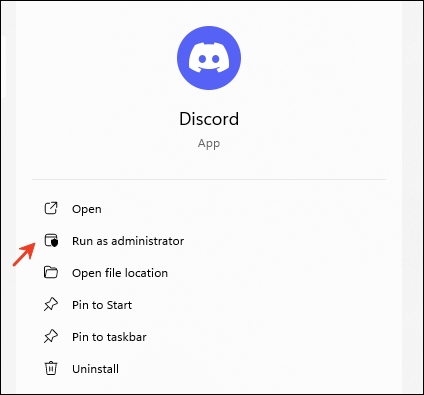
1. Run Discord as Administrator
Right-click the Discord shortcut and select "Run as administrator." This gives Discord elevated permissions to access audio devices.
2. Disable Windows Exclusive Mode
Step 1. Right-click the speaker icon in your taskbar
Step 2. Select "Sounds settings" > "More sound settings" then go to the "Recording" tab.
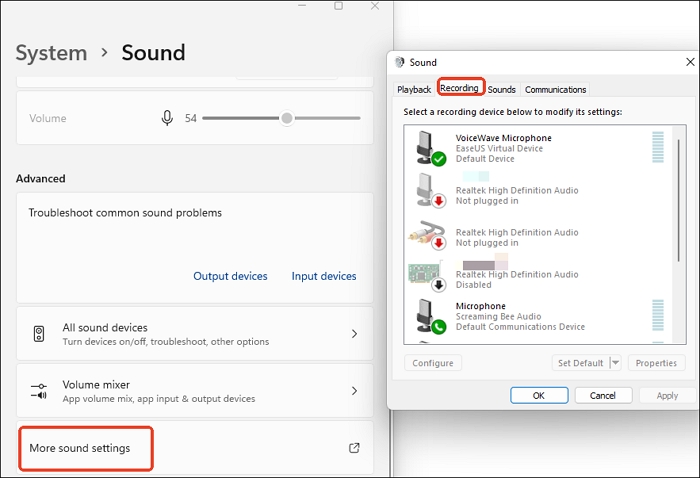
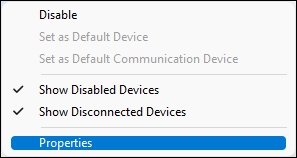
Step 3. Right-click your microphone and choose "Properties."
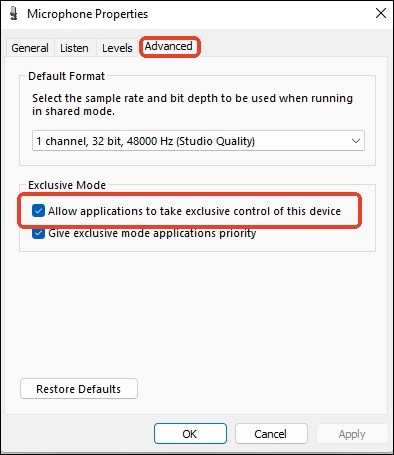
Step 4. Click the "Advanced" tab and uncheck "Allow applications to take exclusive control."
3. Clear Discord Cache
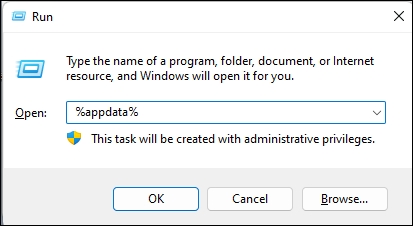
Step 1. Press Windows key + R to open Run dialog.
Step 2. Type %appdata% and press Enter.
Step 3. Delete the Discord folder (this won't delete your account or messages).
Step 4. Restart Discord to rebuild the cache.
Discord Voice Chat Not Working on Phone
Mobile Discord voice issues often relate to app permissions and network connectivity. These solutions work for both iOS and Android devices.
Fix 1. Check App Permissions
Mobile operating systems strictly control microphone access:
For Android:
Step 1. Open Settings and tap "Apps" or "Application Manager."
Step 2. Find and select Discord.
Step 3. Tap "Permissions."
Step 4. Enable "Microphone" and "Phone" permissions.
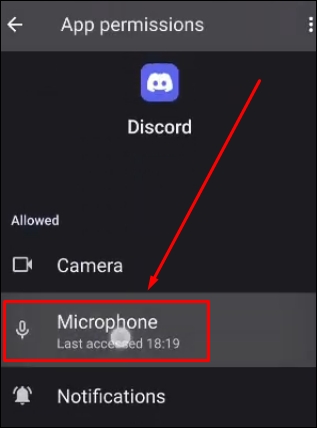
Step 5. Restart the Discord app.
For iOS:
Step 1. Open Settings and scroll to Discord.
Step 2. Ensure the "Microphone" toggle is enabled.
Step 3. Check that "Background App Refresh" is turned on.
Step 4. Restart Discord from your app switcher.
Fix 2. Optimize Network Connection
Voice chat requires stable internet connectivity:
Step 1. Switch between Wi-Fi and mobile data to test both connections.
Step 2. Move closer to your Wi-Fi router to improve signal strength.
Step 3. Restart your router if experiencing network issues.
Step 4. Disable battery saver mode, which can limit app performance.
Fix 3. Mobile-Specific Settings
Configure these Discord mobile settings for optimal voice performance:
Step 1. Open Discord and tap your profile picture.
Step 2. Select "Voice & Video" from settings.
Step 3. Toggle "Auto Sensitivity" off and manually adjust input sensitivity.
Step 4. Test different combinations of "Echo Cancellation" and "Noise Suppression."
Step 5. Switch between "Voice Activity" and "Push to Talk" modes.
Discord Voice Chat Not Working While Gaming
Gaming introduces additional complexity because you're managing Discord alongside game audio and potentially console-specific voice systems.
On PS4/PS5
PlayStation Discord integration requires proper account linking and audio configuration:
Fix 1. Relink Your Discord Account:
Step 1. Go to "Settings" > "Users and Accounts" > "Linked Services" on your PS5.
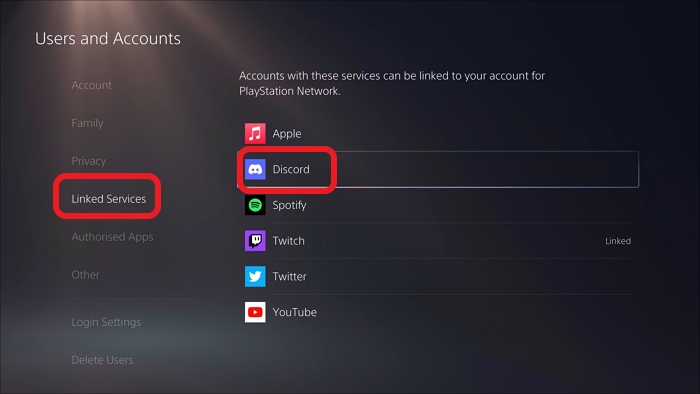
Step 2. Disconnect your Discord account completely.
Step 3. Reconnect and authorize voice chat access during setup.
Step 4. Test voice chat in a Discord channel.
Fix 2. Configure PS5 Audio Settings:
Step 1. Press the PS button to access "Control Center. "
Step 2. Navigate to "Sound settings."
Step 3. Verify your headset is selected as the "Output Device. "
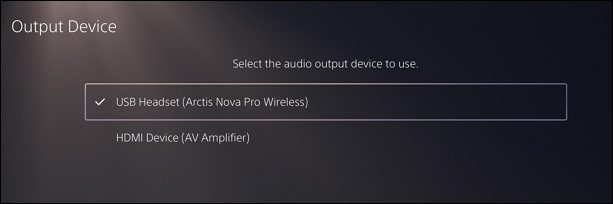
Step 4. Check "Microphone Level" and ensure it's not muted.
Step 5. Confirm "Mute Game Voice Chat" is disabled.
Fix 3. Join Discord Voice Channels:
Step 1. Press the PS button and select "Game Base. "
Step 2. Choose the Discord option.
Step 3. Select your server and voice channel.
Step 4. Click "Join" to connect.
On Xbox
Xbox Discord voice requires the Xbox mobile app for initial setup:
Fix 1. Complete Setup Process:
Step 1. Uninstall and reinstall the Xbox mobile app.
Step 2. Disconnect Discord from Xbox in both "Discord Connections" and Xbox social settings.
Step 3. Open the Xbox console and select "Try Discord Voice on Xbox today!"
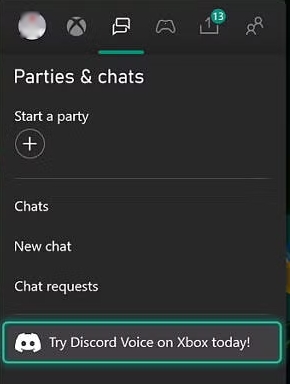
Step 4. Scan the QR code with your mobile device.
Follow the authentication steps to link accounts.
Fix 2. Troubleshoot Xbox-Specific Issues:
Step 1. Check Xbox privacy settings to allow communication with everyone.
Step 2. Update the Xbox system software to the latest version.
Step 3. Verify your headset connection and test with Xbox party chat first.
Step 4. Power cycle both the Xbox and the router if connection issues persist.
Discord Voice Changer on the Go
Once your Discord voice chat is working well, you may want to enhance your conversations with voice effects and adjustments. This is where special tools like EaseUS VoiceWave are particularly helpful for streamers, gamers, and content creators.
EaseUS VoiceWave is a powerful voice-changing software designed for real-time audio modification during voice chats or recordings. It allows users to change their voices in various ways, such as making them sound robotic, deeper, higher, or like fun characters.
The software works seamlessly with Discord, Twitch, Zoom, and over 2,000 platforms, allowing anyone to make their audio more personal. It is easy to use and features adjustable settings, allowing both new and experienced users to enjoy it without any trouble.
Another great feature of the real-time voice changer is its extensive voice library, comprising over 300 AI voice filters and hundreds of soundboards. The software removes unwanted sounds, so it is great for podcasts, online meetings, and live streaming.
How to use the Discord voice changer?
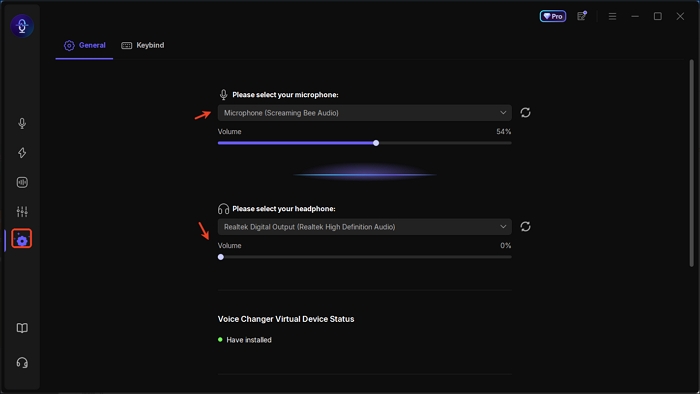
Step 1. Open EaseUS VoiceWave and customize your media devices.
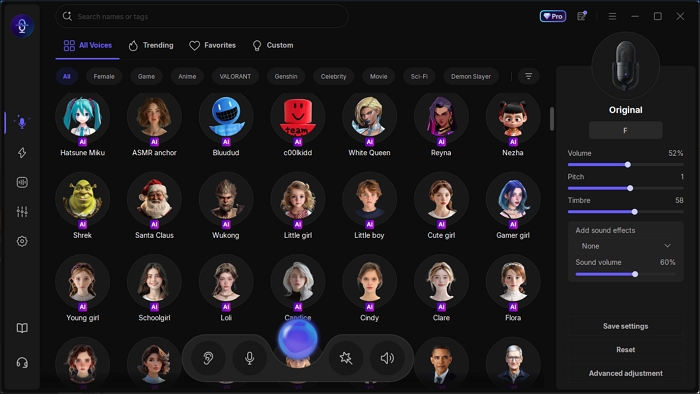
Step 2. Select the preferred voice and adjust it optionally.
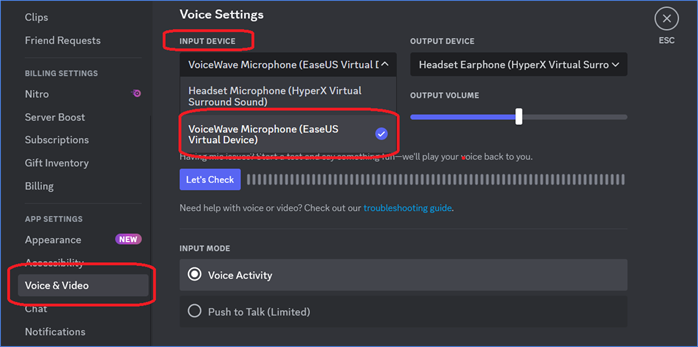
Step 3. Open Discord, go to "Voice & Video" from Settings, and choose VoiceWave as the microphone. Speak now.
Wrapping up
Voice chat issues in Discord can be frustrating—but they're rarely permanent. Whether the problem lies in your device settings, app permissions, audio drivers, or network connection, the solutions are usually straightforward once you know where to look.
By following the step-by-step fixes outlined in this guide, you can quickly identify what's wrong and get back to seamless conversations—whether you're gaming, streaming, or just catching up with friends.
And once things are working again, don't forget to explore tools like EaseUS VoiceWave to level up your experience with fun and professional voice effects.
FAQ
Why can't my friends hear me on Discord mobile?
If your friends can't hear you on Discord mobile, it's likely due to microphone permissions not being granted to the Discord app, your input mode being incorrectly set (like Push-to-Talk instead of Voice Activity), or the mic being muted in either the app or your device.
Other common causes include a faulty headset, low input sensitivity settings, an outdated app version, or a poor internet connection that disrupts audio transmission.
Restarting the app or phone, checking audio settings, and ensuring Discord has microphone access usually solves the issue.
Discord can't hear other person but they can hear me?
Output Device Settings (Most Common)
- Go to User Settings > Voice & Video > Output Device.
- Make sure it's set to your active speaker/headphones (not "Default").
- Try changing it manually to different options, especially if you recently switched audio devices.
Check Volume Mixer
- Right-click the speaker icon on your taskbar > Open Volume Mixer.
- Ensure Discord isn't muted or set to 0 volume.
Use Legacy Audio Subsystem
- In Voice & Video, scroll down and enable "Use Legacy Audio Subsystem", then restart Discord. This helps with older or incompatible audio drivers.
Restart Discord and/or PC
- Sometimes, a simple restart resolves temporary glitches.
Update Audio Drivers
- Outdated or buggy drivers can interfere with Discord audio.
Check for Bluetooth Headsets
- If using Bluetooth, some headsets only support mono audio while in call mode. Try switching to a wired or another output.
Why can't I do voice messages on Discord?
You can't send voice messages on Discord if:
- You're on desktop (voice messages are mobile-only for now).
- You're in a server/channel where voice messages are disabled by admins.
- Your app is outdated — update Discord.
- You have no mic permissions in that channel.
- You're in a region where the feature hasn't rolled out yet.
Try using the Discord mobile app, check channel permissions, and update the app to see the mic icon in DMs or group chats.
Is Discord having voice issues?
No, Discord is not currently experiencing voice issues—everything appears to be operating normally across the globe.
Why is Discord not allowing my mic?
- Wrong input device is selected in Discord settings (Voice & Video).
- Discord lacks microphone permissions in your operating system settings.
- Push-to-Talk enabled unintentionally, blocking automatic voice input.
- Advanced voice features causing issues (like Advanced Voice Activity or QoS).
- Exclusive mode conflict in Windows audio settings.
- Outdated or corrupted audio drivers interfering with mic detection.
- App-level glitches, which may be fixed by resetting voice settings or reinstalling.
- Audio subsystem bug, especially in the Windows desktop version.