-
![]()
Joey Albert
Joey has been involved with tech ever since she joined the EaseUS editor team in March 2011 and now she is a senior website editor. She is good at solving various issues, such as video downloading and recording.…Read full bio -
![]()
Alin
Alin is a sophisticated editor for EaseUS in tech blog writing. She is proficient in writing articles related to screen recording, voice changing, and PDF file editing. She also wrote blogs about data recovery, disk partitioning, data backup, etc.…Read full bio -
Jean has been working as a professional website editor for quite a long time. Her articles focus on topics of computer backup, data security tips, data recovery, and disk partitioning. Also, she writes many guides and tutorials on PC hardware & software troubleshooting. She keeps two lovely parrots and likes making vlogs of pets. With experience in video recording and video editing, she starts writing blogs on multimedia topics now.…Read full bio
-
![]()
Gorilla
Gorilla joined EaseUS in 2022. As a smartphone lover, she stays on top of Android unlocking skills and iOS troubleshooting tips. In addition, she also devotes herself to data recovery and transfer issues.…Read full bio -
![]()
Rel
Rel has always maintained a strong curiosity about the computer field and is committed to the research of the most efficient and practical computer problem solutions.…Read full bio -
![]()
Dawn Tang
Dawn Tang is a seasoned professional with a year-long record of crafting informative Backup & Recovery articles. Currently, she's channeling her expertise into the world of video editing software, embodying adaptability and a passion for mastering new digital domains.…Read full bio -
![]()
Sasha
Sasha is a girl who enjoys researching various electronic products and is dedicated to helping readers solve a wide range of technology-related issues. On EaseUS, she excels at providing readers with concise solutions in audio and video editing.…Read full bio
Page Table of Contents

Dawn Tang
Updated on Jan 21, 2026
0 Views |
0 min read
Roblox is a massive online platform where millions of players create, explore, and enjoy endless virtual adventures together. However, some players run into Error Code 524 when trying to join a private server — even after reinstalling the game, the problem often remains. Before fixing it, it's important to understand what Roblox Error Code 524 actually means and why it happens.
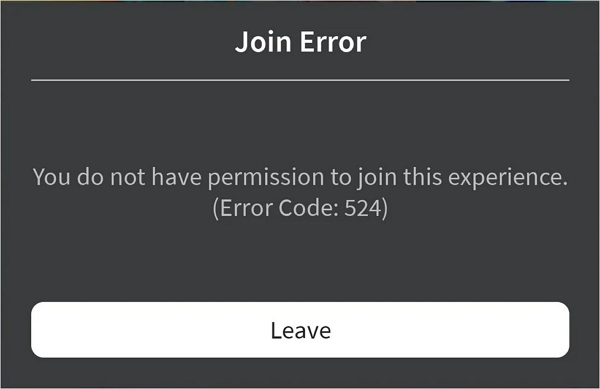
Roblox Error Code 524 Meaning
"You do not have permission to join this experience." (Error Code: 524), or your account is "not authorized to access the game," or the server can happen for several reasons:
- Privacy Settings: Your account is too restricted for certain servers.
- Server Permissions: It's a private or VIP server, and you haven't been invited.
- Server Down: The game or server might be temporarily offline.
- Network/Device Issues: Weak internet, browser problems, or temporary device glitches.
- Tip
- Roblox doesn't work on virtual machines, cloud PCs, or devices with modified systems. Make sure your internet speed is at least 4–8 Mb/s.
How to Fix Roblox Error Code 524
Roblox offers a guide to fix Error Code 524, though it's somewhat general. So I collect more proven methods from community users. Following these steps carefully can help you resolve the issue and get back into your favorite games.
- Step 1. Check Private Server Settings: Set private server access to "Everyone" in Privacy settings
- Step 2. Verify Server Permissions: Make sure the server owner added you or enable Connections Allowed
- Step 3. Check Server Availability: Wait or check game social media for downtime
- Step 5. Troubleshoot Network: Switch Wi-Fi/mobile data or restart router
- Step 6. Update/Reinstall Roblox: Update to latest version or reinstall app
- Step 7. iPhone – Bypass Safari Prompt: Copy Roblox link from Safari > Notes > Tap link in Roblox app
- Step 8. Temporary VPN Workaround: Connect to VPN, join game, then disconnect
- Step 9. Server List/Friends List: Join via Roblox server list or friend homepage
1. Check Your Private Server Settings
This is the most common cause of Error 524.
- Open Roblox Settings:
- Mobile/Desktop app: Tap More (...) > Gear icon
- Website: Click the Gear icon in the upper-right corner
- Go to Privacy & content restrictions > Visibility & private servers
- Under Private servers, set who can add you to their servers
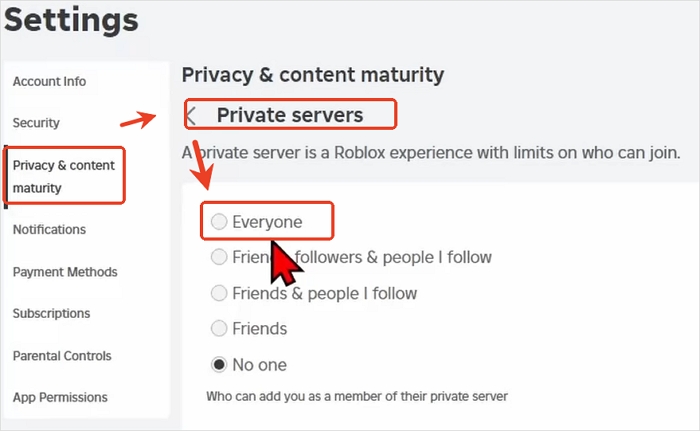
- Notice:
- If you're under 13 (Settings > Account Info > Verify My Age), you can only join private servers created by your friends.
2. Verify Server Permissions
- Private servers: Make sure the server owner has added you to the Server Members list or enabled Connections Allowed.
- Group-only games: Confirm you've joined the correct Roblox group to gain access.
See also:
3. Restart Roblox and Your Device
A simple restart can fix temporary glitches.
- Close Roblox completely (force quit if needed)
- Restart your device, then try joining again
4. Check Server Availability
The server you're trying to join may be temporarily offline.
- Wait a few minutes and try again
- Check the game's social media or community page for updates
5. Troubleshoot Your Network
A weak or unstable connection can prevent access.
- Switch networks (Wi-Fi ↔ mobile data) or try a different Wi-Fi
- Restart your router by unplugging it for 30 seconds
6. Update or Reinstall Roblox
If the problem is caused by outdated or corrupted files, updating or reinstalling Roblox can help.
I tried and confirmed these extra fixes that work when Roblox's official steps don't.
On iPhone
Quick steps to open a private-server Roblox link (bypass Safari prompt)
- Go to Discord > Settings, and change your browser to Safari.
- When Safari shows "Do you want to open this page in Roblox?", tap Cancel.
- Tap the address bar, select the full URL (the www.roblox... link) and Copy.
- Open the Notes app (or any text app).
- Create a new note and paste the copied Roblox URL.
- Tap the pasted link inside Notes — it should open directly in the Roblox app.
- Join the private server from the Roblox app.
- Tip
- This also works with any text field (Messages, an email draft, etc.) if Notes isn't handy.
On Computer
1. Temporary VPN Workaround
A suggested temporary solution is to connect to a VPN service and then join the game. After leaving the game, you can turn off the VPN, and the play button should return to normal.
2. Using Server List or Friends List
The issue can also be bypassed by joining through the server list or joining a friend directly from the homepage. This is a more reliable method and works consistently for the author and their brother.
Change Your Voice on Roblox in Real Time
Once you're in a Roblox game, you can entertain your teammates or protect your privacy using a real-time voice changer like EaseUS VoiceWave. Powered by the RVC AI model, it offers natural, realistic voice conversion with minimal delay, letting you speak as your favorite characters — from celebrities and singers to athletes, politicians, anime, or game characters.
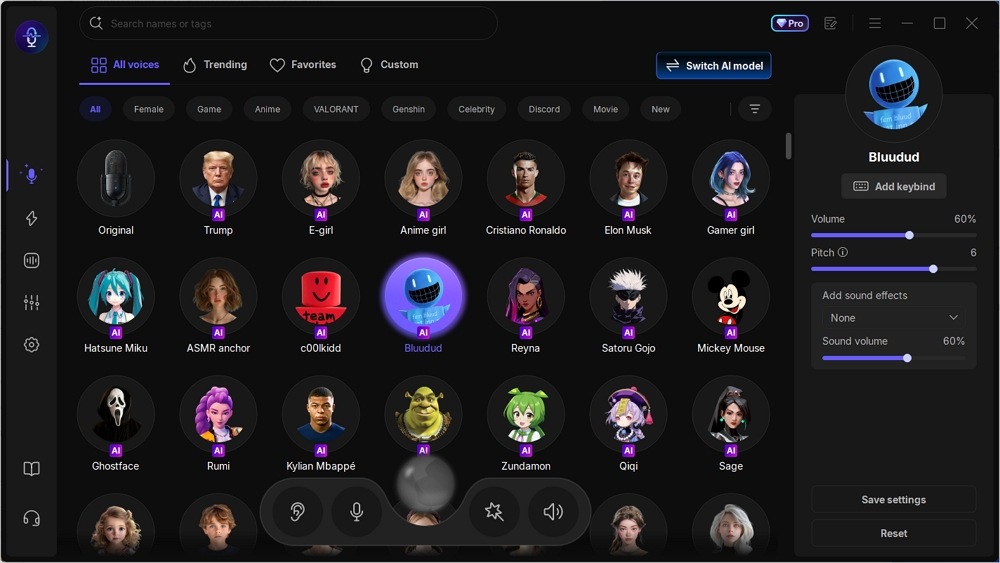
Key Features
- 300+ AI voices across various categories
- Supports 2000+ online games and apps
- Voice customization: adjust volume, timbre, and more
- VoiceLab: mix multiple effects for unique voices
- Voice cloning: create your own custom voice
- Minimal delay: under 50ms for real-time interaction
Wrapping up
Roblox Error Code 524 often occurs due to VIP or private server restrictions, missing invitations, or temporary Roblox server glitches. You can fix it by allowing private server access to everyone, reinstalling the game, bypassing via Safari, and using other proven methods.
To change your voice in Roblox games, EaseUS VoiceWave is the perfect tool. It offers an extensive AI voice library, real-time voice conversion, and features like voice customization, mixing, and cloning, letting you speak as celebrities, anime characters, or game heroes with minimal delay
FAQ
- 1. Is error code 524 permanent?
-
No, Roblox Error Code 524 isn't permanent. It's a temporary connection or permission issue, usually caused by one of the following:
- You're trying to join a private server without an invite.
- The game server is down or under maintenance.
- Your internet connection is unstable.
- There's a temporary glitch in the Roblox app.
- 2. Why is Roblox saying I don't have permission to join?
-
Roblox says "You don't have permission to join" when you're blocked from entering a game or server. Common reasons include:
- Private server – The owner didn't invite you. Ask them to add you.
- Age settings – Players under 13 can only join friends' servers.
- Group-only game – You need to join the required Roblox group.
- Server issues – The server might be full or under maintenance.
- Temporary glitch – Restart Roblox or your device and try again.
- 3. Is error code 529 bad?
-
Error Code 529 isn't serious. It means Roblox's servers are busy or under maintenance — not something you caused. You can't fix it yourself, but you can wait a bit, then try rejoining or check Roblox's status page for updates.
- 4. Is error code 600 permanent ban Roblox?
-
No, Error Code 600 isn't a permanent Roblox ban — it's a ban from a specific game made by its creator. You can still play other games on Roblox.
However, if it's due to ban evasion (using another account to rejoin), Roblox may ban all linked accounts. To fix it, contact the game's creator and ask for an appeal.