-
![]()
Joey Albert
Joey has been involved with tech ever since she joined the EaseUS editor team in March 2011 and now she is a senior website editor. She is good at solving various issues, such as video downloading and recording.…Read full bio -
![]()
Alin
Alin is a sophisticated editor for EaseUS in tech blog writing. She is proficient in writing articles related to screen recording, voice changing, and PDF file editing. She also wrote blogs about data recovery, disk partitioning, data backup, etc.…Read full bio -
Jean has been working as a professional website editor for quite a long time. Her articles focus on topics of computer backup, data security tips, data recovery, and disk partitioning. Also, she writes many guides and tutorials on PC hardware & software troubleshooting. She keeps two lovely parrots and likes making vlogs of pets. With experience in video recording and video editing, she starts writing blogs on multimedia topics now.…Read full bio
-
![]()
Gorilla
Gorilla joined EaseUS in 2022. As a smartphone lover, she stays on top of Android unlocking skills and iOS troubleshooting tips. In addition, she also devotes herself to data recovery and transfer issues.…Read full bio -
![]()
Rel
Rel has always maintained a strong curiosity about the computer field and is committed to the research of the most efficient and practical computer problem solutions.…Read full bio -
![]()
Dawn Tang
Dawn Tang is a seasoned professional with a year-long record of crafting informative Backup & Recovery articles. Currently, she's channeling her expertise into the world of video editing software, embodying adaptability and a passion for mastering new digital domains.…Read full bio -
![]()
Sasha
Sasha is a girl who enjoys researching various electronic products and is dedicated to helping readers solve a wide range of technology-related issues. On EaseUS, she excels at providing readers with concise solutions in audio and video editing.…Read full bio
Page Table of Contents

Dawn Tang
Updated on Jan 22, 2026
0 Views |
0 min read
Many gamers and streamers want to disguise their voices in Fortnite—whether it's for privacy, roleplay, funny pranks, or a more immersive gaming experience. If you're also looking for the best Fortnite voice changer to use, you're in the right place.
I specialize in voice-changing software and have personally tested dozens of tools across PC, mobile, and online platforms. Based on performance, real-time effects, and ease of use, I've narrowed it down to the six best Fortnite voice changers to help you choose the right one.
| Fortnite Voice Changer | Platform | Real-Time | Price | Best for |
|---|---|---|---|---|
| EaseUS VoiceWave | Windows 10/11 | ✅ | 5 Free voices, $14.95/Mo, $29.95/Yr, $39.95/Life | Gamers who want high-quality real-time voice effects, easy setup, and Fortnite compatibility |
| Clownfish Voice Changer | Windows | ✅ | Free | Beginners or casual players who want a simple, lightweight, free tool |
| VoiceMod Voice Changer | Windows & Mac | ✅ | 4 Free voices, $5.99/Mo, $43.99 Life | Streamers and Fortnite players who want professional effects + soundboard |
| W-Okada Voice Changer | Cross-Platform | ✅ | Free |
|
| Voice changer with effects | Mobile | ❌ | Free, $3.99/Remove ads | Mobile Fortnite players who want to record and upload funny voice clips, not live chat |
| Voicechanger.io | Web | ❌ | Free | Users who want browser-based quick voice effects without downloading software |
Summary & Recommendations for Fortnite Use
- If you're playing Fortnite on PC and want full live voice change + soundboard + streaming capability: VoiceMod or EaseUS VoiceWave are strong.
- If you want free and simple on Windows: Clownfish is fine for basic voice change.
- If you're comfortable with technical setup and want custom/AI voice conversion on Mac/PC: W-Okada is powerful.
- For mobile Fortnite or casual voice fun: Voice Changer with Effects (mobile app) is OK.
- For quick online voice effect without setup: Voicechanger.io but note it's not ideal for live gameplay voice chat.
Best Girl Voice Changer for Fortnite for PC
EaseUS VoiceWave
- Rating: 4.7/5
- Price: 5 free voices, $14.95/month, $29.95/year, $39.95/life
- OS: Windows 10/11
- Voice Quality: realistic with minimum delay
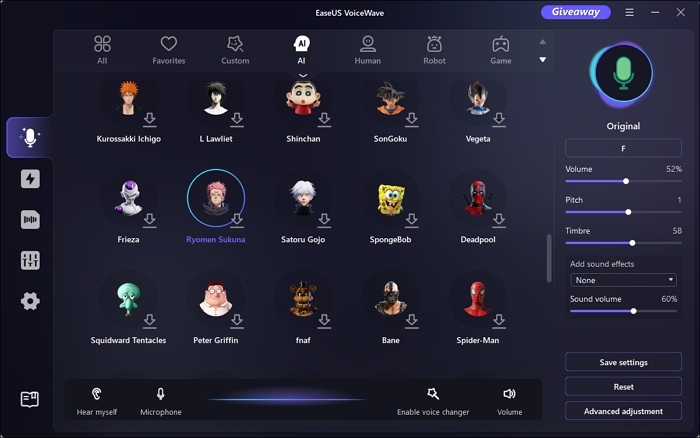
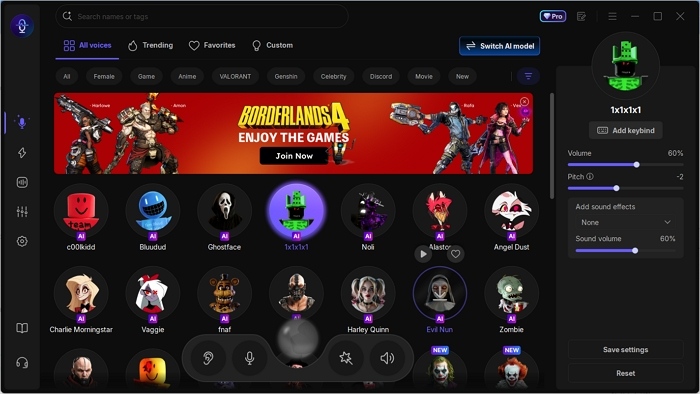
For me, EaseUS Voice Changer works the best for Fortnite and 2000 more apps on PC. It provides an easy UI and workflow with 300+ AI sound effects of all kinds and comes with a soundboard within the client.
The AI voice changer transforms your voice in real time, and the output isn't robotic, a basic requirement that fails to be met in many tools. There are several voices for both males and females of different ages, and you can also make your own.
| ⭕Pros | ❌Cons |
|---|---|
|
|
How to get a voice changer on Fortnite on PC?
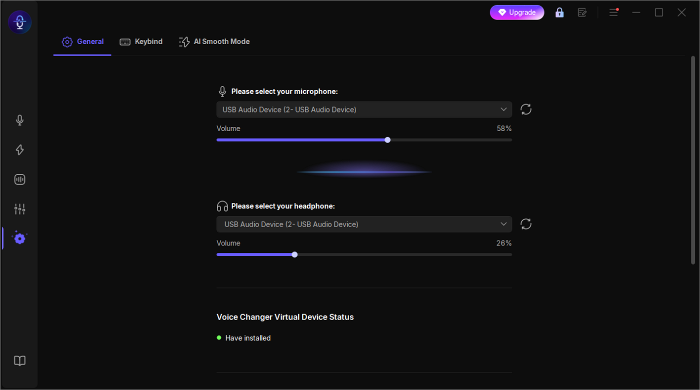
Step 1. Open EaseUS VoiceWave and set up the microphone.
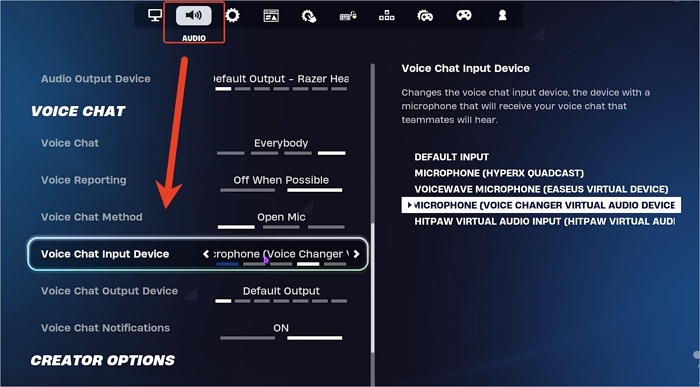
Step 2. Open Fortnite and set VoiceWave as the default input device.
- In Fortnite, press the Esc key and go to the settings.
- Select the "AUDIO" and scroll down for "Voice Chat Input Device" and choose EaseUS Virtual Microphone.
Step 3. Select the voice you want in VoiceWave, download the AI model, tweak it optionally, and speak in Fortnite.
See also:
3 Top Voice Changers for Fortnite PS5/PS4/Xbox/Nintendo Switch
Clownfish Voice Changer
- Rating: 3.8/5
- Price: Free
- OS: Windows 7/8/8.1/10/11
- Voice Quality: a bit of robotic
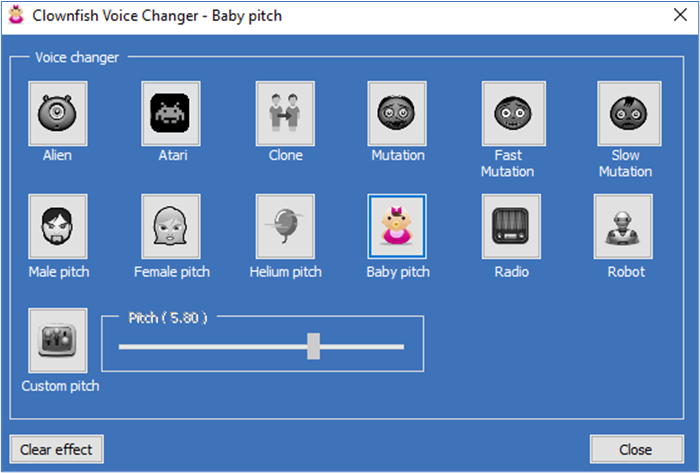
Clownfish voice changer is a free application that offers limited voice effects for real-time voice modulation on PS4/5, Xbox, Switch, etc. It offers an effect mixer and microphone settings for adjustment while supporting VST effects for advanced features. But it's not as easy and intuitive as it seems.
You can learn how to use the voice changer via the article. Of all the voice effects I tested, I found their voice quality may not be optimal and sometimes even robotic or processed.
Meanwhile, the limited number of pre-programmed voices and the difficulty in creating custom voices that are meaningful and natural make it a standby selection for those who want to test the waters.
| ⭕Pros | ❌Cons |
|---|---|
|
|
See also:
VoiceMod Voice Changer
- Rating: 4.1/5
- Price: 2 free voices, 4 limited-time voices, $17.97/3 months, $29.98 /year, $49.99/perpetual
- OS: Windows 10/11 & macOS
- Voice Quality: decent, but some are distorted
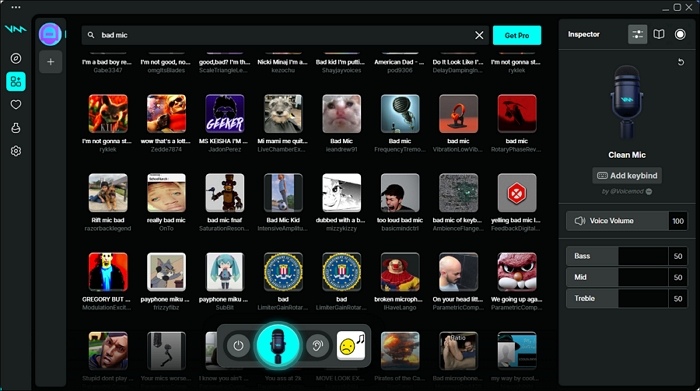
VoiceMod is a commonly mentioned voice changer for video games and voice chats when I search for candidates. It has multiple voice effects and organized soundboard collections that generate decent results. It's also user-friendly.
Only 2 male-to-female voice options are available, which I presume most Fortnite users value. But it either failed to launch or started downloading once I opened it, which irritates me. And it keeps cutting on the other end of the female voices, making it sound not so natural.
| ⭕Pros | ❌Cons |
|---|---|
|
|
W-Okada Voice Changer
- Rating: 4.5/5
- Price: Free
- OS: Windows, Linux, Google Colab, Mac
- Voice Quality: high-quality and low latency
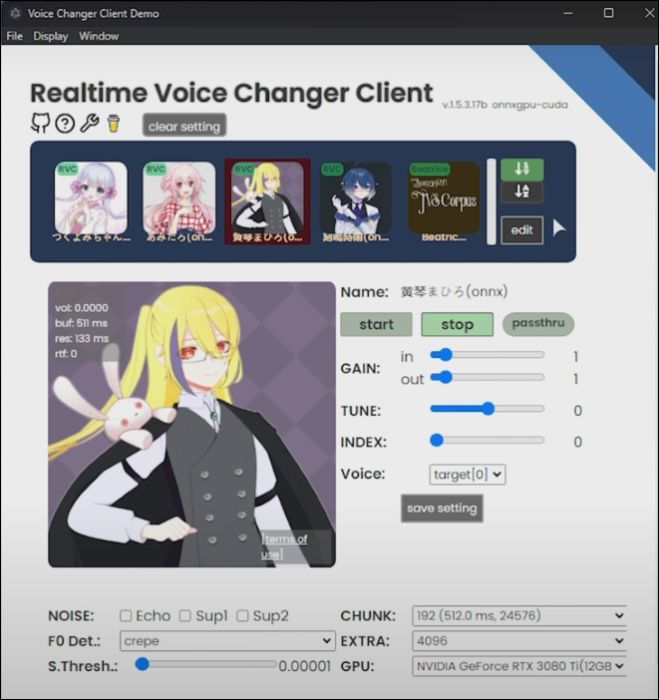
W-Okada voice changer is an open-source AI voice changer and a go-to choice for users seeking a free option. The tool provides real-time voice conversion backed by the RVC and is probably the best free voice changer with high-quality voices I have tested.
It sounds better on the language model it was trained on, according to my test. It works well with the pre-installed voices; however, some imported voices often sound choppy and robotic. But it doesn't support AMD directly, so you need to use the directML version.
| ⭕Pros | ❌Cons |
|---|---|
|
|
How to use the W-Okada voice changer on Fortnite on your Mac?
Step 1. Install the Voice Changer
- Download W-Okada Voice Changer (Voice Changer AI) from GitHub.
- Open the app on your Mac. Allow it in "System Settings" > "Privacy & Security" if blocked.
Step 2. Set Up the Mic and Output
- In the app, choose your microphone as the input.
- Set the output to a virtual audio device (like BlackHole or VB-Cable).
- Load any AI voice model and click "Start" so your voice changes in real time.
Step 3. Route the Voice to Your Mac System
- Go to "System Settings" > "Sound" > "Input."
- Select "BlackHole / Virtual Cable" as your input device.
Step 4. Enable It in Fortnite
- Open "Fortnite" > "Settings" > "Audio."
- Set "Voice Chat: On."
- Select "Input Device: BlackHole / Virtual Mic."
- Join a match and speak—your voice is now changed.
Top-Notch Voice Changer for Fortnite Mobile
Voice changer with effect
- Rating: 3.8/5
- Price: Free, $3.49 per item
- OS: iOS, Android
- Voice Quality: functional but some sound artificial
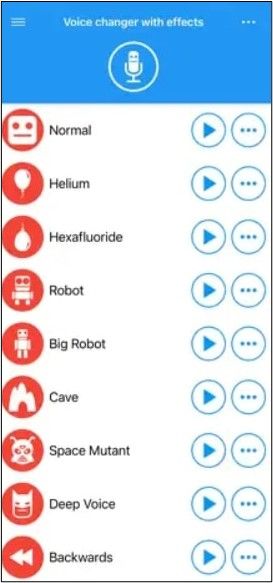
Voice changer with effects is a good and free voice changer for Fortnite on both iPhone and Android. I would recommend it to phone users for its ease of use and good voice quality overall. The price is also cheap. But I cannot use it during my live game on Fortnite since it doesn't support real-time voice transformation.
So, it's ok to save recordings for pranks but not for live games. Some voice effects can sound artificial or robotic, and it has banner ads.
| ⭕Pros | ❌Cons |
|---|---|
|
|
Voice Changer for Fortnite No Download Free Online
Voicechanger.io
- Rating: 4/5
- Price: Free
- OS: Web
- Voice Quality: generally decent for casual use
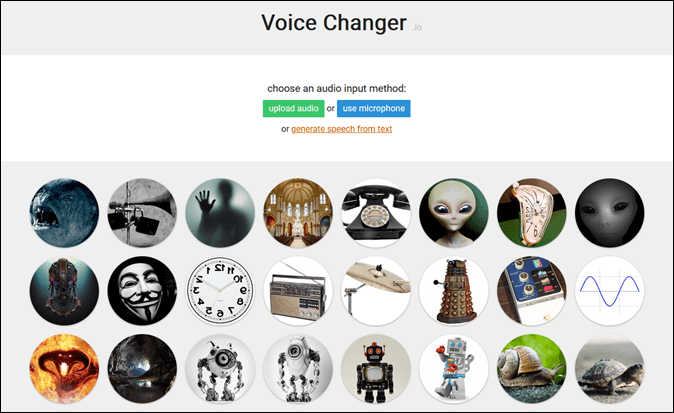
Voicechanger.io is a free online voice changer for Fortnite without registration or subscription. While it offers over 40 pre-made voice effects and is simple to use, it doesn't support real-time voice changing, which limits its use for live gaming or streaming.
When I use the tool, I find it is generally decent for casual use, but it may not be as polished or realistic. It works well for pre-recorded clips, but lacks the finesse and clarity needed for voice changing. It's more suitable for basic voice effects.
| ⭕Pros | ❌Cons |
|---|---|
|
|
Wrapping up
Choosing the right voice changer for Fortnite depends on your platform, needs, and budget. From free options like Clownfish and W-Okada to advanced solutions like EaseUS VoiceWave, each tool has its strengths and limitations.
EaseUS VoiceWave stands out for its user-friendly interface, realistic voice output, and compatibility with multiple apps.
FAQ
1. How to set up Clownfish voice changer for Fortnite?
- Open Fortnite and click on the Menu icon.
- Go to Settings.
- Navigate to the Audio tab.
- Scroll to the Voice Chat section.
- Under Voice Chat Input Device, select Clownfish Voice Changer as your input device.
2. Is voice changer bannable in Fortnite?
No, using a voice changer is not bannable in Fortnite as long as it doesn't violate the game's community guidelines or terms of service, such as using it for harassment or disruptive behavior.
3. Is VoiceMod on Epic Games?
Yes, VoiceMod can be downloaded for free on Epic Games.
4. Does Dubbing AI work on Fortnite?
Yes, Dubbing AI works on Fortnite in real time.