-
![]()
Joey Albert
Joey has been involved with tech ever since she joined the EaseUS editor team in March 2011 and now she is a senior website editor. She is good at solving various issues, such as video downloading and recording.…Read full bio -
![]()
Alin
Alin is a sophisticated editor for EaseUS in tech blog writing. She is proficient in writing articles related to screen recording, voice changing, and PDF file editing. She also wrote blogs about data recovery, disk partitioning, data backup, etc.…Read full bio -
Jean has been working as a professional website editor for quite a long time. Her articles focus on topics of computer backup, data security tips, data recovery, and disk partitioning. Also, she writes many guides and tutorials on PC hardware & software troubleshooting. She keeps two lovely parrots and likes making vlogs of pets. With experience in video recording and video editing, she starts writing blogs on multimedia topics now.…Read full bio
-
![]()
Gorilla
Gorilla joined EaseUS in 2022. As a smartphone lover, she stays on top of Android unlocking skills and iOS troubleshooting tips. In addition, she also devotes herself to data recovery and transfer issues.…Read full bio -
![]()
Rel
Rel has always maintained a strong curiosity about the computer field and is committed to the research of the most efficient and practical computer problem solutions.…Read full bio -
![]()
Dawn Tang
Dawn Tang is a seasoned professional with a year-long record of crafting informative Backup & Recovery articles. Currently, she's channeling her expertise into the world of video editing software, embodying adaptability and a passion for mastering new digital domains.…Read full bio -
![]()
Sasha
Sasha is a girl who enjoys researching various electronic products and is dedicated to helping readers solve a wide range of technology-related issues. On EaseUS, she excels at providing readers with concise solutions in audio and video editing.…Read full bio
Page Table of Contents

Myra
Updated on Jan 21, 2026
0 Views |
0 min read
PEAK is an exciting multiplayer climbing game on Steam where players collaborate in teams to scale mountains, share strategies, and react to teammate falls. Voice chat plays a key role in real-time coordination in intense moments. When voice chat stops working, teams stay silent. This ruins the social fun. This guide provides proven fixes to restore PEAK game voice chat. It also includes tips to enhance gameplay with voice effects.
Why Is My PEAK Voice Chat Not Working?
Peak voice chat in the Steam game PEAK often stops working due to misconfigured audio settings, permission blocks, software conflicts, or graphics API mismatches, affecting many players according to Steam forums and Reddit reports.
Common Symptoms:
Players report these recurring signs, usually one-way or total silence in multiplayer lobbies.
- No one hears you or mic undetected: Teammates report silence despite your audio working in Discord/Steam test.
- You can't hear others: Incoming voices are muted despite voice volume maxed and green indicators on squadmates.
- One-way audio: You hear the team, but they don't hear you (or vice versa), common in cross-API parties.
- Choppy/static/dropouts: Brief bursts then silence, tied to network or driver glitches.
- No voice panel activity: Icons stay gray or offline even with open mic mode.
Main Causes:
| Cause | Specific triggers |
| Settings errors | Wrong mic selected, Push-to-Talk enabled, volume zeroed |
| Permissions | Windows mic access off for Steam/PEAK |
| Conflicts | Voice changer for Steam or Discord overlays |
| API mismatch | Vulkan vs DX12 party desync |
| Drivers/Network | Outdated audio, firewall blocks |
How to Fix Voice Chat Not Working in PEAK
Fix 1: Check In-Game Audio Settings
Voice chat fails most often because PEAK picks the wrong microphone or defaults to Push-to-Talk mode, silencing you even when your mic works perfectly in Discord or other apps. Getting this right ensures your voice activates automatically without button presses, keeping you focused on the climb instead of troubleshooting mid-game.
Step 1. Pause the game and open Settings > Audio tab.
Step 2. In the Microphone dropdown, select your actual headset for the mic. Try switching if multiple show up, wired ones work best.
Step 3. Change Microphone Mode to Voice Activation and ensure Push to Talk is turned off. Using Push to Talk will mute your communications unless you press the specified key.
Step 4. Exit settings, join or create a lobby, and speak loudly. Watch teammate icons light up green to confirm.
Fix 2: Enable Microphone Permissions
Windows 11 privacy settings often lock microphone access for apps like Steam and PEAK without any warning, especially after system updates. This silently blocks your input even when everything else checks out. You can fix it quickly by enabling the permissions.
Step 1. Press Win+I to open Settings. Go to Privacy & Security > Microphone.
Step 2. Turn the top toggle on for global microphone access.
Step 3. Scroll down to "Let desktop apps access your microphone." Enable this option.
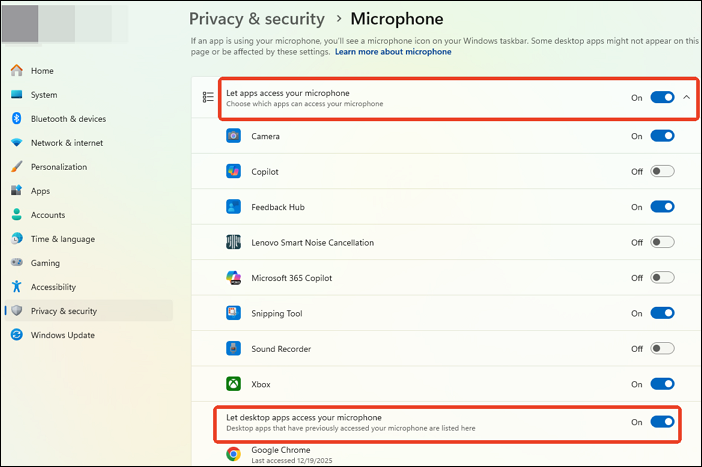
Step 4. Search the list for Steam and PEAK. Toggle both on if they appear.
Step 5. Restart your PC. Open PEAK and test voice in a lobby to confirm.
Fix 3: Update Audio Drivers
Old or corrupt drivers cause the PEAK voice chat not working issue. This happens a lot after Windows updates or new game patches. The game tries to use your microphone, but it cannot find it because the drivers fail. You can fix it by using Windows Device Manager to update or reinstall them automatically.
Step 1. Press the Windows key + X on your keyboard. Select Device Manager from the menu.
Step 2. Find and expand the section called Sound, video and game controllers.
Step 3. Right-click your main audio device, like Realtek or your headset audio. Choose Update driver.
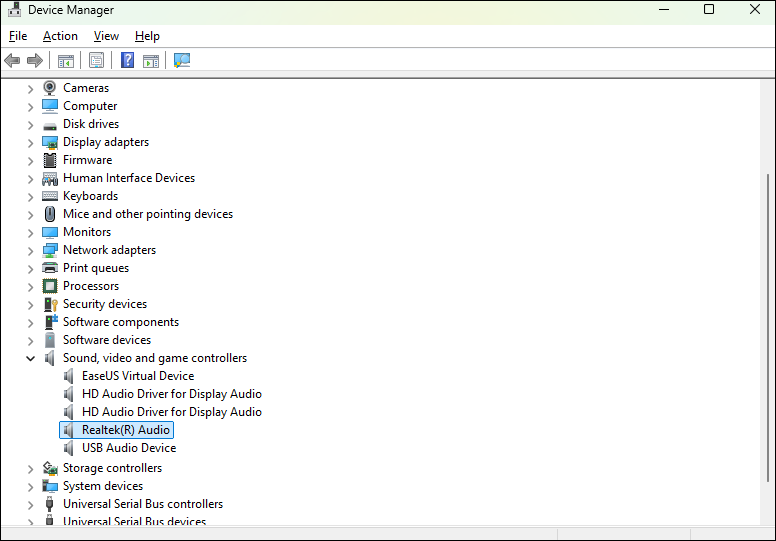
Step 4. Click Search automatically for drivers. Let Windows check and install any new versions.
Step 5. If nothing updates, right-click the device again. Choose Uninstall device. Then click Action > Scan for hardware changes. Restart your PC and test voice chat in PEAK.
Fix 4: Switch Graphics API
PEAK lets you choose between Vulkan and DX12 (or DX11 in recent updates) graphics APIs at launch. A mismatch across your party causes voice chat to cut out completely. Everyone must run the same API for voice packets to sync properly. Vulkan works better for AMD or voice-heavy sessions. DX12 stabilizes NVIDIA cards. Ask your team first to avoid trial-and-error.
Step 1. Open Steam and right-click PEAK. Select Properties from the menu.
Step 2. Go to the Launch Options field at the bottom.
Step 3. Type -dx12 for DirectX 12 or -vulkan for Vulkan.
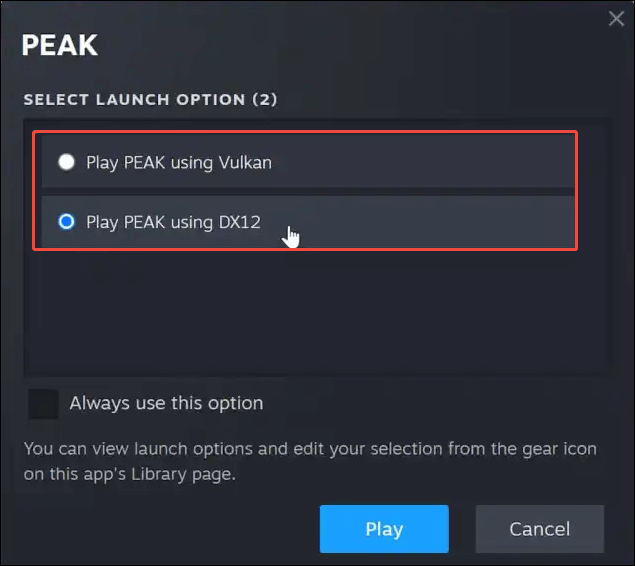
Step 4. Ask friends about their setting via Discord, then copy it exactly.
Step 5. Close the window, relaunch PEAK, and test voice in a custom lobby.
Fix 5: Check Firewall and Antivirus
Firewall or antivirus software may block PEAK voice chat or PEAK voice changer. Security programs see Steam voice data as suspicious during multiplayer sessions. You can fix it by adding exceptions for Steam and PEAK.
Step 1. Open Windows Defender Firewall from the Start menu search.
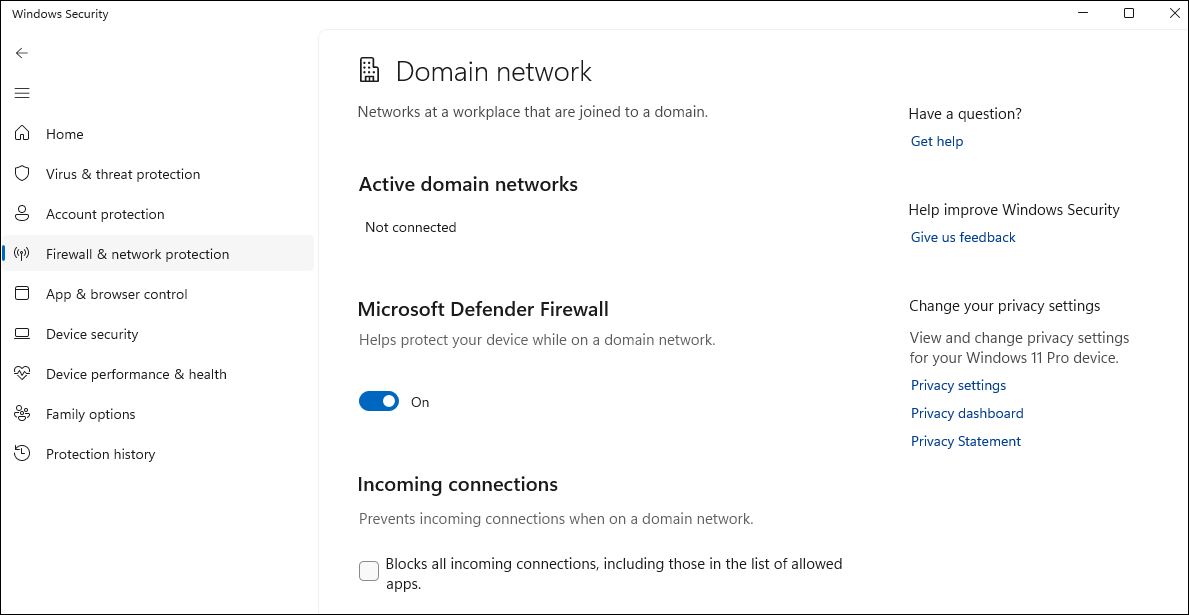
Step 2. Click Allow an app or feature through Windows Defender Firewall.
Step 3. Find Steam on the list and check both Private and Public boxes.
Step 4. Click Allow another app. Browse to PEAK.exe (in the Steam folder) and add it.
Step 5. Restart PEAK and test voice chat.
Fix 6: Use Network Reset
Unstable internet drops PEAK's peer-to-peer voice connections. Windows reset clears bad routes without touching WiFi passwords. This fixes laggy or one-way audio from router glitches common in multiplayer games.
Step 1. Go to Settings > Network & internet > Advanced network settings.
Step 2. Scroll to Network reset and click Restart now.
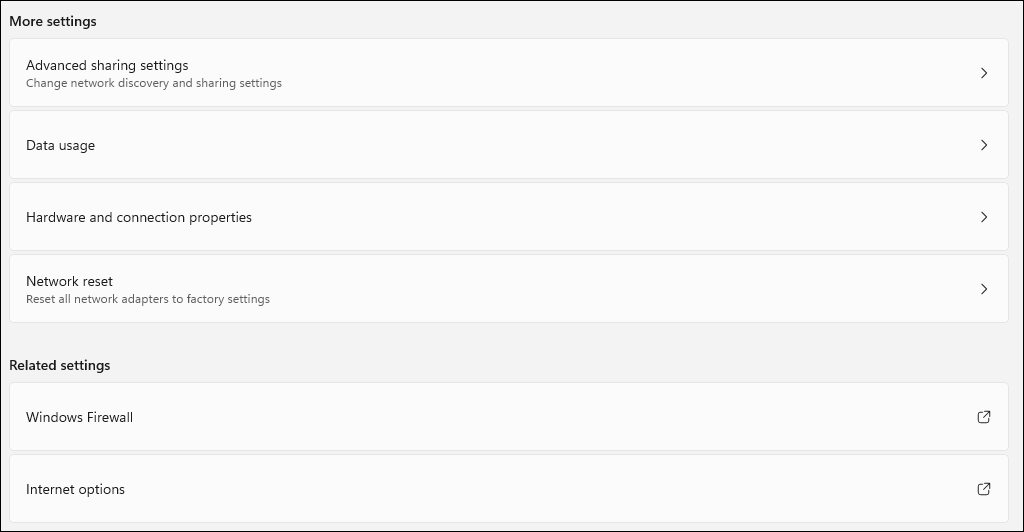
Step 3. PC reboots and resets all adapters to factory state.
Step 4. Reconnect to WiFi and launch PEAK.
Step 5. Test voice with friends on a stable connection.
Other Common Fixes May Solve PEAK Game Voice Chat Issues
If the above fixes do not work, try these additional solutions. They address game settings, updates, account issues, and file problems that often cause a persistent Steam voice chat not working issue.
- Change Lobby Mode: PEAK's lobby settings sometimes lock voice chat in closed modes. Switching to "Open to Friends" refreshes voice connections and lets Steam sync properly with your party.
- Update the Game: PEAK developers patch voice chat bugs regularly through Steam updates. Check for updates to get the latest fixes automatically.
- Test on a Different Account: Your Steam account profile might have a voice restriction or corruption. A fresh account shows if the issue follows you or stays on your PC.
- Verify Game Files: Missing or broken game files stop PEAK from loading Steam voice properly. You can go to Steam library > Properties > Installed Files tab > Verify integrity of game files.
Add More Fun to Your PEAK Steam Game with a Voice Changer
Fixing voice chat issues in PEAK lets you communicate clearly, but why stop there? Take your multiplayer sessions to the next level by adding hilarious voice effects that surprise your teammates. A real-time voice changer processes your mic input instantly during gameplay, so you sound like a robot, alien, or cartoon character without lag.
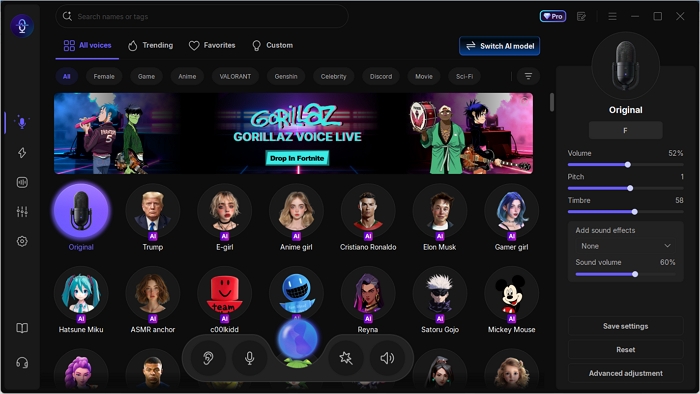
EaseUS VoiceWave stands out as the perfect tool for PEAK players. This software runs smoothly in the background while you climb mountains. It integrates directly with Steam voice systems, meaning no complex setup — just select it as your mic input and start the fun. Your voice modulation happens live, keeping reactions authentic and chaotic.
Main Features:
- Hundreds of Voice Filters: Change your voice into any celebrity like Trump or cartoon characters like SpongeBob.
- Real-Time Processing: Zero-delay changes that sync perfectly with PEAK's proximity voice chat.
- Custom Presets: Mix pitch, reverb, and distortion to create unique voices; save favorites for quick swaps mid-game.
- Soundboard Power: Add hilarious sound effects like footsteps, climbs, fails, or streamer alerts. Tigger with hotkeys during PEAK matches.
Conclusion
PEAK voice chat not working frustrates multiplayer sessions, but these step-by-step fixes resolve most problems quickly. Start with basic audio settings and work through permissions, drivers, and conflicts for reliable results. Once fixed, enhance the fun with tools like EaseUS VoiceWave for voice effects and soundboards. Test thoroughly in lobbies, update regularly, and enjoy climbing with clear team communication.
FAQs
Why is PEAK voice chat choppy or cutting out?
Network instability causes packet loss in PEAK's proximity voice. Reset network settings in Windows or switch to wired Ethernet. Match graphics APIs with your team to avoid sync issues.
Why can't my teammates hear me in PEAK but Discord works?
PEAK uses Steam voice settings that differ from Discord. Check Steam > Settings > Voice for correct mic selection and test the slider. In-game audio mode should be Voice Activation, not Push-to-Talk.
How to test if my mic works in PEAK?
Join a lobby and watch teammate voice icons. Green bars mean detection. Speak loudly—if no response, run through audio settings first.
Does restarting the router help to solve the PEAK voice chat issue?
Sometimes for dropouts. Network reset in Windows Settings clears bad routes better—reconnect to WiFi after.
Does headset type matter for PEAK voice chat?
Wireless headsets drop more often due to USB interference. Wired USB or 3.5mm jacks stay stable. Switch ports or disable headset software like Razer Synapse temporarily.