Download Any Video in High Quality, Anytime
Download publicly available videos from YouTube, Facebook, Twitter, Instagram and more for personal use.
Affiliate
Earn commissions when you drive sales through your affiliate links.
Resellers
Sell EaseUS products as a distributor.

Creators & Influencers
Partner with us on YouTube, TikTok, Twitch to earn commissions.
OEM & Outsourcing Service
Put your brand on EaseUS software, or get custom solutions.

Refer & Earn
Earn rewards when you refer others to EaseUS solutions.

Education
Verified students and teachers get exclusive discounts.
Page Table of Contents

Jun 25, 2026 0 mins read
Download an Embedded Video:
The embedded videos you come across can either be self-hosted by the website or sourced from third-party video-sharing platforms like YouTube or Vimeo. The method to download them depends on where the video is hosted, as each setup requires a different approach.
In this guide, we'll walk you through the various ways to save embedded videos based on their source. But first, it's important to understand the difference between an embedded video and the original video file.
If you are looking for a way to download videos from any platform or website, keep reading. This article provides you with easy ways to download embedded videos.
| Video Downloader | Platform | Supported Sites | Video Quality | Ease of Use |
|---|---|---|---|---|
| EaseUS Video Downloader | Windows, macOS, Android | 1000+ sites | 360P-8K | Easy |
| Cobalt | Web | 20 websites | 144P-8K | Easy |
| Video DownloadHelper | Chrome, Firefox | 1000+ sites | Up to 4K | Middle |
| Developer Tools | Browser | Except for DRM-protected sites | No | Difficult |
| VLC | Cross Platform | Except for DRM-protected sites | Up to 8K | Middle |
| R Download | iOS | 34 websites | Up to 4K | Middle |
Editor Recommendation:
Most embedded videos on web pages come from popular video-streaming platforms like YouTube, Dailymotion, or Vimeo. These sites provide embed codes that let videos play directly on other websites. In such cases, downloading the embedded video is essentially the same as downloading it from the original platform. That means the process is straightforward—you just need a reliable video downloader.
EaseUS Video Downloader is a powerful tool available on Windows, macOS, and Android that lets you download videos from over 1000 websites, including YouTube, Instagram, Facebook, and more. You can paste either the page URL or the direct video URL to save the embedded content. It offers flexible download options, allowing you to choose resolutions from 360p up to 8K, and formats like MP4, MP3, or WAV.
Key Features
Download Any Video in High Quality, Anytime
Download publicly available videos from YouTube, Facebook, Twitter, Instagram and more for personal use.
Unlike direct video downloads, downloading embedded videos requires you first to obtain the embedded video URL. Fortunately, this process is straightforward. To retrieve the URL of the embedded video, follow these steps:
Step 1. Click to play the video.
Step 2. Right-click on the video and select Copy video URL.
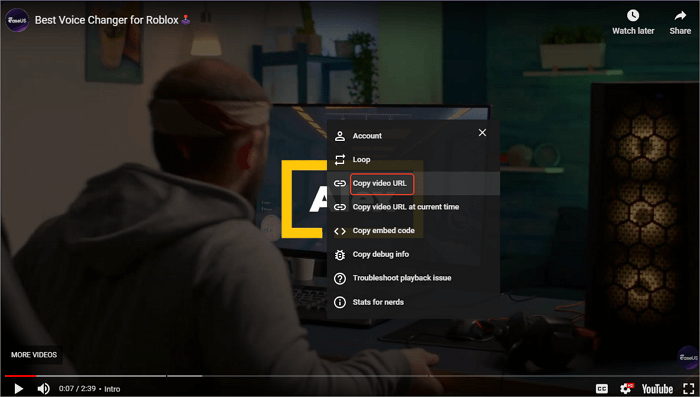
You now have the URL needed to download the video.
📜Now, follow the steps below to see how you can download an embedded video with EaseUS:
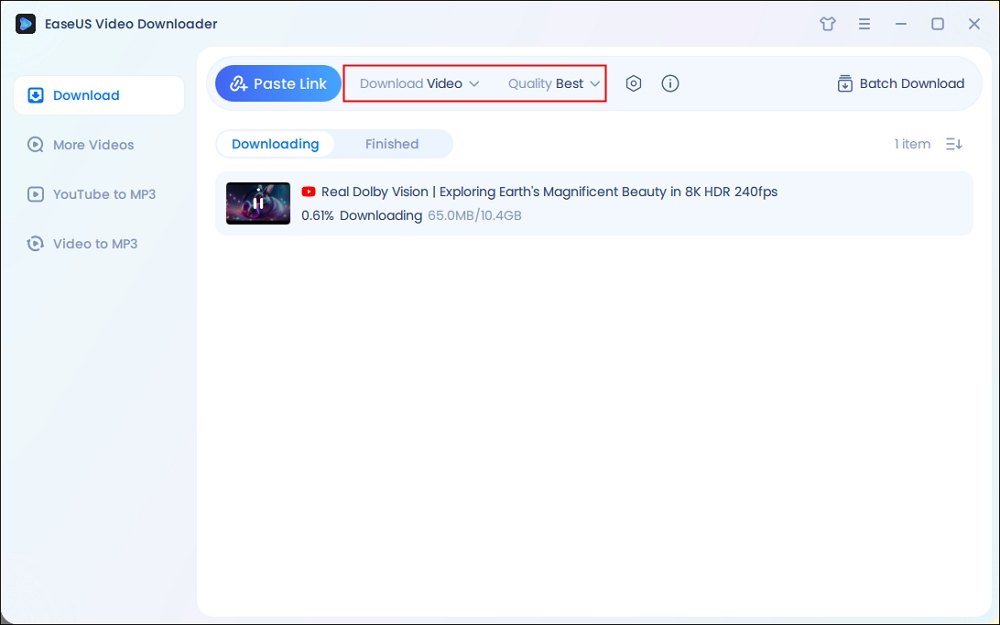
Step 1. Launch EaseUS Video Downloader on your PC. Define your video's format and resolution.
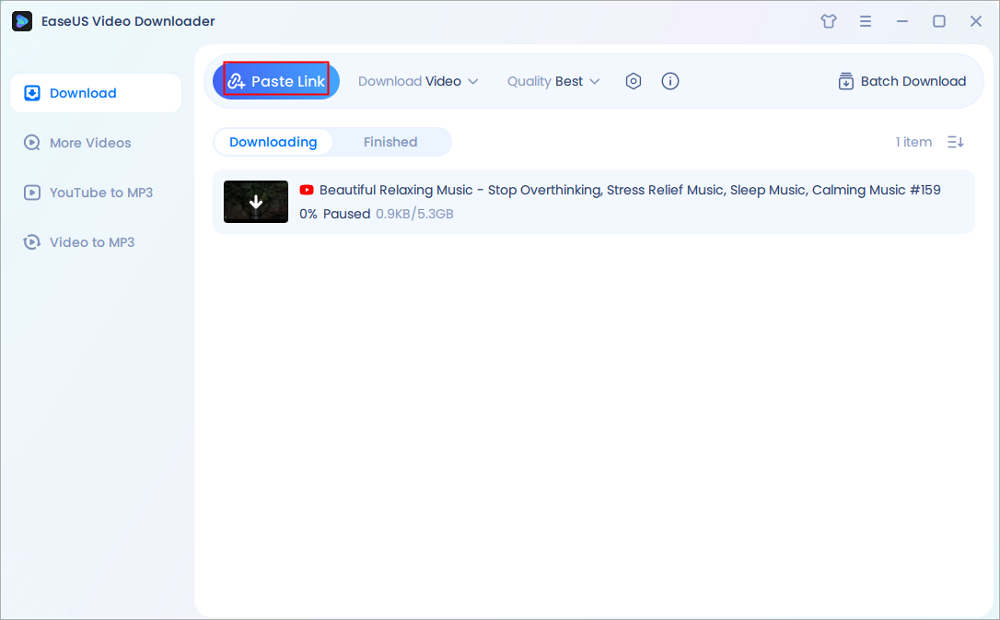
Step 2. Copy the embeded video URL click "Paste LIink" to proceed.
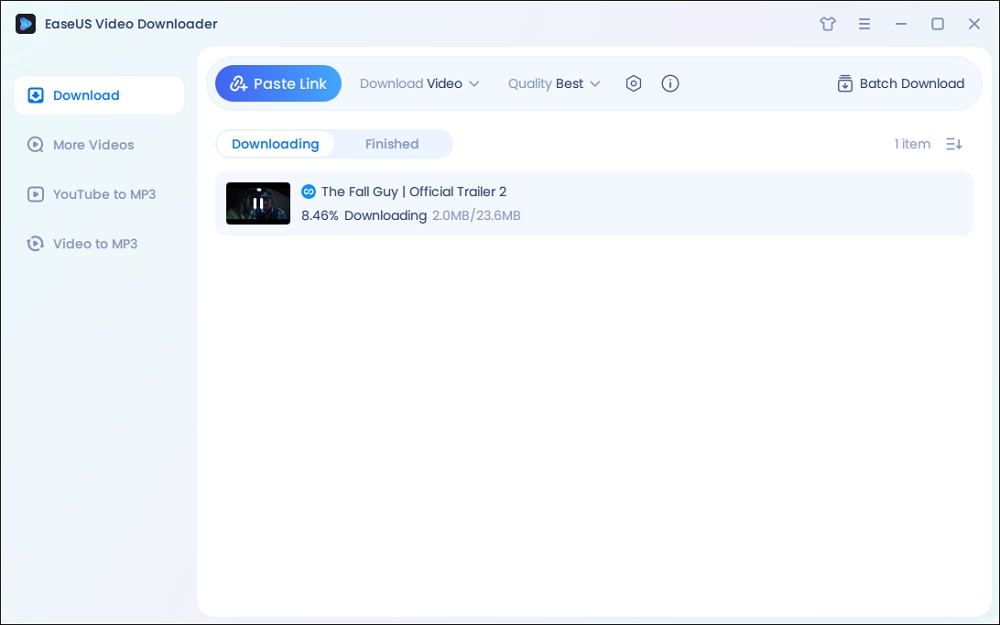
Step 3. After the downloading is completed, you can check the embedded video in the "Finish" tab.
Disclaimer: The information provided in this guide is for personal use. EaseUS is in no way collaborated or affiliated with the any site and will never approve any copyright infringement action. The use of the downloaded files is solely at your own risk.
See also:
We've tested some online embedded video downloaders that let you paste a page URL and save videos easily across devices. They're simple to use, but you might need different sites for different platforms, and many are full of ads or redirects. If you already have a favorite, use it; otherwise, we've listed a few options to help you get started.
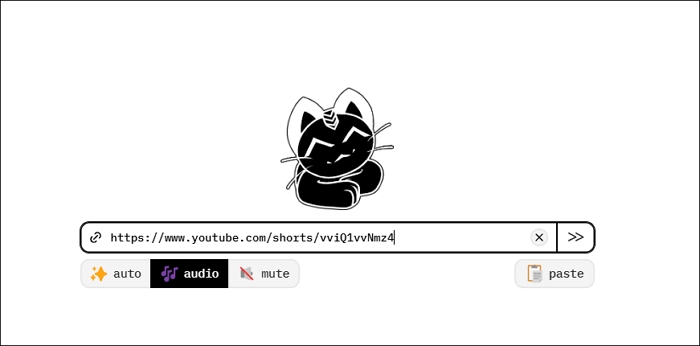
Step 1. Find the embedded video you want to download. Copy the URL of the page or the video.
Step 2. Open Cobalt.tools in your browser. Then, paste the links to the online downloader. Adjust the video quality in the settings.
Step 3. Click the forward button, and the site will parse the page's URL and download it to your PC quickly.
Downloading embedded videos in Chrome is much easier with a good browser extension like Video DownloadHelper, which can detect and capture videos from most webpages. It supports over 1000 sites, though it doesn't work with YouTube, paid courses, or DRM-protected content.
Beyond basic downloading, it also lets you convert videos to various formats, extract audio or podcasts, and even save live streams for offline viewing.
Follow these steps to download an embedded video:
Step 1. Search and add Video DownloadHelper to your Chrome.
Step 2. Find the video you need to download and play it. Click the Video DownloadHelper from Chrome's extension bar.
Step 3. Download the CoApp as required, and you are good to go.
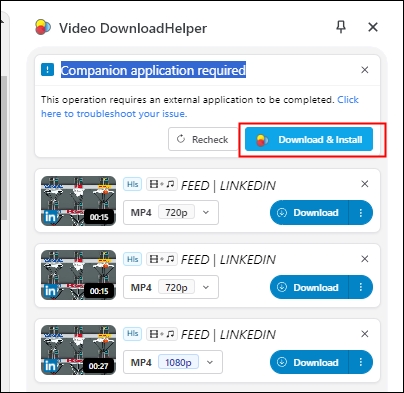
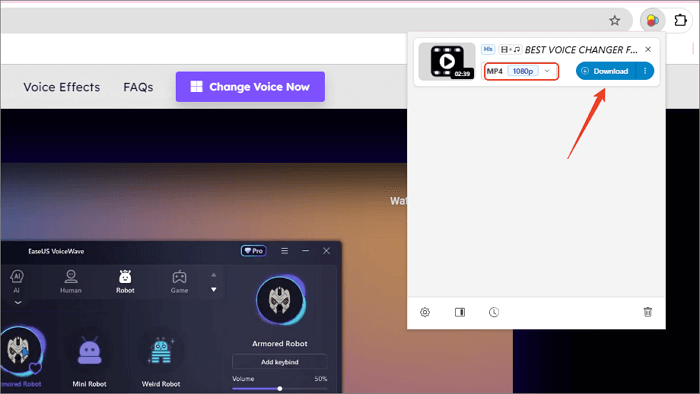
Then, you can see the video captured, choose the format and quality you like, and click the "Download" button.
Apart from uploading a video to a video-sharing site like YouTube and adding the embed code directly in the article to embed a video, admins can also self-host a video and embed it into the website. In this case, most third-party video downloaders are incapable of saving embedded videos.
You can take advantage of the browser developer tools to rip the embedded video from the site. Basically, it works with any website without DRM protection. However, there's no video quality available.
Let's see how to do this.
Step 1. Open the page with the embedded video you want to save in the Chrome browser.
Step 2. Click the three-dot icon > "More tools" > "Developer tools" to open the code page. You can also press "F12" to open it fast.
Step 3. Stay on the "Element" tab and inspect a selected element on the page.
Click the arrow icon (it will turn blue), move your mouse to the embedded video on the page, and click. Then, go through the code in the developer tools to look for the video URL. The URL usually ends with .MP4.
Or move to the "Network" tab and find the video under "Media."
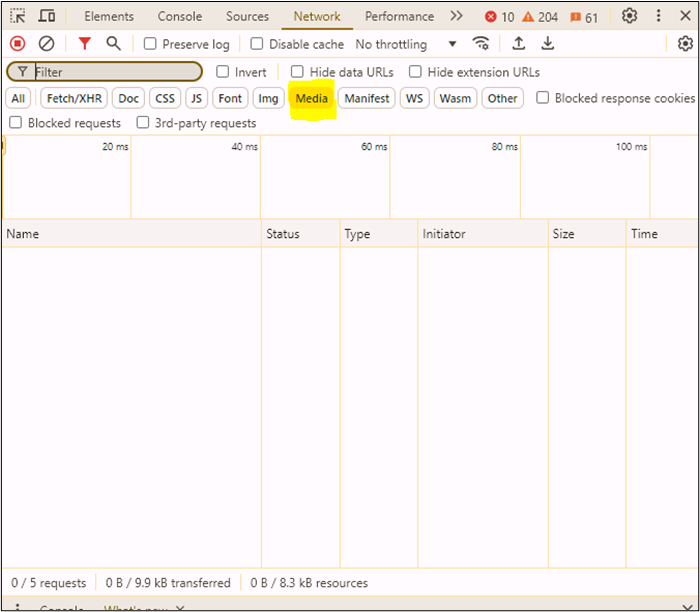
Step 4. Click to open the URL. If you can't, copy and paste it into a new tab to load the video. Put your mouse within the video page and right-click to select "Save video as..." to save the video to your PC.
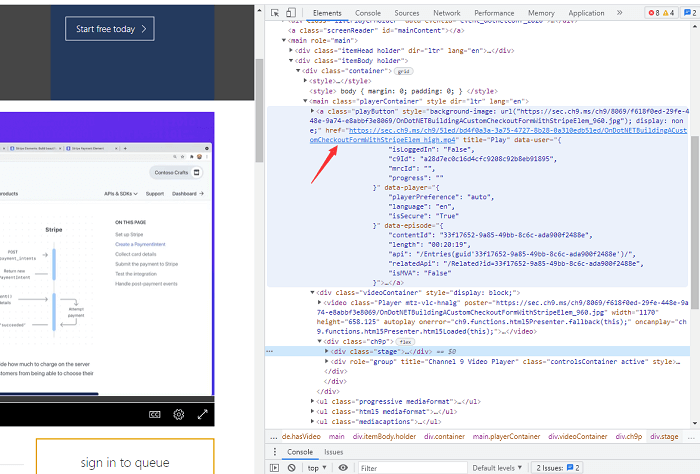
That is all about how to download an embedded video from any website with browser developer tools.
Then, what if you are using Firefox instead of Chrome? How to download videos using Inspect Element Firefox?
Step 1. Right-click on the page and choose "Inspect." Or press F12.
Step 2. Go to "Network" > "Media" and find the video file.
Step 3. Right-click it and open it in a new tab. Save the video.
VLC Media Player is a free, open-source multimedia player and streaming server. It supports a wide range of audio and video formats, including MPEG-1, MPEG-2, and DivX, and can handle various streaming protocols.
VLC is compatible with multiple operating systems, such as Windows, macOS, Linux, Android, and iOS, making it a versatile choice for users across different platforms. Additionally, VLC offers hardware decoding on most platforms, ensuring efficient playback of high-definition content.
However, its primary function is media playback, so downloading videos can be complex and may not work consistently across all sites, especially those with DRM protection or dynamic content.
Step 1. Right-click the video and select "Copy video URL" or copy it from the browser's address bar.
Step 2. Launch VLC Media Player on your computer.
Step 3. Go to "Media" > "Open Network Stream" (Windows) or File > "Open Network" (Mac).
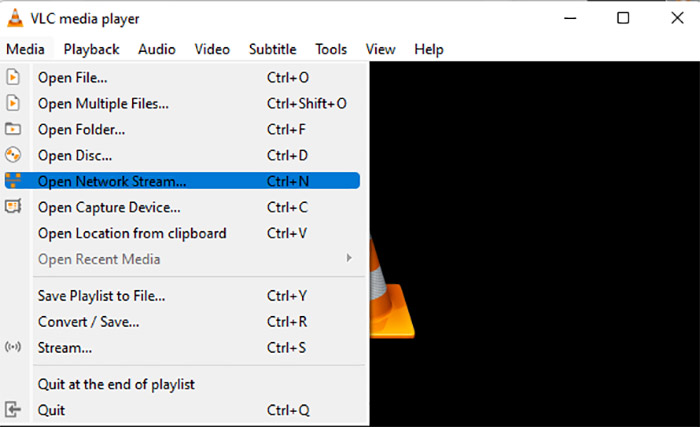
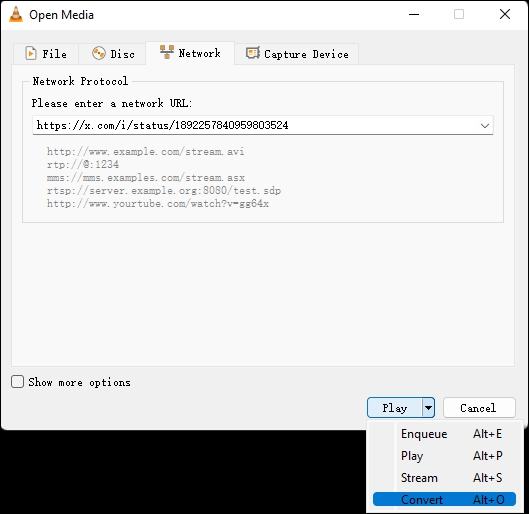
Step 4. Enter the copied video URL into the field.
Step 5. Click the arrow next to "Play" and choose "Convert."
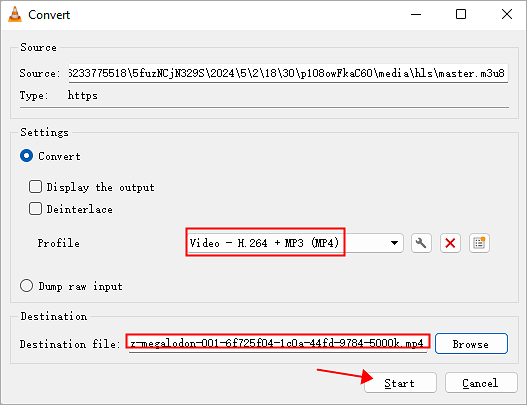
Step 6. Set the file location, select MP4 format, and click "Start" to save the video.
R Download is a Siri Shortcut tailored for iOS devices, enabling users to download embedded media content—such as photos, videos, reels, and stories—from various social media platforms directly to their device's gallery.
Compatible with iOS versions 14 and above, it supports platforms like YouTube, Instagram, Facebook, Twitter, and TikTok, allowing for the download of high-quality media files, including 4K HD videos. The shortcut integrates smoothly with popular web browsers like Safari, Firefox, and Google Chrome.
But sometimes, it fails to connect to the server, causing the download to fail.
Step 1. Open the website and play the embedded video.
Step 2. Tap the share button.
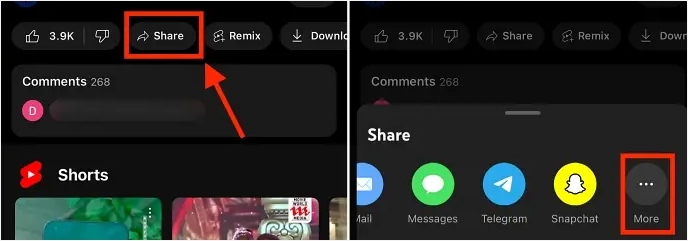
Step 3. Select "More" and choose "R ⤓ Download."
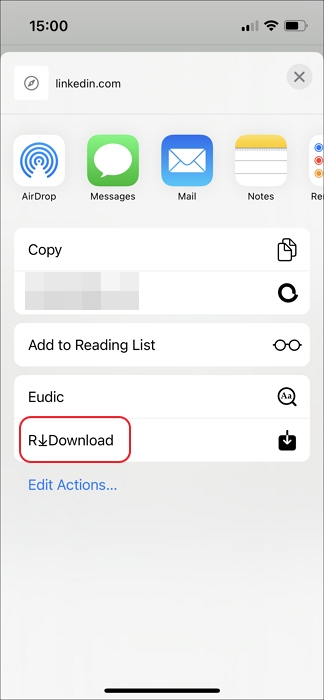
Step 4. Allow permission to connect to the server.
Step 5. Pick your preferred video quality to download.
↪️Don't forget to share this post with your friends:
Downloading embedded videos raises important ethical and privacy considerations. While it can be convenient to save content for offline use, it's essential to respect the rights of content creators and platforms. Many videos are shared under specific terms of use, and downloading them without permission may violate those terms.
In particular, DRM-protected videos (Digital Rights Management) are secured to prevent unauthorized copying or distribution. Attempting to download such content not only breaches ethical boundaries but may also violate copyright laws. Always ensure the video is not restricted by DRM and, whenever possible, obtain permission to use official download options provided by the platform.
In conclusion, downloading embedded videos may require different approaches depending on the source, but with the right tools, it becomes much easier. Whether you're using browser developer tools, extensions like Video DownloadHelper, or specialized apps like EaseUS Video Downloader, each method offers unique advantages based on your needs.
For an all-in-one, reliable solution, EaseUS Video Downloader stands out, supporting over 1,000 sites and providing high-quality downloads across various platforms. With features like batch downloading and support for resolutions up to 8K, it's a great choice for those looking for a seamless video downloading experience.
Download Any Video in High Quality, Anytime
Download publicly available videos from YouTube, Facebook, Twitter, Instagram and more for personal use.

Copyright Disclaimer
This article is for educational and technical reference only. Do not use the described methods to download or share copyrighted content without permission.
Users are fully responsible for any legal consequences. Please:

Respect content creators' rights

Use official or authorized platforms

Avoid unauthorized downloads

Use official or authorized platforms
Columnist
Dawn Tang is a seasoned professional with a year-long record of crafting informative Backup & Recovery articles. Currently, she's channeling her expertise into the world of video editing software, embodying adaptability and a passion for mastering new digital domains.
Read Full Bio More Related Articles
4 Still Working Video Downloader Extension for YouTube
Let's see how many extensions still work for downloading YouTube videos on Chrome and Firefox. Get the final YouTube video downloader from this article!
Dawn Tang. Jun 25, 2026
3 min read
Download YouTube Video Without Losing Quality [720P/1080p/4K]
If you want to keep the resolution intact while saving a video from YouTube, you have landed in the perfect place. In this write-up, you will walk through the three best & most efficient methods on how to download YouTube videos without losing quality.
Dawn Tang. Jun 25, 2026
3 min read
How to Download File from URL Online Free 2026🆕
Do you want to download a file that has a URL available? Do you want to download a video from a website? Then follow this guide and these easy steps to download the file from its URL online.
Dawn Tang. Jun 25, 2026
3 min read
How to Delete Liked Videos on YouTube | 2026 Updated
Tired of old liked videos on YouTube? Learn how to delete them quickly and easily with this quick step-by-step guide.
Dawn Tang. Jun 25, 2026
3 min read