-
![]()
Can Loom Translate Videos with AI?
Can Loom translate videos to other languages? This guide explains its transcription and captioning features, creator limitations, and end-to-end workflows for localizing your videos for international audiences.
Jean. Feb 13, 2026
3 min read
-
![]()
Master Seedance 2.0: Tips & Tricks to Make Stunning AI Videos
Learn how to master Seedance 2.0 and create high-quality AI videos! This step-by-step tutorial covers multimodal references, prompt strategies, and practical tips to help you produce cinematic videos for social media, marketing, or storytelling projects
Jean. Feb 13, 2026
3 min read
Page Table of Contents


Jean
Feb 13, 2026 0 mins read
0READS
Face swap is one of the most popular AI editing trends on iPhone, used for everything from funny memes to swapping faces with friends, celebrities, or movie characters. Many users search for an easy way to do a face swap on iPhone, but iOS doesn't include a built-in one-tap feature. The Photos app can edit images, but real AI face swapping usually requires a dedicated app.
Depending on what you want, you can swap faces in photos for memes or social posts, create realistic face swap videos, and use basic built-in tools for simple edits.
This guide covers the easiest ways to swap faces on iPhone, including both photo and video methods.
The Easiest Way to Swap Faces on iPhone (Quick Start)
The quickest way to swap faces on an iPhone is to use an AI face-swapping tool (apps and online websites are both okay). These apps automatically detect faces, align features, and blend skin tones, so you don’t need any manual editing or design skills.
Here's the basic process most AI face swap apps follow for iOS:
Step 1. Open a face swap app on your iPhone.
Step 2. Upload the photo or video you want to edit.
Step 3. Choose the face you want to replace.
Step 4. Add the new face from your camera roll.
Step 5. Let the AI process the swap and export the result.

This method works well for common scenarios like:
- Swapping faces with friends for social media
- Creating celebrity face swap edits
- Making funny memes or reaction images
- Producing realistic AI face swap videos
If you only need a quick photo swap, a free app may be enough. But for more realistic results, especially in videos, you'll usually need a more advanced AI face swap tool.
How to Swap Faces in Photos on iPhone (Step‑by‑Step)
If you want to swap faces in photos on your iPhone, there are several simple methods you can use. Some focus on quick, fun edits for social media, while others use AI to create more realistic results.
Below are three common ways to do a photo face swap on an iPhone.
Method 1: Use an AI Face Swap App (Fastest Method)
AI face swap apps are the easiest option because they automatically detect faces, align features, and blend skin tones for a natural result.
Here is a detailed instruction:
Step 1. Download a face swap app from the App Store.
Step 2. Open the app and select the Photo Face Swap option. (Some tools let you swap a single face, swap multiple faces, or do a batch swap)
Step 3. Upload the photo you want to edit.
Step 4. Add the face you want to swap in.
Step 5. Tap Swap and wait for the AI to process.
Step 6. Save the final image to your iPhone.

- Tip
- When uploading source photos, please note that the face-swapping platform may have specific requirements for photo dimensions and file size. Please upload photos according to the specified guidelines.
Method 2: Use a Social or Photo App (Free Option)
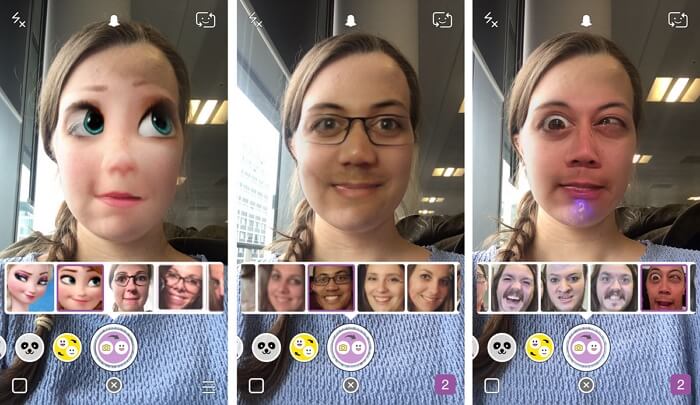
Some social and photo-editing apps like Snapchat include built-in face swapping filters. These are usually designed for fun, quick results rather than realism.
Here is a detailed instruction:
Step 1. Open a face filter app.
Step 2. Select a face swap filter or template.
Step 3. Upload or take a photo.
Step 4. Let the app automatically swap the faces.
Step 5. Save or share the result.
Method 3: Use the iPhone Clean Up Tool (Built-in Free Method)
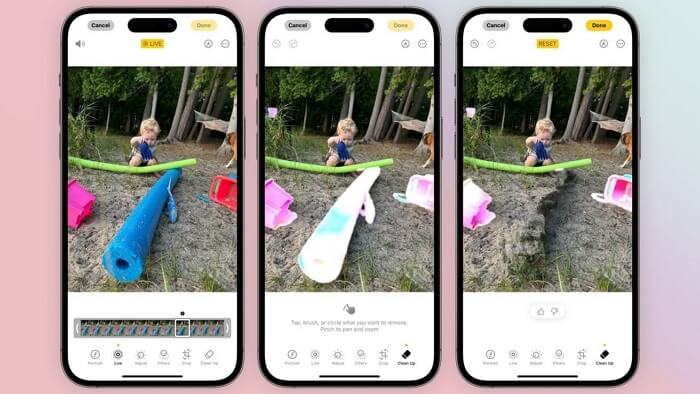
Newer iPhones with Apple Intelligence include the Clean Up tool in the Photos app. While it’s not a real face swap feature, you can use it to remove a face and manually place another one to mimic a swap.
👉Device requirements:
- 1️⃣iPhone 15 Pro or newer
- 2️⃣iOS 18.1 or later
- 3️⃣Apple Intelligence enabled
Here is a detailed instruction:
Step 1. Open the Photos app and choose the image.
Step 2. Tap Edit and select the Clean Up tool.
Step 3. Circle the face you want to remove.
Step 4. Let AI erase the face and fill the background.
Step 5. Copy a face from another photo using Markup.
Step 6. Paste it onto the edited image and adjust the size.
Step 7. Use Clean Up again to blend the edges.
Step 8. Save the final photo.
PROS
✔
A completely free method
✔
Basic face replacement
✔
Don't need to install extra apps
CONS
●
Not true AI face swapping
●
Requires manual adjustments
●
Results may look less realistic than dedicated apps
How to Swap Faces in Videos on iPhone (Realistic Results)
Swapping faces in videos is more complex than in photos. Instead of editing a single image, the software has to track facial movements, expressions, and lighting across every frame. That's why most free face swap apps only support photos or produce unrealistic video results.
To create a smooth and realistic video face swap on iPhone, you'll need a dedicated AI video face swap tool. Compared with photo face swaps, video tools deliver more immersive and realistic results, especially for moving scenes and facial expressions. These tools automatically detect faces, match expressions, and produce consistent results throughout the clip.
For example, tools like EaseUS Video Face Swap are designed specifically for this purpose. They use AI to track facial movements frame by frame and create more natural-looking swaps compared to basic apps.
Here is how to swap faces in a video:
Step 1. Open the EaseUS Video Face Swap tool on your iPhone.
Step 2. Upload your video: you can either select a file from your device or paste a video URL directly.
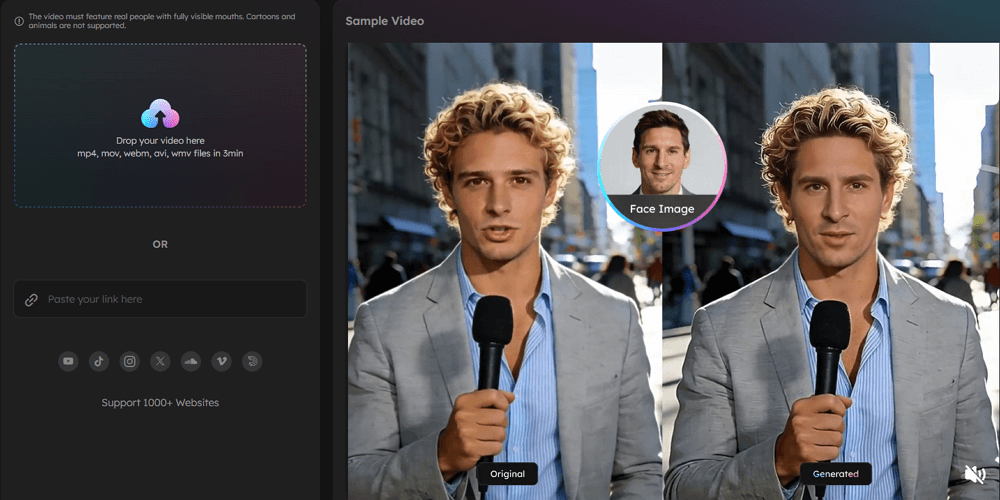
Step 3. Wait for the video to finish uploading. Once it's ready, upload the target face image you want to insert.
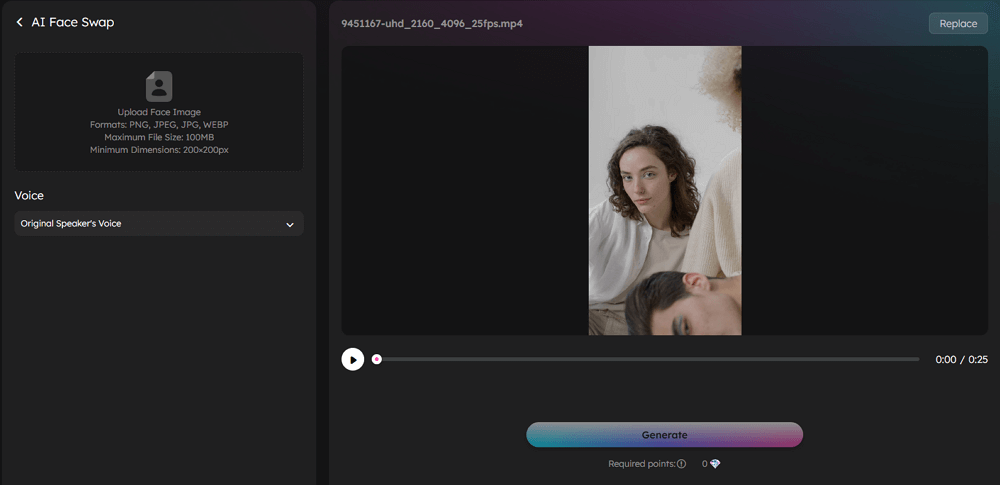
Step 4. Ensure the face image has fully loaded, then click Generate to start the AI face swap process.
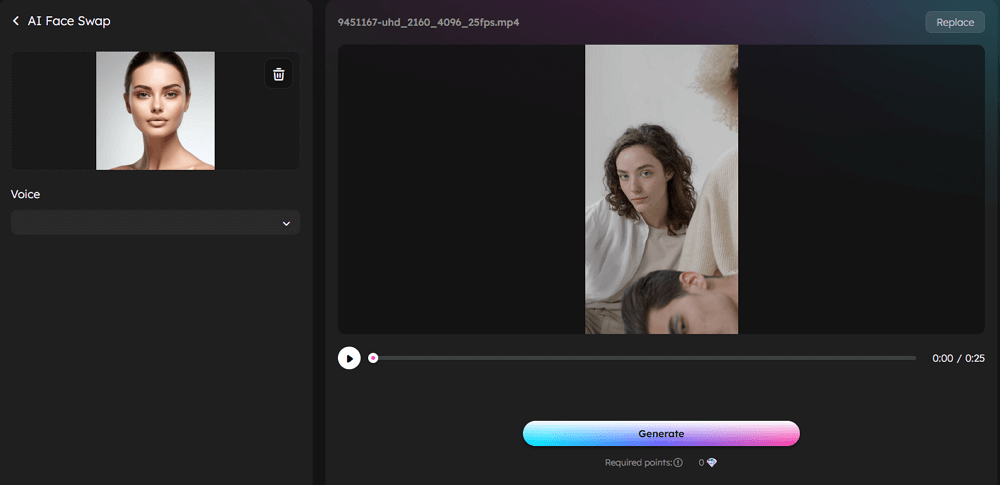
Step 5. Preview the result, and once satisfied, save the final video to your device for sharing or further editing.
- Best use cases for video face swap
-
1. Replacing a face in short social videos
2. Creating movie-style edits
3. Making realistic AI transformation clips
4. Content creation for TikTok, Reels, or YouTube Shorts
Best Face Swap Apps for iPhone in 2026
If you're looking for reliable and easy‑to‑use face swap apps on iPhone, there are a few standout options in 2026. These tools vary in quality, features, and pricing, but they can all help you create fun or realistic face swaps in photos and videos.
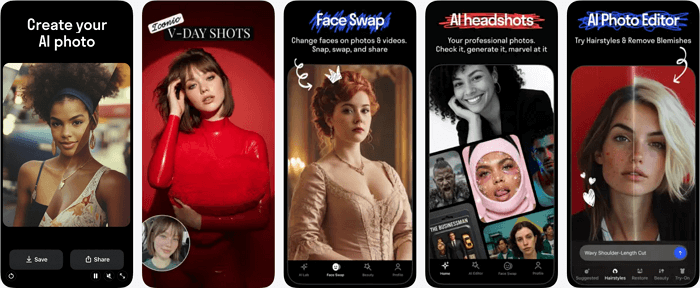
1. Reface – AI Face Swap Generator
Reface is one of the most well‑known face-swap apps, letting you swap faces in photos, GIFs, and short clips using AI‑powered effects. Users often share creations on social media.
✅Pros:
- Fun and easy to use for memes and social sharing
- Supports both still images and short animated swaps
- Large user base and lots of creative templates
❌Cons:
- Some users report changing functionality after updates, with certain swap filters losing quality or being removed.
- Pricing can be confusing, with reports of unexpected charges or difficult cancellation.
- Video swap realism is sometimes described as not very convincing.
💡User Notes:
A few reviews call the app entertaining but note that results may look unrealistic, and subscription management can be frustrating.
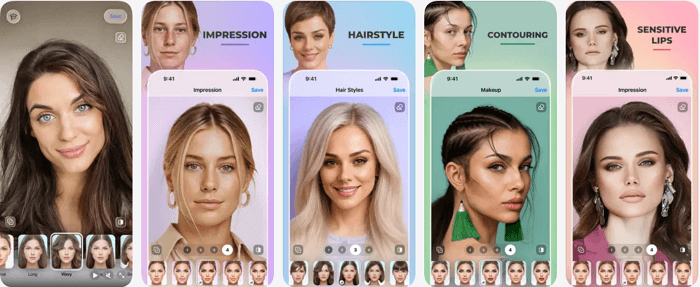
2. FaceApp – Photo Editing with Limited Face Swap Features
FaceApp remains one of the most popular photo-editing apps, offering a wide range of AI filters. It focuses more on portraits than face swapping, specifically.
✅Pros:
- Highly rated (4.7★ with millions of reviews) for overall photo edits.
- Many AI filters beyond face swap (beauty, age, style).
- Great for selfies and portrait tweaks.
❌Cons:
- The face swap feature has been reduced or removed in recent versions, especially on iPhone, which disappoints long‑time users.
- No longer supports realistic video face swap natively.
💡User Notes:
Many users report that face swap once worked well in older versions, but updates have changed or removed that capability on iOS.
3. DeepSwap - Template‑Driven AI Face Swapper
DeepSwap is an advanced AI‑powered face-swap tool that supports video, photo, and GIF swapping using deep learning. It’s designed to help users create realistic AI-generated face-swap content, from swapping faces in trending video clips to making meme‑style edits or putting yourself into movie scenes.
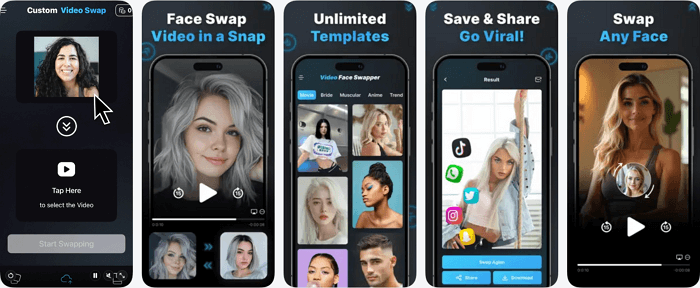
✅Pros:
- Realistic AI face swap results
- Supports video, photos & GIFs
- Handles multiple face swaps
- Creative social content use cases
❌Cons:
- The credit system is restrictive if you need many edits
- Mixed user reviews on reliability and value
- Possible content filtering and usage friction
- Privacy and cancellation concerns (reported by some users)
💡User Notes:
Apps like these appeal to users who want quick, fun swaps without advanced editing skills, though subscription costs can add up.
4. PicsArt – AI Face Swap Tools
PicsArt is a full‑featured photo and video editor that now includes AI‑based face swap and creative effects.
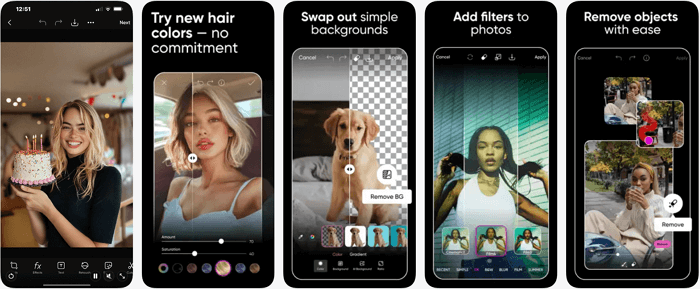
✅Pros:
- Combines face swap with plenty of other creative tools.
- Good for artistic edits and social content creation.
- Offers some free options with a premium upgrade available.
❌Cons:
- Face swap results can be less specialized than those from dedicated face swap apps.
- Full capabilities often require a subscription.
💡User Notes:
PicsArt is ideal if you want creative editing and face-swapping in the same app, but it’s not strictly designed as a face-swapping tool.
👉Tips for Choosing the Right App
- Realistic video swaps: Look for apps that explicitly support AI video face swaps—many basic apps only handle photos.
- Fun & social memes: Some users prefer template‑driven apps to create quick celebrity swaps.
- Avoid hidden costs: Read subscription terms carefully; some apps advertise as free but require payment for the best features.
Tips for Better Face Swap Results on iPhone
Creating realistic and fun face swaps on your iPhone isn’t just about picking the right app — small tweaks can make a big difference. Here are some practical tips to help you get the best results:
1. Choose clear, well-Lit photos or videos
2. Match facial expressions and angles
3. Use high-resolution media
4. Trim or crop before swapping
5. Blend and adjust manually when needed
6. Use AI-powered apps forvideo swaps
7. Mind app limitations
By following these tips, you'll get more natural, shareable face swaps for photos and videos on your iPhone. Small adjustments in lighting, angles, and app settings can significantly improve the final results, whether you’re making memes, celebrity swaps, or creative social content.
How to Swap Faces on iPhone: FAQs
1. Does iPhone have a built-in face swap feature?
No. iOS does not include a one-tap face swap tool. You can use the Photos app’s Clean Up tool to manually remove and blend faces, but for realistic swaps, dedicated apps or AI tools are required.
2. Can I swap faces for free?
- Photos: Free apps like Snapchat or some photo editors allow basic swaps. The iPhone Clean Up tool can mimic swaps but requires manual effort.
- Videos: Realistic video swaps usually require a paid AI tool, like EaseUS Video Face Swap or DeepSwap AI, because frame-by-frame tracking is needed.
3. Which is better: swapping faces in photos or videos?
- Photos: Easier and faster; good for memes or social media posts.
- Videos: Harder but more engaging; ideal for realistic content or creative video edits. Paid AI tools give the best results.
4. Do AI face swap apps require iPhone 15 or newer?
No, most AI apps work on older devices, but newer iPhones with higher processing power can produce faster and smoother results, especially for video swaps.
5. How can I make swaps look more natural?
- Use high-resolution media and well-lit images/videos.
- Match facial expressions and angles.
- Use apps that allow manual adjustments for blending, size, and opacity.
6. Are there privacy riss?
- Avoid uploading sensitive photos to unknown apps.
- Choose apps with clear privacy policies.
- Delete or anonymize content after use if needed.
7. What apps do professionals or content creators recommend?
- EaseUS Video Face Swap: realistic video swaps, ideal for content creation.
- DeepSwap AI: flexible video and photo swaps with templates.
- Reface & FaceApp: best for quick edits and memes.